
 TigerVNC ViewerLinux
vs
AnyDeskWindows
TigerVNC ViewerLinux
vs
AnyDeskWindows
TigerVNC Viewer als Linux-Alternative zu AnyDesk
Aktualisiert am
Unser Fazit
TigerVNC Viewer is a solid, open-source alternative to AnyDesk for users who prioritize privacy and control over convenience. It handles the core tasks of remote control, screen sharing, and file transfer via clipboard or separate tools. However, it lacks AnyDesk's built-in NAT traversal, meaning you must configure port forwarding or use a VPN to connect across networks. If you are comfortable managing network settings and prefer GPL software, this is a capable choice. For casual users who need instant, zero-config connections without technical setup, AnyDesk remains easier to use.
- Lizenz
- GPL-2.0-or-later
- Preis
- Kostenlos
- Aktuelle Version
- 1.14.0 (24. Juli 2024)
- Bewertung
- —
Was gleich funktioniert
- Provides full remote desktop control and screen viewing
- Supports secure connections using TLS encryption
- Enables clipboard sharing between local and remote systems
- Cross-platform client available for Linux, Windows, and macOS
Was anders ist
- Requires manual network configuration like port forwarding or VPNs, lacking AnyDesk's automatic NAT traversal
- Does not include built-in file transfer modules; relies on clipboard or separate SFTP/SCP tools
- Open-source GPL license versus AnyDesk's proprietary model
- Connection setup is more technical, requiring knowledge of IP addresses and ports
Ihre AnyDesk-Dateien öffnen
TigerVNC Viewer does not use AnyDesk-specific file formats for configuration or sessions. It connects to standard VNC servers, so there is no direct file conversion needed. AnyDesk session logs or settings files are not compatible and cannot be imported. You will need to manually re-enter connection details such as IP addresses, ports, and passwords into the TigerVNC client configuration.
Von AnyDesk zu TigerVNC Viewer wechseln – Schritt für Schritt
- Install a VNC server on the remote Linux machine, such as TigerVNC Server or x11vnc
- Configure your router to forward the VNC port (default 5900) to the remote machine's local IP
- Set up a firewall rule on the remote machine to allow incoming connections on the VNC port
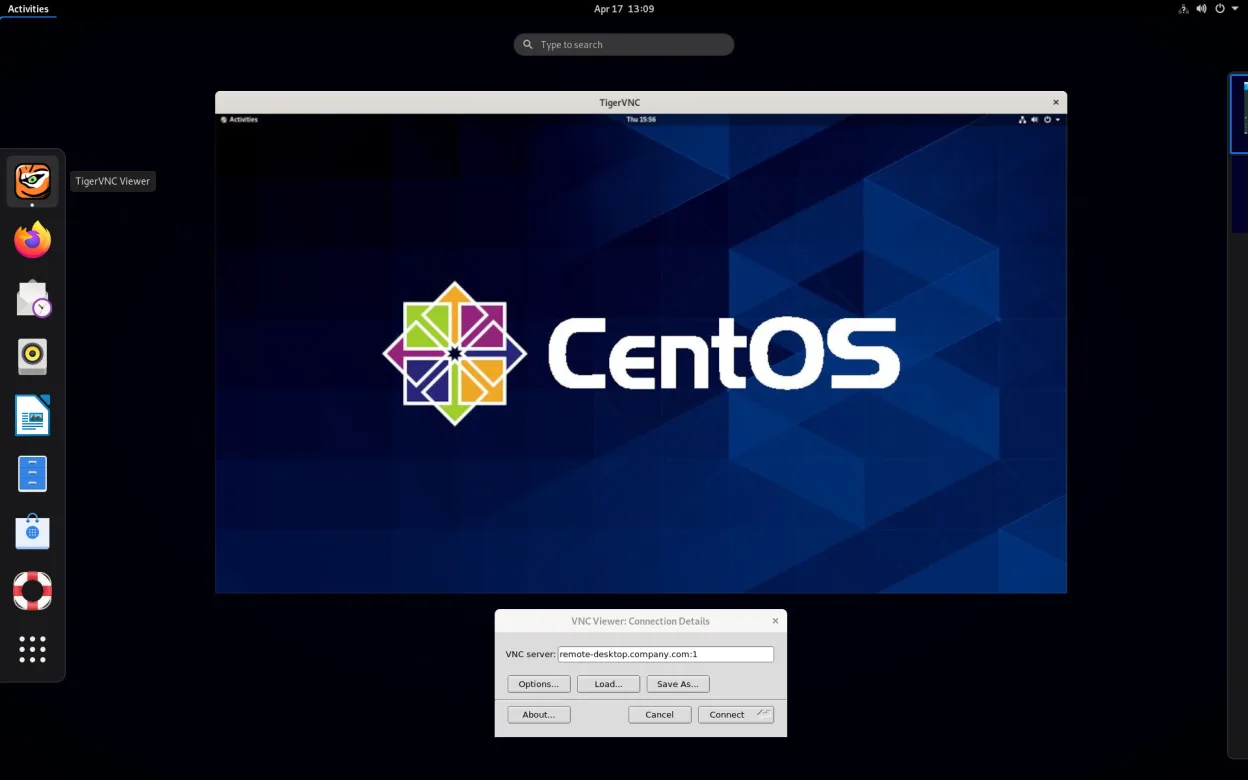
- Launch TigerVNC Viewer on your local machine and enter the remote machine's public IP and port
- Authenticate with the VNC password configured on the server side
- Test the connection to ensure low-latency performance and verify clipboard sharing works
Wichtige Funktionen von TigerVNC Viewer
- Unterstützt Tight‑Kodierung, beschleunigt durch libjpeg‑turbo
- TLS‑Verschlüsselung für sichere Sitzungen
- Zwischenablage‑Freigabe zwischen lokal und remote
- Mehrmonitor‑Unterstützung
- Konfigurierbare Skalierung und Farbtiefe
- Tastaturlayout‑Übersetzung
- Cross‑platform‑Client (Linux, Windows, macOS)
- Befehlszeilenoptionen für Skripting
TigerVNC Viewer unter Linux installieren
flatpak install flathub org.tigervnc.vncviewersudo apt install tigervncsudo apt install tigervncsudo dnf install tigervncsudo pacman -S tigervncsudo zypper install tigervncHäufige Fragen
Can TigerVNC connect through a firewall without port forwarding?
No, TigerVNC Viewer requires a direct connection to the VNC server. You must open the port on your router or use a VPN to traverse firewalls, unlike AnyDesk which handles NAT traversal automatically.
Is TigerVNC as fast as AnyDesk?
TigerVNC is highly optimized with Tight encoding and libjpeg-turbo, offering good performance on stable networks. However, it may feel less responsive than AnyDesk on high-latency or unstable connections due to the lack of adaptive compression and NAT traversal.
Does TigerVNC support file transfer?
It does not have a built-in file transfer feature like AnyDesk. You can copy and paste files via the clipboard for small items, but for large files, you should use a separate tool like SFTP or SCP alongside the VNC session.
3 weitere Alternativen zu AnyDesk
 RemminaRemmina ist ein Linux-Remote-Desktop-Client, der RDP, VNC, SSH und X2Go unterstützt, um von GTK-basierten…Open SourceKostenlosFlatpakRemmina vs. AnyDesk
 RustDeskRustDesk ist ein Open-Source-Tool für Fernzugriff, das es Ihnen ermöglicht, Computer sicher über das Internet…Open SourceKostenlosFlatpakRustDesk vs. AnyDesk
 NoMachine PlayerNoMachine Player ist ein proprietärer Remote-Desktop-Client, der Verbindungen zu Linux-, Windows- oder…FlatpakNoMachine Player vs. AnyDesk