
 WhatsieLinux
vs
WhatsApp DesktopWindows
WhatsieLinux
vs
WhatsApp DesktopWindows
Whatsie como alternativa Linux a WhatsApp Desktop
Actualizado el
Nuestra opinión
Whatsie works well as a Linux‑native alternative to the official WhatsApp Desktop client. It mirrors the same WhatsApp Web session, so all chat history, contacts and end‑to‑end encryption are preserved. The app adds desktop‑oriented features like system‑tray integration, theme syncing and a built‑in download manager, which many Linux users find convenient. It is best for users who want a native windowed experience and tighter privacy controls, and who are comfortable keeping their phone connected. Those who need the official client’s occasional UI tweaks or corporate‑level support may prefer the official app.
- Licencia
- MIT
- Precio
- Gratis
- Última versión
- 6.1.1 (21 de septiembre de 2026)
- Valoración
- —
Lo que funciona igual
- Both mirror the mobile WhatsApp account via WhatsApp Web
- End‑to‑end encrypted messaging and file transfer
- Support for text, images, documents and voice/video calls
- Desktop notifications with contact avatars
Lo que cambia
- Whatsie is a native Qt client; WhatsApp Desktop is an Electron‑based wrapper
- Whatsie adds app‑lock, privacy blur and per‑site permission controls not found in the official client
- Official client may receive feature updates directly from WhatsApp sooner
- Whatsie requires a Wayland portal for calls, which may not work on older X11 setups
Abrir tus archivos de WhatsApp Desktop
Whatsie stores downloaded media in the user’s home directory like the official client, but it does not provide an export function for chat histories. Exporting chats must still be done from the mobile app or the web interface; Whatsie can open files that the official client downloads, but there is no special import/export feature.
Pasar de WhatsApp Desktop a Whatsie, paso a paso
- Install Whatsie from Flathub or your distro’s repository.
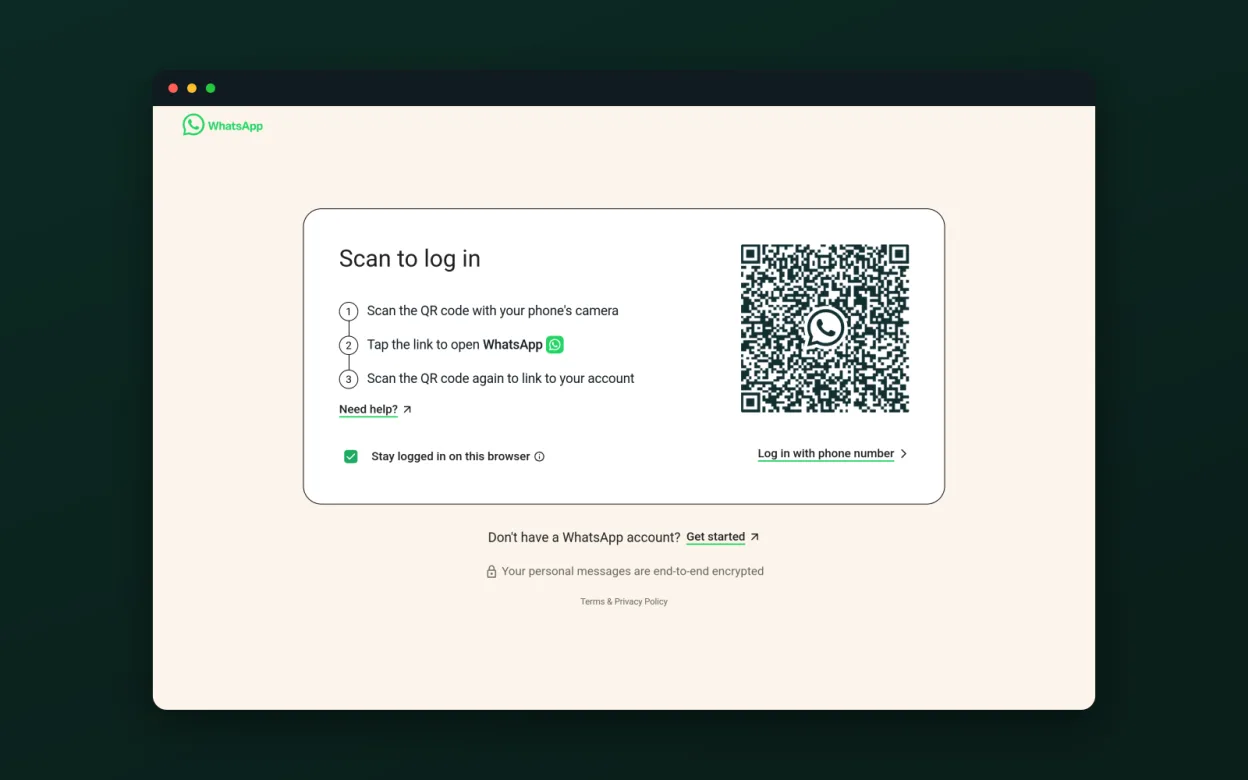
- Launch Whatsie and scan the QR code with the WhatsApp mobile app.
- Configure theme, notifications and proxy settings to match your preferences.
- Optionally enable the app lock and privacy blur for added security.
- Close the official WhatsApp Desktop client to avoid duplicate sessions.
Funciones clave de Whatsie
- Sincronización de tema claro/oscuro/sistema
- Notificaciones de escritorio con avatares
- Icono de bandeja con insignia de no leídos y silencio
- Llamadas de voz, video y compartir pantalla a través del portal de Wayland
- Gestor de descargas integrado con historial
- Corrector ortográfico para el idioma del sistema
- Bloqueo de aplicación con código de acceso y tiempo de inactividad
- Desenfoque de privacidad para mensajes
- Permisos de cámara/micrófono/ubicación por sitio
- Soporte para proxy HTTP/SOCKS5
Cómo instalar Whatsie en Linux
flatpak install flathub com.ktechpit.whatsiesudo zypper install whatsiePreguntas frecuentes
Do I need to keep my phone online while using Whatsie?
Yes, Whatsie relies on WhatsApp Web, so the phone must stay connected to the internet.
Can I run multiple WhatsApp accounts simultaneously?
Whatsie supports multiple profiles; you can create separate instances for different accounts.
Are voice and video calls as reliable as in the official client?
Calls work through the Wayland portal and are generally comparable, but performance may vary on older X11 setups or with limited GPU drivers.
Otras 3 alternativas a WhatsApp Desktop
 TelegramTelegram es un mensajero instantáneo rápido, seguro y basado en la nube, con intercambio de archivos…Código abiertoGratisFlatpakTelegram vs WhatsApp Desktop
 Signal DesktopSignal Desktop es un mensajero privado gratuito y de código abierto para Linux que sincroniza mensajes y…Código abiertoGratisFlatpakSignal Desktop vs WhatsApp Desktop
 ElementUn cliente Matrix seguro y de código abierto para mensajería privada, chats grupales y videollamadas en todos…Código abiertoGratisFlatpakElement vs WhatsApp Desktop