
 ZimLinux
vs
Microsoft OneNote for Windows 10Windows
ZimLinux
vs
Microsoft OneNote for Windows 10Windows
Zim como alternativa Linux a Microsoft OneNote for Windows 10
Actualizado el
Nuestra opinión
Zim is a decent replacement for Microsoft OneNote for users who prioritize structured, text-based notes over rich media and real-time collaboration. It works well for personal knowledge management, journaling, and organizing tasks with plain text files. However, it lacks support for ink, audio/video embedding, and cloud sync with collaboration. If you value simplicity, local storage, and markdown-style editing, Zim fits. But if you rely heavily on multimedia or shared notebooks, it's not a practical substitute.
- Licencia
- GPL-2.0+
- Precio
- Gratis
- Última versión
- 0.77.2 (26 de julio de 2026)
- Valoración
- —
Lo que funciona igual
- Both support free-form note creation with text and images
- Hierarchical organization using sections and pages
- Cross-platform availability (Linux, Windows, macOS)
- Export to PDF and HTML formats
- Support for internal linking between notes
Lo que cambia
- Zim does not support audio or video clips
- No real-time collaboration or shared notebooks
- No ink or drawing input support
- Sync must be manually set up via external tools (e.g., Nextcloud, Git)
- No native mobile apps; limited cross-device experience
Abrir tus archivos de Microsoft OneNote for Windows 10
Zim cannot open Microsoft OneNote files (.one). There is no built-in import functionality for OneNote content, and no known third-party tools reliably convert .one files to Zim's wiki markup format. Users migrating must manually copy text and media from OneNote to Zim. Export from OneNote to HTML or PDF is possible, which can then be referenced or imported as plain text, but formatting and structure may be lost.
Pasar de Microsoft OneNote for Windows 10 a Zim, paso a paso
- Export important OneNote pages to HTML or PDF for reference
- Install Zim on your system using your package manager or Flathub
- Create a new notebook directory and set up your hierarchy
- Manually recreate key pages and links in Zim using wiki markup
- Attach exported images or files as needed
- Use version control or cloud sync to back up and share your Zim notebook folder
Funciones clave de Zim
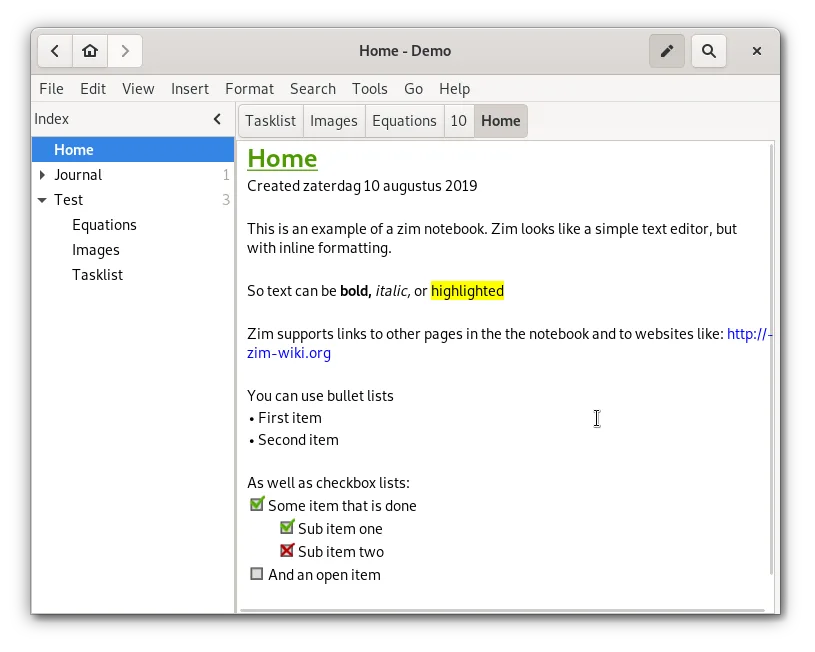
- Árbol jerárquico en la barra lateral para organizar páginas
- Almacenamiento automático en archivos de texto plano con marcado wiki
- Enlaces entre páginas y archivos adjuntos
- Complementos para tareas, ecuaciones, icono en la bandeja y control de versiones
- Atajos de teclado multiplataforma
- Exportación a HTML, PDF y texto plano
Cómo instalar Zim en Linux
flatpak install flathub org.zim_wiki.Zimsudo apt install zimsudo apt install zimsudo dnf install Zimsudo pacman -S zimsudo zypper install zimPreguntas frecuentes
Can Zim sync with OneDrive like OneNote?
No, Zim does not integrate with OneDrive. Sync must be handled externally using tools like rsync, Git, or cloud folders such as Nextcloud or Dropbox.
Does Zim support handwriting or stylus input?
No, Zim has no support for ink, drawing, or stylus input. It is designed for keyboard-driven, text-based note-taking.
Can multiple people edit the same Zim notebook at once?
No, Zim does not support real-time or concurrent collaboration. Sharing notebooks requires manual sync and risks conflicts without version control.
Otras 5 alternativas a Microsoft OneNote for Windows 10
 JoplinJoplin es una aplicación de código abierto y multiplataforma para tomar notas y tareas que almacena los datos…Código abiertoGratisFlatpakJoplin vs Microsoft OneNote for Windows 10
 ObsidianObsidian es una aplicación de base de conocimientos basada en markdown que almacena las notas como archivos…FlatpakObsidian vs Microsoft OneNote for Windows 10
 Standard NotesStandard Notes es una aplicación de notas multiplataforma con cifrado de extremo a extremo que se sincroniza…Código abiertoGratisFlatpakStandard Notes vs Microsoft OneNote for Windows 10
 QOwnNotesQOwnNotes es un editor de Markdown de texto plano con soporte para listas de tareas que puede sincronizarse…Código abiertoGratisFlatpakQOwnNotes vs Microsoft OneNote for Windows 10
 Trilium NotesTrilium Notes es una aplicación de toma de notas jerárquica y autoalojada para construir bases de…Código abiertoGratisFlatpakTrilium Notes vs Microsoft OneNote for Windows 10