
 GNU EmacsLinux
vs
Visual Studio CodeWindows
GNU EmacsLinux
vs
Visual Studio CodeWindows
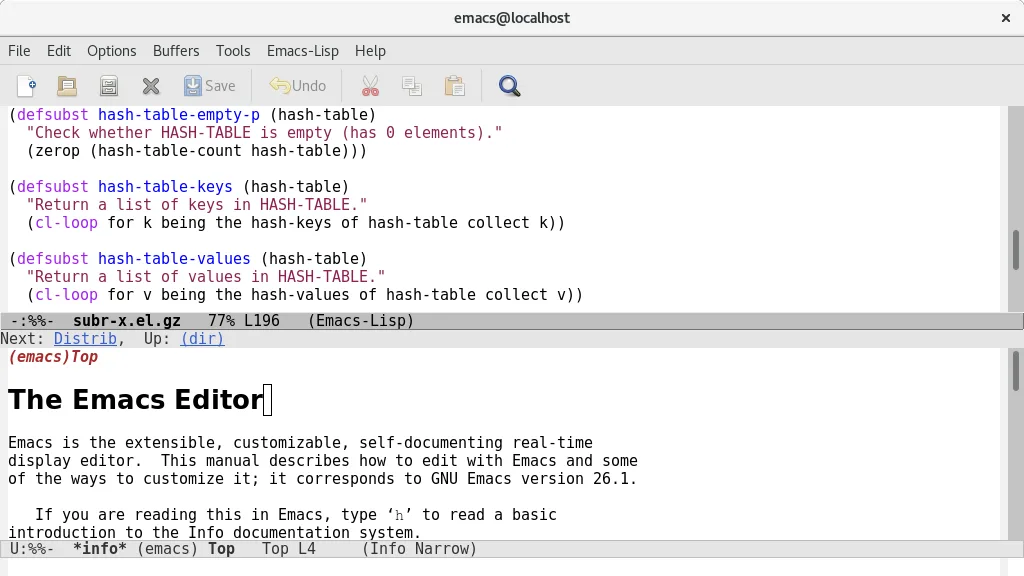
GNU Emacs, alternative Linux à Visual Studio Code
Mis à jour le
Notre avis
GNU Emacs can replace Visual Studio Code for developers who value deep customisation and are comfortable with a keyboard‑centric workflow. It provides syntax highlighting, an integrated terminal, Git support and debugging, but the experience is less visual and requires Emacs Lisp for many extensions. Users who need a modern UI, rich marketplace extensions, or out‑of‑the‑box language servers may find VS Code more convenient. Emacs shines for those who want a single, scriptable environment that can grow into an IDE, mail client, or planner, and who are willing to invest time in configuration.
- Licence
- GPL-3.0+ and GFDL-1.3+
- Prix
- Gratuit
- Dernière version
- 31.1 (24 août 2026)
- Note
- —
Ce qui fonctionne pareil
- Syntax highlighting for many languages
- Integrated terminal access
- Git version‑control integration
- Extensible plugin/extension system
- Basic debugging support
Ce qui change
- VS Code offers a graphical extension marketplace; Emacs relies on Lisp packages that often need manual setup
- VS Code includes built‑in language‑server support for intelligent code completion; Emacs requires additional packages like lsp-mode
- VS Code provides a modern UI with tabs and sidebars; Emacs UI is more minimal and can feel dated
- VS Code ships with ready‑to‑use debuggers for many runtimes; Emacs debugging often needs language‑specific configuration
Ouvrir vos fichiers Visual Studio Code
Both editors work with plain text files, so any source code opened in VS Code can be opened in Emacs without conversion. VS Code stores workspace settings in JSON files; Emacs can read those files as plain text but does not import them automatically. There is no special export format to convert, so compatibility is essentially limited to the underlying source files.
Passer de Visual Studio Code à GNU Emacs, étape par étape
- Install Emacs from your distribution’s package manager or Flathub
- Familiarise yourself with basic Emacs commands (C‑x C‑f to open files, C‑x C‑s to save)
- Install lsp-mode or eglot for language‑server support to get code completion and refactoring
- Add magit for Git integration (M‑x magit-status)
- Configure a terminal emulator inside Emacs with vterm or ansi‑term
- Optionally import VS Code settings by copying keybindings into your init.el or using the ‘vscode‑keymap’ package
Fonctionnalités clés de GNU Emacs
- Interpréteur Emacs Lisp intégré pour une personnalisation complète
- Modes d'édition sensibles au contexte avec coloration syntaxique
- Interface de débogage intégrée et gestion de projet
- Prise en charge Unicode complète pour presque toutes les langues humaines
- Lecteur de courrier et de nouvelles intégré
- Documentation et tutoriel intégrés complets
- Hautement personnalisable via le code ou l'interface graphique
Installer GNU Emacs sous Linux
flatpak install flathub org.gnu.emacssudo apt install emacssudo apt install emacssudo dnf install emacssudo pacman -S emacs-waylandsudo zypper install emacsQuestions fréquentes
Can Emacs provide the same level of IntelliSense as VS Code?
Emacs can approximate IntelliSense using lsp-mode or eglot together with language‑server binaries, but the setup is manual and may lack some of the polish found in VS Code.
Is there a graphical extension marketplace for Emacs?
No. Emacs packages are typically installed from MELPA, GNU ELPA, or directly from source; you use M‑x package-install or a configuration file, not a visual store.
Will my VS Code workspace layout (folders, split panes) transfer to Emacs?
Workspace folders open fine, but layout settings are not portable. You’ll need to recreate window splits using Emacs’ window management commands.
4 autres alternatives à Visual Studio Code
 Sublime TextSublime Text est un éditeur de code source léger et rapide, doté d'une interface minimale et d'une…FlatpakSublime Text ou Visual Studio Code
 GeanyGeany est un IDE léger et rapide qui prend en charge de nombreux langages et plugins dès l'installation.Open sourceGratuitFlatpakGeany ou Visual Studio Code
 KateKate est un éditeur de texte riche en fonctionnalités, axé sur les programmeurs, issu de KDE, prenant en…Open sourceGratuitFlatpakKate ou Visual Studio Code
 VimVim est un éditeur de texte modal hautement configurable pour une édition efficace sous Linux.Open sourceGratuitFlatpakVim ou Visual Studio Code