
 TLP-UILinux
vs
MSI Dragon CenterWindows
TLP-UI, alternative Linux à MSI Dragon Center
Mis à jour le
Notre avis
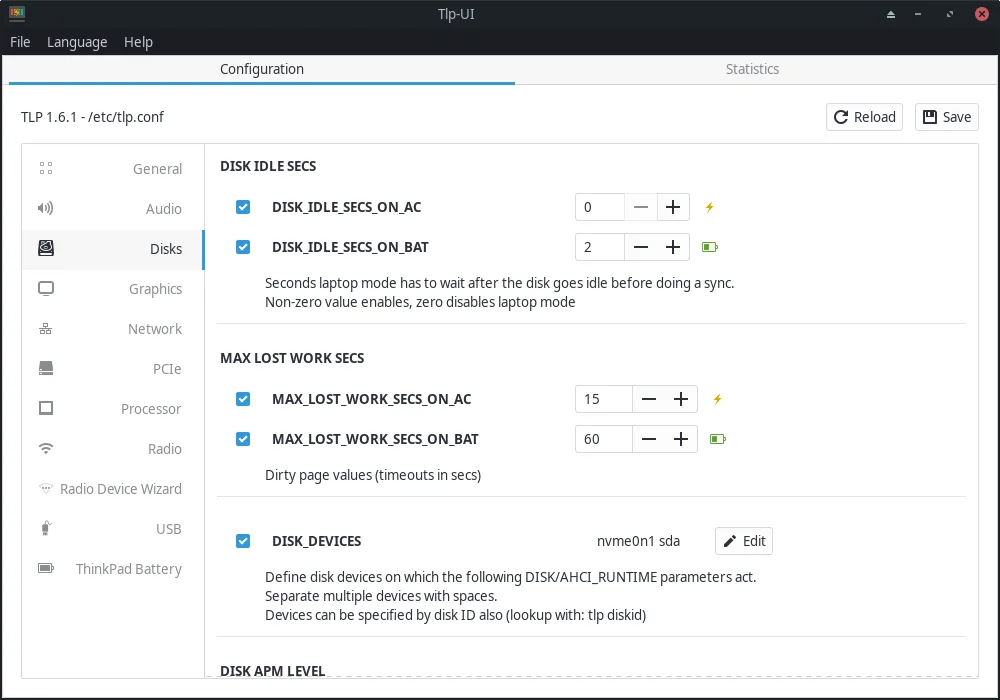
TLP-UI is not a direct replacement for MSI Dragon Center, but it serves users who prioritize power management over hardware control. If your main goal is tuning CPU scaling, power profiles, and battery optimization on Linux, TLP-UI is effective. However, it does not support fan control, RGB lighting, or GPU performance tuning—core features of MSI Dragon Center. It’s best suited for Linux users who’ve given up on hardware-level customization and want reliable, script-backed power profile switching with a GUI. You’ll get consistent power behavior across reboots, but not full hardware access.
- Licence
- GPL-2.0+
- Prix
- Gratuit
- Dernière version
- 1.10.1 (21 avril 2026)
- Note
- —
Ce qui fonctionne pareil
- Allows switching between power profiles like balanced or performance modes
- Provides persistent system settings after reboot
- Offers monitoring of basic system power status
- Gives graphical control over low-level power settings
- Validates configuration inputs to prevent invalid settings
Ce qui change
- TLP-UI does not support fan speed control, manual or automatic
- No RGB keyboard lighting management
- Lacks GPU performance mode switching
- No real-time temperature or usage monitoring dashboard
- Focuses on power saving, not performance tuning or hardware customization
Ouvrir vos fichiers MSI Dragon Center
There is no way to import or open MSI Dragon Center configuration files in TLP-UI. The two programs use entirely different formats and backends. MSI Dragon Center settings are stored in Windows-specific formats and registry entries, which are not accessible or interpretable on Linux. TLP-UI manages its own configuration files in /etc/tlp.conf, which are plain text and manually editable. Migration must be done by recreating desired power behaviors based on TLP’s capabilities, not by transferring settings directly.
Passer de MSI Dragon Center à TLP-UI, étape par étape
- Install TLP and TLP-UI via your distribution’s package manager or Flatpak
- Review current power settings in MSI Dragon Center to identify used profiles
- Map desired behavior (e.g., performance vs. quiet) to TLP-UI profile settings
- Use TLP-UI to configure and switch between power profiles
- Test battery life and performance under each profile
- Enable TLP service to apply settings at boot
Fonctionnalités clés de TLP-UI
- Contrôle graphique des paramètres d'alimentation de TLP
- Aperçu des valeurs de configuration valides
- Affichage basique de l'état d'alimentation du système
- Changement facile entre les profils d'alimentation
- Validation des saisies utilisateur selon les règles de TLP
- Rétroaction directe sur les paramètres TLP actifs
- Prend en charge les options courantes de réglage de l'alimentation des portables
- Aide intégrée pour les champs de configuration
Installer TLP-UI sous Linux
flatpak install flathub com.github.d4nj1.tlpuiQuestions fréquentes
Can TLP-UI control my MSI laptop’s fans like Dragon Center?
No, TLP-UI does not support fan control. That requires tools like thinkfan or custom scripts, if hardware permits.
Does TLP-UI manage RGB lighting on MSI laptops?
No, RGB lighting is not supported. Linux lacks official MSI tools for this, though some third-party efforts exist for specific models.
Can I automate power profiles based on AC/battery status?
Yes, TLP-UI configures TLP to automatically switch profiles when plugging or unplugging power.
4 autres alternatives à MSI Dragon Center
 fancontrolfancontrol est un utilitaire Linux qui ajuste automatiquement la vitesse des ventilateurs en fonction des…Open sourceGratuitFlatpakfancontrol ou MSI Dragon Center