
 Visual Studio CodeLinux
vs
Microsoft PowerShell ISEWindows
Visual Studio Code, alternative Linux à Microsoft PowerShell ISE
Mis à jour le
Notre avis
Visual Studio Code can replace Microsoft PowerShell ISE for most users who need a modern, cross‑platform editor with PowerShell support. It offers syntax highlighting, IntelliSense, an integrated debugger, and a terminal, all via extensions. It is ideal for developers who already use VS Code for other languages or want a single tool for multiple scripting tasks. PowerShell‑centric users who rely on ISE’s simple UI may need to adjust to VS Code’s extension‑based workflow, but the core script editing and debugging features are preserved.
- Licence
- LicenseRef-proprietary=https://code.visu…
- Prix
- Gratuit
- Dernière version
- 1.139.1 (25 septembre 2026)
- Note
- —
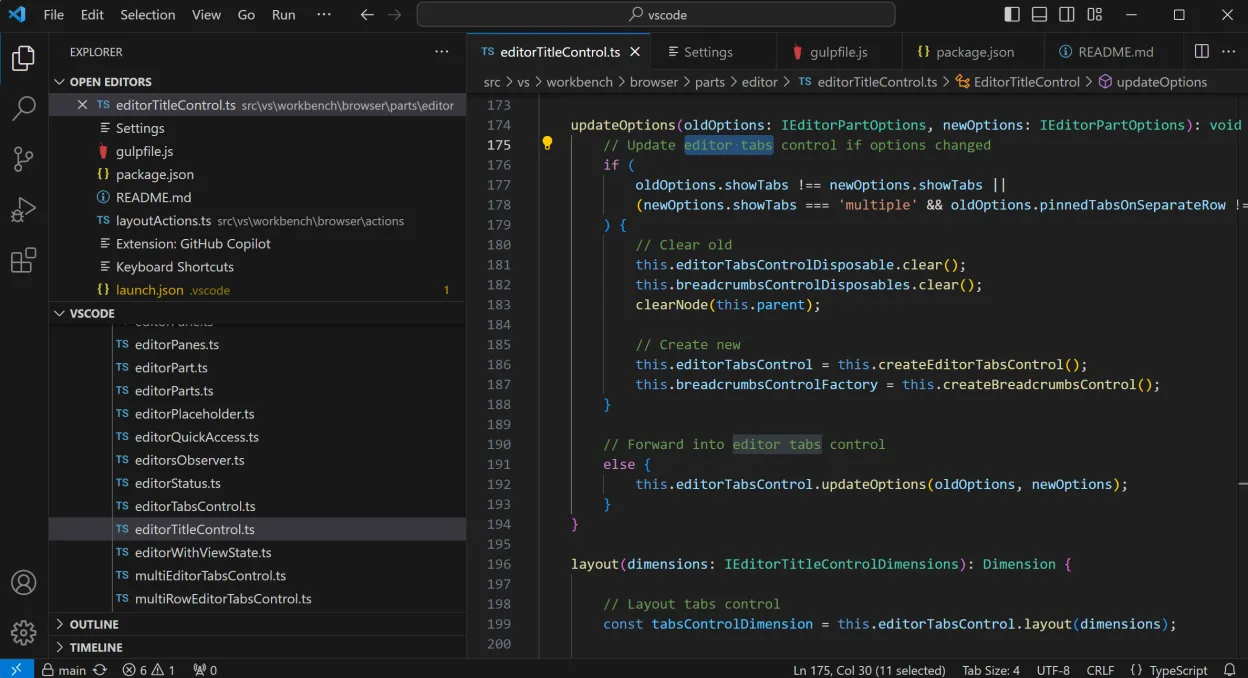
Ce qui fonctionne pareil
- PowerShell syntax highlighting
- Integrated script execution via terminal
- Debugger support for PowerShell
- IntelliSense/autocomplete
- Cross‑platform availability
Ce qui change
- No native ISE‑style GUI for script parameters
- Requires PowerShell extension to get full language features
- Debugging is done through VS Code’s debugger, not ISE’s built‑in console
- No built‑in script library manager like ISE’s Library pane
- Requires manual installation of PowerShell extension and optional debugger extensions
Ouvrir vos fichiers Microsoft PowerShell ISE
PowerShell ISE files are plain .ps1 scripts, so VS Code can open them directly. ISE also stores script snippets in .ps1 files or in the ISE library folder; those files can be opened in VS Code. Exporting from ISE to a VS Code workspace is just a matter of copying the .ps1 files. No special conversion is needed.
Passer de Microsoft PowerShell ISE à Visual Studio Code, étape par étape
- Install Visual Studio Code from your distro’s package manager or the Flatpak build.
- Add the PowerShell extension from the VS Code Marketplace.
- Open your existing .ps1 scripts in VS Code or copy them into a new folder.
- Configure the integrated terminal to use PowerShell (set default shell).
- Optional: install the PowerShell Debugger extension for full debugging support.
- Adjust keybindings or themes to match your previous ISE workflow if desired.
Fonctionnalités clés de Visual Studio Code
- Extensible via un grand marché d'extensions
- Terminal et débogueur intégrés
- Intégration du contrôle de version Git
- Raccourcis clavier et thèmes personnalisables
- Prise en charge du protocole de serveur de langage
- Exécuteur de tâches et extensions intégrés
Installer Visual Studio Code sous Linux
flatpak install flathub com.visualstudio.codeQuestions fréquentes
Does VS Code support PowerShell debugging the same way ISE does?
Yes, once the PowerShell extension and its debugger component are installed, you can set breakpoints, step through code, and inspect variables just like in ISE, but through VS Code’s debugging UI.
Can I use VS Code on Linux to run PowerShell scripts that were written on Windows?
Absolutely. PowerShell Core (pwsh) is cross‑platform, so scripts written on Windows run unchanged on Linux via VS Code’s integrated terminal.
Is there a way to keep the ISE library of snippets in VS Code?
You can copy the snippet files (.ps1 or .psm1) into a folder in your VS Code workspace and use the built‑in snippet manager or create custom snippets in VS Code’s settings.
2 autres alternatives à Microsoft PowerShell ISE
 Visual Studio CodeUn éditeur de code léger et extensible qui prend en charge le débogage, Git et de nombreux langages.GratuitFlatpakVisual Studio Code ou Microsoft PowerShell ISE
 GeanyGeany est un IDE léger et rapide qui prend en charge de nombreux langages et plugins dès l'installation.Open sourceGratuitFlatpakGeany ou Microsoft PowerShell ISE