
 GNU EmacsLinux
vs
Visual Studio CodeWindows
GNU EmacsLinux
vs
Visual Studio CodeWindows
GNU Emacs como alternativa Linux ao Visual Studio Code
Atualizado em
Nossa avaliação
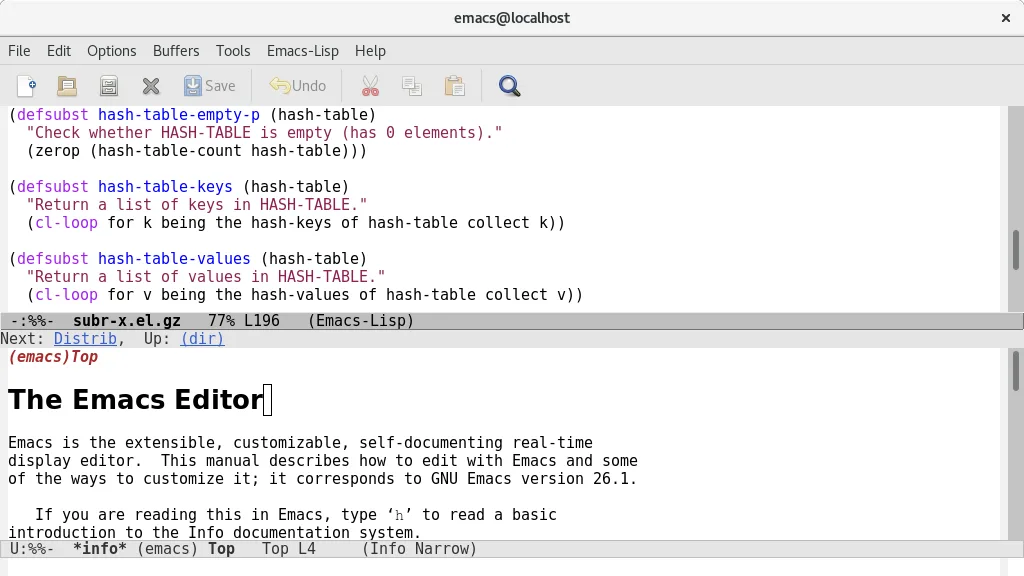
GNU Emacs can replace Visual Studio Code for developers who value deep customisation and are comfortable with a keyboard‑centric workflow. It provides syntax highlighting, an integrated terminal, Git support and debugging, but the experience is less visual and requires Emacs Lisp for many extensions. Users who need a modern UI, rich marketplace extensions, or out‑of‑the‑box language servers may find VS Code more convenient. Emacs shines for those who want a single, scriptable environment that can grow into an IDE, mail client, or planner, and who are willing to invest time in configuration.
- Licença
- GPL-3.0+ and GFDL-1.3+
- Preço
- Grátis
- Versão mais recente
- 31.1 (24 de agosto de 2026)
- Avaliação
- —
O que funciona igual
- Syntax highlighting for many languages
- Integrated terminal access
- Git version‑control integration
- Extensible plugin/extension system
- Basic debugging support
O que muda
- VS Code offers a graphical extension marketplace; Emacs relies on Lisp packages that often need manual setup
- VS Code includes built‑in language‑server support for intelligent code completion; Emacs requires additional packages like lsp-mode
- VS Code provides a modern UI with tabs and sidebars; Emacs UI is more minimal and can feel dated
- VS Code ships with ready‑to‑use debuggers for many runtimes; Emacs debugging often needs language‑specific configuration
Abrindo seus arquivos do Visual Studio Code
Both editors work with plain text files, so any source code opened in VS Code can be opened in Emacs without conversion. VS Code stores workspace settings in JSON files; Emacs can read those files as plain text but does not import them automatically. There is no special export format to convert, so compatibility is essentially limited to the underlying source files.
Trocando o Visual Studio Code pelo GNU Emacs, passo a passo
- Install Emacs from your distribution’s package manager or Flathub
- Familiarise yourself with basic Emacs commands (C‑x C‑f to open files, C‑x C‑s to save)
- Install lsp-mode or eglot for language‑server support to get code completion and refactoring
- Add magit for Git integration (M‑x magit-status)
- Configure a terminal emulator inside Emacs with vterm or ansi‑term
- Optionally import VS Code settings by copying keybindings into your init.el or using the ‘vscode‑keymap’ package
Principais recursos do GNU Emacs
- Interpretador Emacs Lisp embutido para personalização total
- Modos de edição sensíveis ao conteúdo com realce de sintaxe
- Interface integrada de depurador e gerenciamento de projetos
- Suporte completo a Unicode para quase todos os idiomas humanos
- Leitor embutido de e-mail e notícias
- Documentação e tutorial completos integrados
- Altamente personalizável via código ou interface gráfica
Como instalar o GNU Emacs no Linux
flatpak install flathub org.gnu.emacssudo apt install emacssudo apt install emacssudo dnf install emacssudo pacman -S emacs-waylandsudo zypper install emacsPerguntas frequentes
Can Emacs provide the same level of IntelliSense as VS Code?
Emacs can approximate IntelliSense using lsp-mode or eglot together with language‑server binaries, but the setup is manual and may lack some of the polish found in VS Code.
Is there a graphical extension marketplace for Emacs?
No. Emacs packages are typically installed from MELPA, GNU ELPA, or directly from source; you use M‑x package-install or a configuration file, not a visual store.
Will my VS Code workspace layout (folders, split panes) transfer to Emacs?
Workspace folders open fine, but layout settings are not portable. You’ll need to recreate window splits using Emacs’ window management commands.
Outras 4 alternativas ao Visual Studio Code
 Sublime TextSublime Text é um editor de código-fonte leve, rápido, com interface mínima e extensibilidade poderosa.FlatpakSublime Text vs Visual Studio Code
 GeanyGeany é uma IDE leve e rápida que suporta muitas linguagens e plugins prontos para uso.Código abertoGrátisFlatpakGeany vs Visual Studio Code
 KateKate é um editor de texto rico em recursos, focado em programadores, da KDE, com suporte a mais de 300…Código abertoGrátisFlatpakKate vs Visual Studio Code
 VimVim é um editor de texto modal e altamente configurável, ideal para edição eficiente no Linux.Código abertoGrátisFlatpakVim vs Visual Studio Code