GpaintLinux
vs
GpaintLinux
vs
 Windows PaintWindows
Gpaint como alternativa Linux ao Windows Paint
Atualizado em
Nossa avaliação
Gpaint is a solid replacement for Windows Paint for users who need basic drawing tools on Linux. It handles simple tasks like sketching, coloring, and minor image edits without bloat. The interface is straightforward, and it starts quickly, even on older hardware. If you're used to Paint's minimal feature set, Gpaint feels familiar and gets the job done. It won't replace advanced editors, but for casual use—like annotating screenshots or drawing quick diagrams—it's more than sufficient.
- Licença
- GPL-3.0
- Preço
- Grátis
- Versão mais recente
- —
- Avaliação
- 5/5 (1)
O que funciona igual
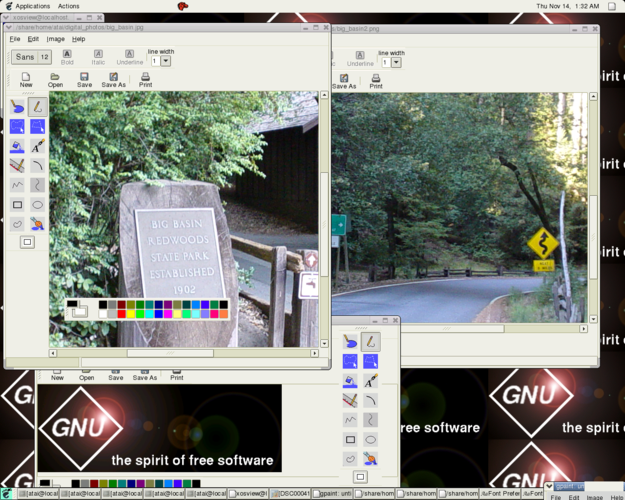
- Basic tools: pencil, line, rectangle, and ellipse drawing
- Fill bucket with support for transparency
- Color picker and custom color palette
- Simple text insertion with font options
- Lightweight and fast to launch
O que muda
- Gpaint lacks freeform cropping; only rectangular selections can be copied and pasted
- No eraser tool with adjustable size
- No built-in image resizing dialog—resizing requires external tools or screenshot workflow
- Limited shape customization (e.g., no rounded rectangles or line thickness presets)
Abrindo seus arquivos do Windows Paint
Gpaint can open and save PNG, BMP, JPEG, and GIF files, which covers the formats most commonly used in Windows Paint. Files created in Windows Paint (especially .bmp and .png) open without issues in Gpaint. There are no known compatibility problems with standard 24-bit or 32-bit raster files. However, complex formatting like layered images isn't supported by either program, so interoperability remains high for basic use cases.
Trocando o Windows Paint pelo Gpaint, passo a passo
- Install Gpaint via your package manager (e.g., sudo apt install gpaint on Debian/Ubuntu)
- Open Gpaint and adjust the color palette if needed
- Use Ctrl+Z and Ctrl+Y for undo/redo, as in Windows Paint
- Copy and paste selections with Ctrl+C and Ctrl+V
- Save files in PNG or BMP to maintain compatibility
Principais recursos do Gpaint
- Basic drawing tools: pencil, line, rectangle, ellipse
- Fill bucket with transparent option
- Simple text insertion with font selection
- Undo/redo support
- Clipboard integration for copy‑paste
- Supports common raster formats (PNG, JPEG, BMP, GIF)
- Customizable color palette
- Lightweight, runs on low‑end hardware
Perguntas frequentes
Can Gpaint open .bmp files saved by Windows Paint?
Yes, Gpaint opens .bmp files without issues, including those created by Windows Paint.
Is Gpaint available in all Linux distributions?
Most major distributions include Gpaint in their repositories, though availability may vary. Check your package manager first.
Does Gpaint support transparent backgrounds?
Yes, the fill bucket has a transparent option, and PNG files can be saved with transparency.