
 KRDCLinux
vs
UltraVNCWindows
KRDCLinux
vs
UltraVNCWindows
KRDC como alternativa Linux ao UltraVNC
Atualizado em
Nossa avaliação
KRDC is a solid replacement for UltraVNC for most users who need VNC connectivity on Linux. It supports VNC connections, encryption via TLS for RDP and optional VNC encryption, file transfer through the VNC protocol, multiple monitors, and dynamic scaling. Its KDE‑styled UI and bookmark system make occasional remote support convenient. Users who rely heavily on UltraVNC’s Windows‑specific features, such as the dedicated UltraVNC server or advanced plug‑ins, may find KRDC lacking, but for typical VNC clients it delivers the core functionality.
- Licença
- GPL-2.0+
- Preço
- Grátis
- Versão mais recente
- 26.04.3 (2 de julho de 2026)
- Avaliação
- —
O que funciona igual
- Both allow VNC connections to remote machines
- Both support file transfer over VNC
- Both can handle multiple monitors and scaling
- Both run as a client on Linux
- Both have a simple UI for occasional use
O que muda
- KRDC does not provide a VNC server; UltraVNC does
- KRDC lacks UltraVNC’s plug‑in ecosystem and Windows‑specific features
- KRDC’s VNC encryption is optional and requires configuration, whereas UltraVNC can use built‑in encryption
- KRDC is KDE‑centric, may feel heavy for non‑KDE desktops
- KRDC does not run as a Windows‑style service/daemon on Linux
- KRDC’s file transfer uses the standard VNC protocol, not UltraVNC’s custom file‑transfer extensions
Abrindo seus arquivos do UltraVNC
KRDC does not read or write UltraVNC configuration files (.vnc or .vncserver). To migrate, you would manually recreate the connection details in KRDC’s bookmark system; no direct import is available.
Trocando o UltraVNC pelo KRDC, passo a passo
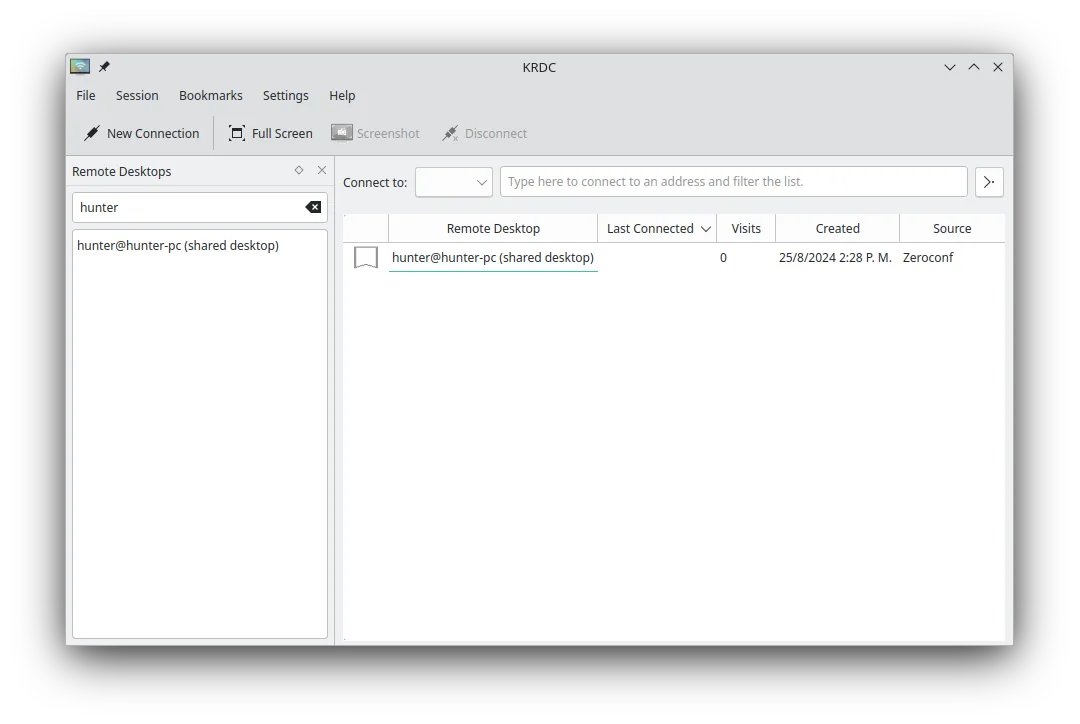
- Open KRDC and choose "New Connection".
- Select "VNC" as the protocol and enter the host IP or hostname.
- Enter the VNC password and enable encryption if needed.
- Save the connection as a bookmark for future use.
- Use the bookmark to connect and test the session.
- Optional: configure keyboard shortcuts in KRDC’s settings for remote input.
Principais recursos do KRDC
- Suporta os protocolos RDP e VNC
- Interface gráfica com estilo KDE
- Gerenciamento de favoritos para conexões frequentes
- Modos de tela cheia e em janela
- Suporte a atalhos de teclado (Ctrl+Alt+Shift para entrada remota)
- Escalonamento dinâmico da tela remota
- Criptografia TLS para sessões RDP
- Integração com KDE Wallet para armazenamento de senhas
Como instalar o KRDC no Linux
flatpak install flathub org.kde.krdcsudo apt install krdcsudo apt install krdcsudo dnf install krdcsudo pacman -S krdcsudo zypper install krdcOutras 4 alternativas ao UltraVNC
 TigerVNC ViewerTigerVNC Viewer é um cliente licenciado sob GPL para conectar a desktops remotos VNC no Linux.Código abertoGrátisFlatpakTigerVNC Viewer vs UltraVNC
 RemminaRemmina é um cliente de desktop remoto para Linux que oferece suporte a RDP, VNC, SSH e X2Go para conectar-se…Código abertoGrátisFlatpakRemmina vs UltraVNCx11vncA VNC server for X11 that lets you control your Linux desktop remotely from any VNC client.Código abertoGrátisx11vnc vs UltraVNC
 VinagreVinagre é um visualizador de área de trabalho remota do GNOME para VNC, RDP, SSH e SPICE, agora descontinuado.Código abertoGrátisDescontinuadoVinagre vs UltraVNC