
 TestDiskLinux
vs
TestDiskLinux
vs
 RecuvaWindows
TestDisk as a Linux alternative to Recuva
Updated
Our verdict
TestDisk is not a direct replacement for Recuva due to its command-line interface and focus on partition recovery over simple file undeletion. However, its bundled tool PhotoRec performs file recovery on NTFS, FAT, exFAT, and ext* partitions with high accuracy, making it effective for recovering deleted files. It’s a solid choice for experienced Linux users comfortable with terminal commands, especially when dealing with damaged partitions or deep scans. For casual users wanting a quick GUI file recovery tool, it’s less suitable. Use TestDisk/PhotoRec if you prioritize power and control over simplicity.
- License
- GPL-2.0
- Price
- Free
- Latest version
- 7.2
- Rating
- —
What works the same
- Both recover deleted files from NTFS, FAT, and exFAT file systems
- Support deep scanning to locate overwritten or lost data
- Can recover files from hard drives, SSDs, and removable media
- Allow saving recovered files to a different storage device
- Include capabilities for analyzing and repairing storage structures
What is different
- TestDisk uses a command-line interface; Recuva has a simple GUI
- TestDisk focuses on partition and filesystem repair, not just file recovery
- PhotoRec (part of TestDisk) recovers files without preserving original names and folder paths by default
- Recuva offers file preview before recovery; TestDisk/PhotoRec does not
- TestDisk supports advanced partition table repair (GPT, MBR), which Recuva lacks
Opening your Recuva files
TestDisk does not use or import Recuva's recovery logs, session files, or output formats. There is no known method to directly open or convert Recuva-generated files in TestDisk. Recovery results are stored as raw files, often without original filenames or directory structure unless rebuilt manually. Users migrating must run TestDisk or PhotoRec independently on the target drive. Data recovered by Recuva cannot be reprocessed or imported into TestDisk for further analysis.
Switching from Recuva to TestDisk, step by step
- Install TestDisk using your distro's package manager (e.g., sudo apt install testdisk)
- Run 'photorec' in the terminal to start file recovery
- Select the target drive and partition, then choose file system type
- Choose 'Other' to recover all file types or specify a file family
- Select a destination directory on a different drive to save recovered files
- Use 'testdisk' separately if partition repair or table recovery is needed
Key features of TestDisk
- Command‑line interface
- Cross‑platform support (Linux, Windows, macOS, BSD, Solaris)
- Recovers lost partitions and rebuilds partition tables
- Can repair corrupted file systems
- Supports GPT, MBR, Apple, and Xbox partition schemes
- Works on non‑partitioned media
- Includes PhotoRec for file‑level recovery
- Detailed logs for technician analysis
How to install TestDisk on Linux
sudo apt install testdisksudo apt install testdisksudo dnf install testdisksudo pacman -S testdisksudo zypper install testdiskFrequently asked questions
Can TestDisk recover deleted files like Recuva?
Yes, but indirectly. TestDisk includes PhotoRec, which recovers deleted files from NTFS, FAT, exFAT, and ext* partitions. It works well even when the filesystem is damaged, but doesn't always preserve original filenames or folder paths.
Is there a GUI for TestDisk?
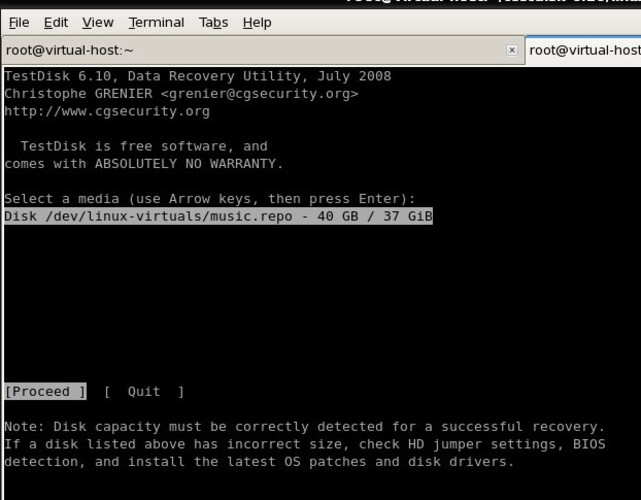
No, TestDisk and PhotoRec are command-line tools. There is no official graphical interface, though some third-party frontends exist. Most operations require navigating menus in the terminal.
Can I preview files before recovering them with PhotoRec?
No, PhotoRec does not support file preview. It recovers files based on signature scanning and saves them to a directory. You must manually check the output folder to identify recovered files.