
 BraseroLinux
vs
Windows DVD MakerWindows
BraseroLinux
vs
Windows DVD MakerWindows
Brasero als Linux-Alternative zu Windows DVD Maker
Aktualisiert am
Unser Fazit
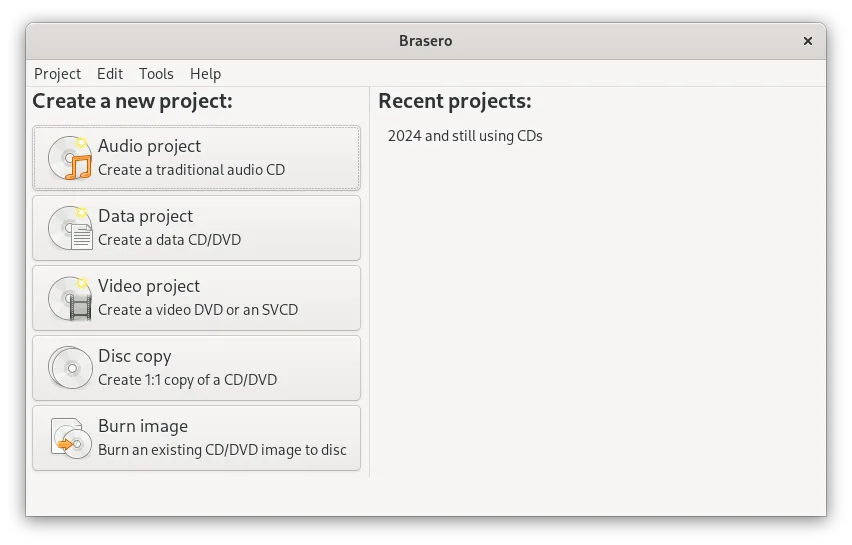
Brasero is not a good replacement for Windows DVD Maker if you need to create video DVDs with menus, background music, or title overlays. It lacks video transcoding, DVD-Video structure creation, and any timeline-based editing. However, for users who only need to burn data DVDs containing video files for playback on computers or media players, Brasero works fine. It’s suitable for basic disc burning but won’t generate standard DVD-Video discs playable in set-top players. Not recommended for former Windows DVD Maker users wanting similar functionality.
- Lizenz
- GPL-2.0-or-later
- Preis
- Kostenlos
- Aktuelle Version
- 3.12.4 (28. September 2026)
- Bewertung
- —
Was gleich funktioniert
- Both can burn DVDs
- Support drag-and-drop file organization
- Handle common file types like MP4 and JPG
- Can create ISO images
- Designed for simplicity and ease of use
Was anders ist
- Brasero cannot create DVD-Video with menus or chapters
- No support for video transcoding or timeline editing
- No background music or narration features
- Lacks title overlays and transitions
- Focuses on data/audio burning, not video DVDs
Ihre Windows DVD Maker-Dateien öffnen
Brasero does not support importing or opening project files created by Windows DVD Maker, and cannot generate compatible DVD-Video file structures. While it can burn MP4, AVI, and JPG files to disc as data, these will not play as standard DVDs in most standalone players. There is no built-in conversion to DVD-Video format (VOB, IFO, BUP). Users must manually convert videos using external tools if targeting broad DVD player compatibility.
Von Windows DVD Maker zu Brasero wechseln – Schritt für Schritt
- Install Brasero via your distribution’s package manager
- Prepare video files in a compatible format
- Use a separate tool like DVDStyler to create DVD-Video structure with menus
- Burn the resulting VIDEO_TS folder with Brasero as a data disc
- Or use Brasero to burn ISO images generated by other tools
- Test discs on target DVD players for compatibility
Wichtige Funktionen von Brasero
- Daten-CDs und DVDs brennen
- Audio-CDs erstellen
- Vorhandene CDs und DVDs kopieren
- Unterstützung für CD-TEXT
- Multisession-Disc-Unterstützung
- Joliet-Erweiterungsunterstützung
- Drag-and-drop-Dateibrennen
- Integration mit dem GNOME-Desktop
Brasero unter Linux installieren
flatpak install flathub org.gnome.Braserosudo apt install braserosudo apt install braserosudo dnf install braserosudo pacman -S braserosudo zypper install braseroHäufige Fragen
Can Brasero create a playable video DVD from MP4 files?
No, Brasero cannot convert MP4 files into DVD-Video format or create a playable DVD structure. You need a dedicated video DVD authoring tool for that.
Is there a Linux alternative that does what Windows DVD Maker did?
DVDStyler and DeVeDe are closer matches, offering DVD menu creation and video conversion, though setup may require more effort than the original Windows tool.
Why use Brasero at all for video?
Brasero is useful for burning video files as data to DVD, especially when the target device reads data discs. It’s not for creating standard DVD-Video discs.
3 weitere Alternativen zu Windows DVD Maker
 KdenliveKdenlive ist ein kostenloser, funktionsreicher nichtlinearer Videoeditor, der auf dem MLT-Framework basiert.Open SourceKostenlosFlatpakKdenlive vs. Windows DVD MakerDVDStylerDVDStyler ist ein quelloffenes DVD-Authoring-Tool zur Erstellung von Videodiscs mit Menüs und Kapitelmarkern.Open SourceKostenlosDVDStyler vs. Windows DVD MakerDeVeDeDeVeDe erstellt abspielbare Video-DVDs aus Videodateien, die sich zum Brennen auf Disc und Abspielen in…Open SourceKostenlosDeVeDe vs. Windows DVD Maker