
 DrawpileLinux
vs
PaintWindows
DrawpileLinux
vs
PaintWindows
Drawpile als Linux-Alternative zu Paint
Aktualisiert am
Unser Fazit
Drawpile is a capable replacement for Paint if you need more advanced features like layers, animation, or collaborative drawing, but it's overkill for quick, simple edits. Typical Paint users who just crop images or draw basic shapes will find Drawpile unnecessarily complex. However, artists, educators, or teams wanting real-time collaboration and pressure-sensitive tablet support will benefit. It runs natively on Linux and is actively maintained. For basic tasks, simpler Linux tools like Pinta or KolourPaint may suit better, but Drawpile is solid if you're moving beyond Paint’s limits.
- Lizenz
- GPL-3.0+
- Preis
- Kostenlos
- Aktuelle Version
- 2.3.1 (21. Oktober 2026)
- Bewertung
- —
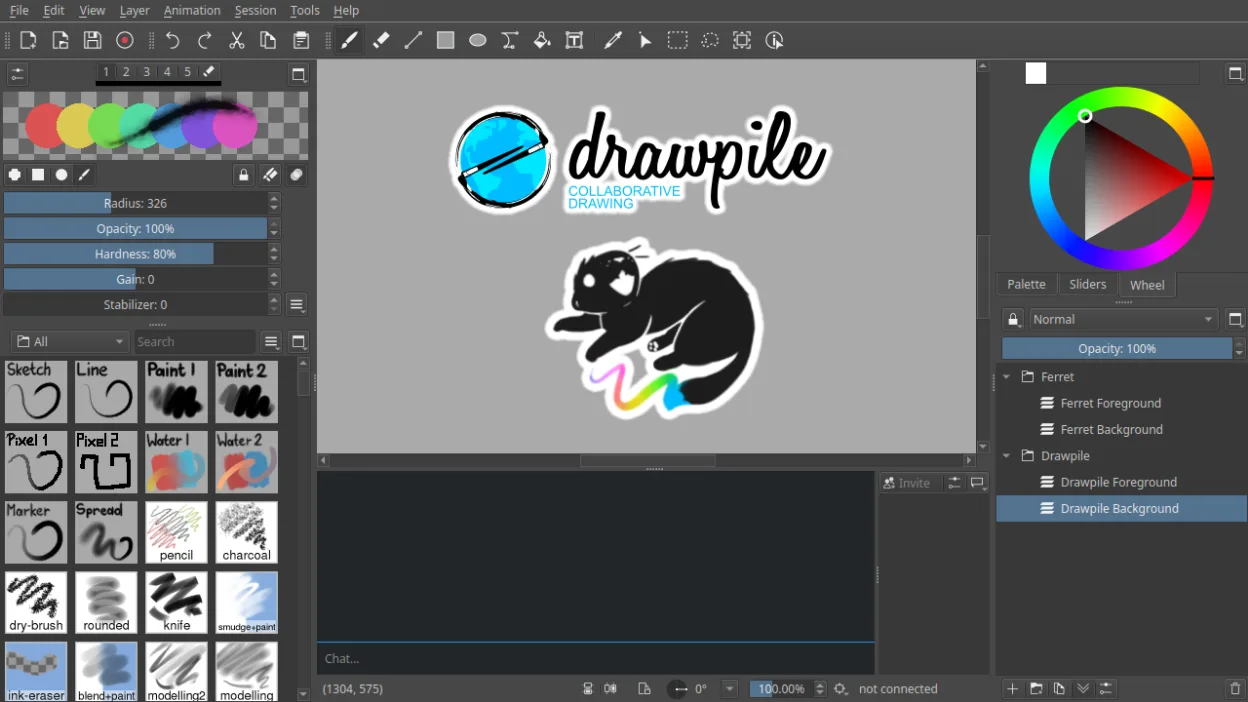
Was gleich funktioniert
- Both allow freehand drawing and basic shape tools
- Support for raster image editing
- Available on Linux and Windows
- Supports common image formats like PNG and JPEG
- Simple UI for direct canvas interaction
Was anders ist
- Drawpile supports real-time collaboration; Paint does not
- Drawpile has layers and blending modes; Paint has no layer support
- Drawpile includes an animation timeline; Paint has no animation features
- Drawpile requires more system resources and setup
- Paint is simpler and faster for quick edits
Ihre Paint-Dateien öffnen
Drawpile can open and export common raster formats like PNG and JPEG, which covers most files created in Paint. If you save a Paint image in BMP or another standard format, Drawpile should handle it without issue. However, Drawpile does not support older or obscure formats by default, and complex layer data won’t translate back to Paint. For basic sharing, export as PNG. Native .drawpile files are not readable by Paint.
Von Paint zu Drawpile wechseln – Schritt für Schritt
- Install Drawpile via your package manager or Flathub
- Open a saved Paint image (PNG, JPEG, BMP) in Drawpile
- Use the brush, line, or shape tools as needed
- Save your work in PNG for compatibility
- Explore layers and brush settings if needed
- Join or host a session if collaborating
Wichtige Funktionen von Drawpile
- Kollaboratives Zeichnen in Echtzeit mit mehreren Benutzern
- Unterstützung für Ebenen und Ebenenmischmodi
- Animations-Timeline mit Einzelbildbearbeitung
- Client-Server-Modell zur Hosting von Zeichensitzungen
- Unterstützung für Druck- und Neigungs-Empfindlichkeit von Tabletts
- Aufzeichnung und Wiedergabe von Zeichensitzungen
- Benutzerdefinierte Pinsel und Werkzeugvoreinstellungen
- Plattformübergreifend: Linux, Windows, macOS
Drawpile unter Linux installieren
flatpak install flathub net.drawpile.drawpileHäufige Fragen
Can I use Drawpile offline?
Yes, you can use Drawpile entirely offline. The collaboration features require networking, but single-user drawing works without any connection.
4 weitere Alternativen zu Paint
 PintaPinta ist ein kostenloser, quelloffener Bitmap‑Editor, der Paint.NET mit einer einfachen Oberfläche und…Open SourceKostenlosFlatpakPinta vs. Paint
 GIMPGIMP ist ein kostenloser, quelloffener Rastergrafik‑Editor für Fotobearbeitung, digitale Malerei und…Open SourceKostenlosFlatpakGIMP vs. Paint
 KolourPaintKolourPaint ist ein schlanker KDE-Rastergrafik-Editor für schnelles Zeichnen und einfache Bildkorrekturen.Open SourceKostenlosFlatpakKolourPaint vs. Paint
 MyPaintMyPaint ist ein schnelles, kostenloses Open-Source-Rasterprogramm, das sich auf Pinseldynamik und die Nutzung…Open SourceKostenlosFlatpakMyPaint vs. Paint