

Linux · Sound & Video
Asunder
Asunder is a lightweight GTK CD‑ripper that extracts audio CDs to formats like MP3, OGG, FLAC and more.
- Lizenz
- GPL-2.0-only
- Aktuelle Version
- 3.0.2 (6. Februar 2026)
- Entwickler
- Andrew Smith et al.
- Installationen
- 2,020 (Flathub, 30 Tage)
Was ist Asunder?
Asunder was first released in the early 2010s and has stayed on the Debian, Fedora and Ubuntu repos ever since. It uses libcdio for reading discs and LAME, Oggenc, FLAC, etc. for encoding, making it a solid, no‑frills alternative to Windows tools such as Easy CD‑DA Extractor and Exact Audio Copy.
The program is aimed at users who want a quick way to rip a CD without a web interface or heavy configuration. It runs in any desktop environment that supports GTK, so GNOME, KDE, XFCE or even lightweight window managers work fine.
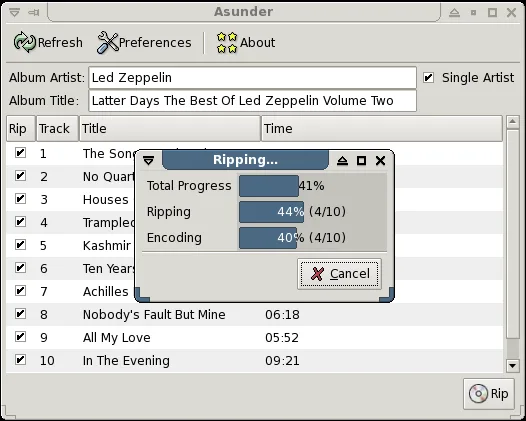
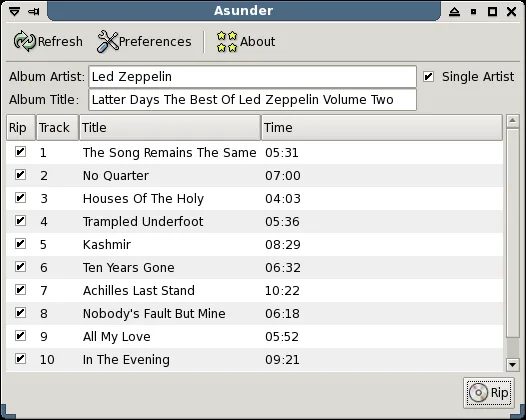
Compared with EAC or Easy CD‑DA Extractor, Asunder feels more minimal. It has fewer options, but that keeps the UI uncluttered. The workflow is straightforward: insert a CD, select the output format, hit "Rip" and the tracks are encoded as you go.
Ideal für: Users who need a quick, reliable CD ripper without extra bells and whistles.
Wichtige Funktionen von Asunder
- GTK based, works on any desktop
- Supports WAV, MP3, OGG, FLAC, Opus, WavPack, Musepack, AAC, Monkey's Audio
- Uses CDDB for track names and tags
- Creates M3U playlists automatically
- Can rip and encode simultaneously
- Encodes to multiple formats in one session
- No dependency on a specific desktop environment
Vorteile
- Simple, easy to use
- Wide format support
- Fast simultaneous rip/encode
Nachteile
- No advanced audio processing options
- Limited documentation
- ARM builds only lightly tested
Windows-Programme, die Asunder ersetzt
 Easy CD-DA Extractor
 Exact Audio Copy (EAC)
Asunder unter Linux installieren
flatpak install flathub ca.littlesvr.asundersudo apt install asundersudo apt install asundersudo dnf install asunderTipps für Windows-Umsteiger
When moving from Easy CD‑DA Extractor or EAC, note that Asunder only supports the formats listed above; if you need a specific codec, install the corresponding encoder (e.g., libmp3lame for MP3). The UI is a single window with a "Rip" button, so the workflow is shorter. You can use the default keyboard shortcut Ctrl+R to start a rip. After ripping, the files are placed in the folder you chose, and an M3U playlist is created automatically.
Unlike EAC, Asunder does not provide a separate tagging editor; it pulls tags from CDDB and writes them directly to the output files. If you need to edit tags later, use a tool like EasyTAG or Kid3.
The main difference in workflow is that Asunder does not have a separate "Encode" step: the encoding happens as the CD is read, so you can start listening to the first track almost immediately.
If you were used to EAC’s advanced error‑checking and re‑try logic, Asunder’s error handling is basic; just re‑insert the CD if you see a read error.
Overall, the transition is smooth: just install the package, insert a CD, pick a format, and click "Rip".
Neueste Versionen
- 3.0.2 —
- 3.0.1 —
Asunder 3.0.1 has been released, changelog: - CDDB upload wasn't working in 3.0 because I forgot to change it from test mode. Fixed now.
- 3.0.0 —
Asunder 3.0 has been released, changelog: - Can now upload data to CDDB (thanks Andreas Hünnebeck). I haven't tested it myself. - Updated de, el, fr, it, nl, tr translations. - Added ie translation. - Some minor fixes to desktop file. - No GTK3, I just…
- 2.9.7 —
Minor release featuring tow bug fixes: - Updated italian and french translations. - Fixed the CDDB tooltip to say gnudb instead.
Asunder: häufige Fragen
How do I change the output folder in Asunder?
Open the preferences dialog (Edit → Preferences) and set the "Output directory" field to the folder you want. The directory is used for all subsequent rips.
Can Asunder rip CDs with copy protection?
No. Asunder relies on libcdio, which cannot bypass copy protection. Use a different tool if you need to handle protected discs.
Is there a way to batch rip multiple CDs?
Asunder does not have a built‑in batch mode. You can script the command line by calling "asunder -r -f mp3" with the device path for each CD.
What if my CD has no CDDB entry?
Asunder will leave the track names blank and tag fields empty. You can manually edit tags after ripping using a tag editor.
Aktualisiert am