
 Mission CenterLinux
vs
Mission CenterLinux
vs
 Windows Task ManagerWindows
Mission Center als Linux-Alternative zu Windows Task Manager
Aktualisiert am
Unser Fazit
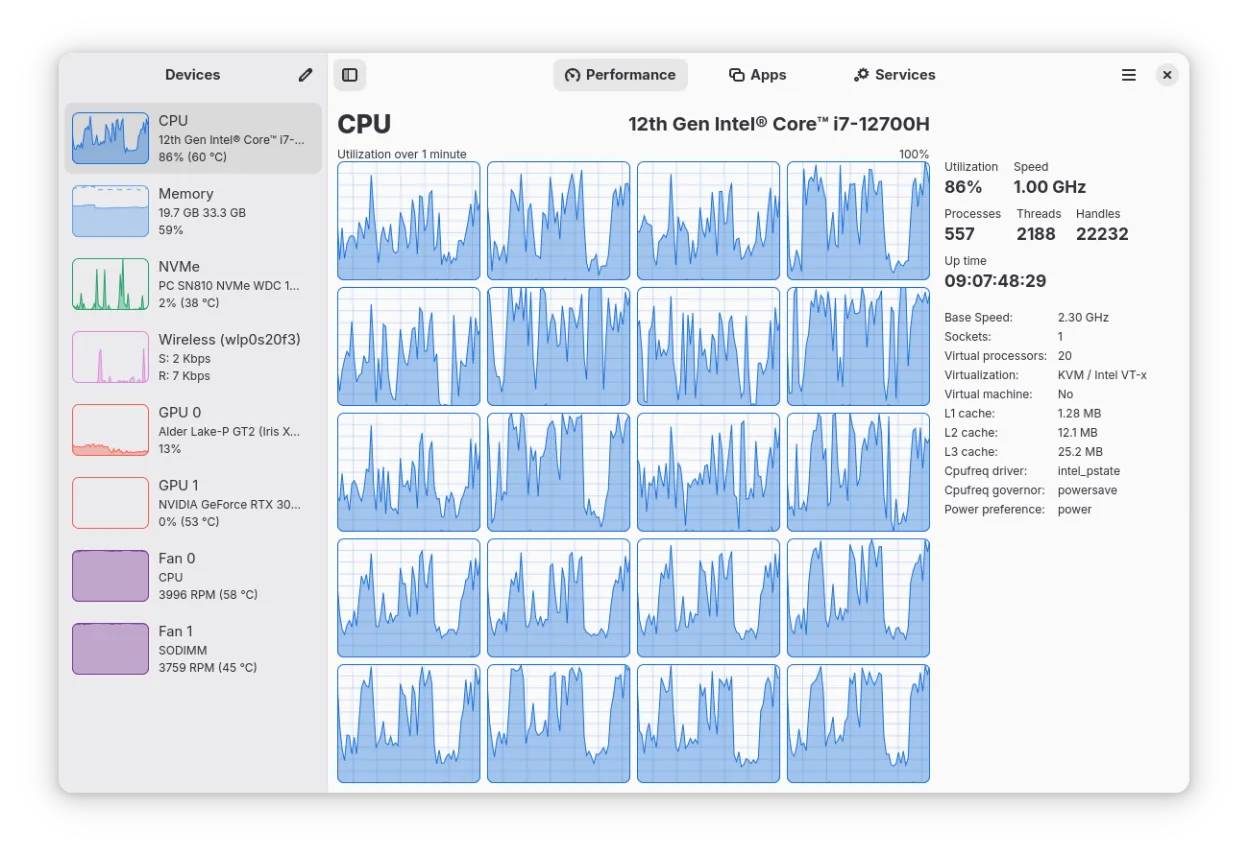
Mission Center is a strong visual replacement for Windows Task Manager, offering modern GTK4 interfaces and detailed GPU stats via NVTOP. It handles core needs like process lists, CPU/RAM monitoring, and uptime well. However, it currently lacks direct process termination or priority adjustment features that Task Manager provides out-of-the-box. It is ideal for users who want a polished, hardware-accelerated dashboard for monitoring system health and resource usage, but power users needing immediate process control may still rely on terminal commands or other tools alongside it.
- Lizenz
- GPL-3.0-or-later
- Preis
- Kostenlos
- Aktuelle Version
- 1.2.0 (24. Juli 2026)
- Bewertung
- —
Was gleich funktioniert
- Displays real-time CPU, memory, and GPU usage with per-process breakdowns
- Shows system uptime and detailed network interface statistics
- Provides a list of running processes and applications with resource consumption
- Offers a minified view for quick status checks similar to Task Manager's performance tab
Was anders ist
- Lacks built-in buttons to terminate processes or change CPU affinity/priority directly in the UI
- Does not provide a dedicated interface to manage or disable startup applications
- GPU monitoring is limited for older Intel hardware and lacks VRAM/temperature data on some systems
- Does not display a list of logged-in users in the same integrated view as Task Manager
Ihre Windows Task Manager-Dateien öffnen
Windows Task Manager does not generate exportable files in a standard format that other applications typically open. It is a live system utility, not a data container. Therefore, there are no specific file compatibility issues to address when migrating from Task Manager to Mission Center, as both are real-time monitoring tools rather than data viewers.
Von Windows Task Manager zu Mission Center wechseln – Schritt für Schritt
- Install Mission Center via Flathub or your distribution's package manager
- Launch Mission Center to verify it detects your CPU, RAM, and GPU correctly
- Familiarize yourself with the minified view for quick resource checks
- Note that process termination requires using terminal commands like 'kill' or 'killall'
- Check the Applications tab to ensure your desktop environment's apps are listed correctly
Wichtige Funktionen von Mission Center
- Überwacht CPU, RAM, Swap, Festplatte, Netzwerk und GPU-Auslastung
- Bietet pro App- und pro Prozess-Ressourcenaufschlüsselungen
- Zeigt detaillierte Netzwerkschnittstelleninformationen einschließlich Wi-Fi-Statistiken
- Zeigt GPU-Encoder/Decoder-Auslastung und Leistung über NVTOP
- Verfolgt Systemlüfter, Betriebszeit und Taktraten
- Hardwarebeschleunigtes Diagramm-Rendering zur Reduzierung der CPU-Last
- Unterstützt eine minimierte Zusammenfassungsansicht für schnelle Checks
- Erstellt mit Rust, GTK4 und Libadwaita
Mission Center unter Linux installieren
flatpak install flathub io.missioncenter.MissionCentersudo pacman -S mission-centerHäufige Fragen
Can I kill a process directly in Mission Center?
No, Mission Center currently does not have a built-in kill button. You will need to use terminal commands such as 'kill [PID]' or 'killall [process_name]' to terminate processes.
Does it show which apps start on boot?
It shows running applications, but it does not provide a dedicated interface to enable or disable startup applications like Task Manager's Startup tab. You should use your desktop environment's startup manager for that.
Is GPU monitoring reliable on all hardware?
It uses NVTOP for detailed stats, but Intel GPU monitoring is limited to Broadwell and later generations. It also does not support VRAM, power, or temperature monitoring on some Intel GPUs.
