
 Penpot DesktopLinux
vs
SketchWindows
Penpot DesktopLinux
vs
SketchWindows
Penpot Desktop als Linux-Alternative zu Sketch
Aktualisiert am
Unser Fazit
Penpot Desktop can serve as a practical Sketch replacement for users who need a Linux‑native UI design tool with vector editing, component reuse and basic collaboration. It works well for freelancers or small teams that are comfortable with a web‑based workflow wrapped in a desktop window. Power users who rely on deep macOS‑only integrations, extensive plugin ecosystems, or tight Sketch‑file compatibility will find it lacking, but for most UI mockups and hand‑off tasks Penpot Desktop is a solid, free alternative.
- Lizenz
- AGPL-3.0-or-later
- Preis
- Kostenlos
- Aktuelle Version
- v1.0.0 (30. September 2026)
- Bewertung
- —
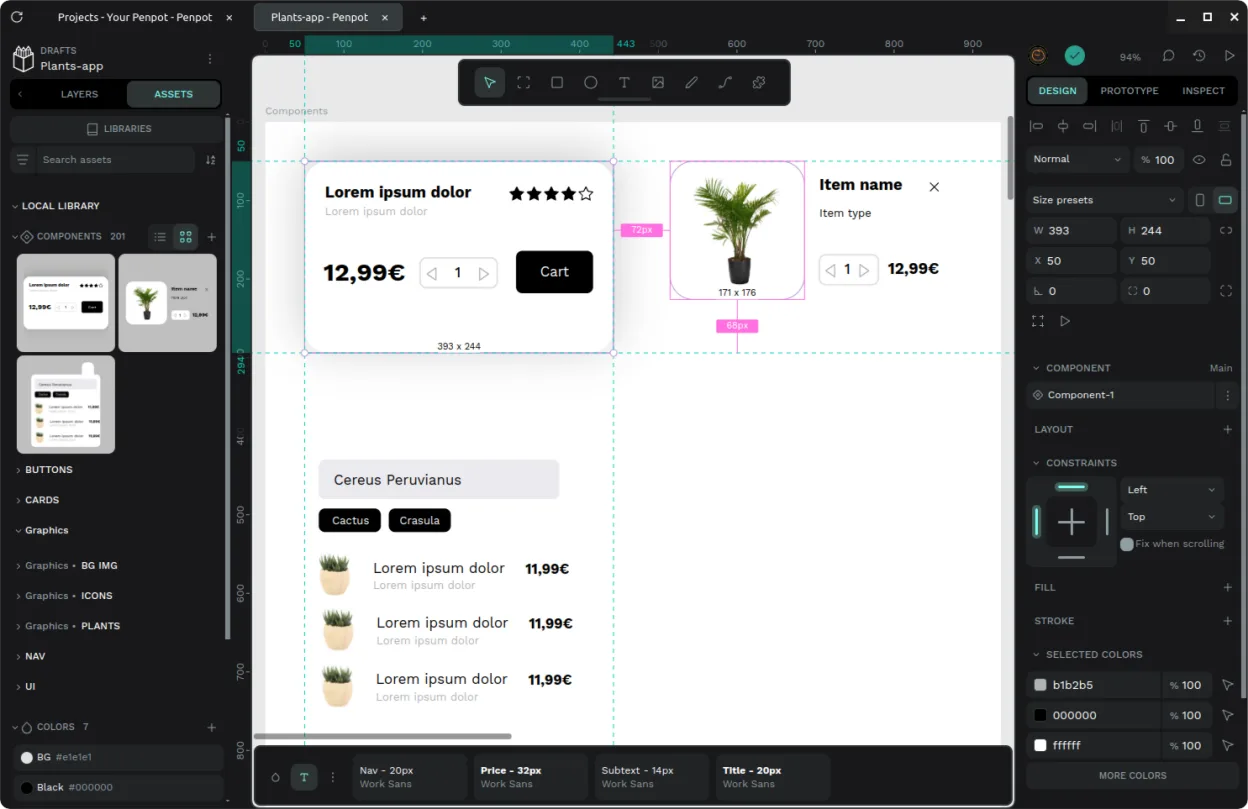
Was gleich funktioniert
- Vector path editing with Bézier handles
- Layer grouping and basic hierarchy management
- Component/symbol reuse across screens
- Export to SVG, PNG and PDF
- Collaboration via shared projects on a Penpot server
Was anders ist
- No native Sketch file (.sketch) import; you must recreate designs or export from Sketch to SVG first
- Limited plugin ecosystem compared to Sketch’s extensive third‑party plugins
- Constraints and layout tools are less mature than Sketch’s Auto Layout
- Desktop wrapper adds offline capability but core features still depend on a Penpot instance
- Mac‑only UI polish and integration features are missing
Ihre Sketch-Dateien öffnen
Penpot Desktop does not understand Sketch's proprietary .sketch format, so you cannot open Sketch files directly. The usual workaround is to export assets from Sketch as SVG or PNG and then import those into Penpot. Exporting from Penpot to Sketch is also not supported; you would need to rely on intermediate formats like SVG for vector work.
Von Sketch zu Penpot Desktop wechseln – Schritt für Schritt
- Export your Sketch artboards as SVG or PNG files
- Install Penpot Desktop from Flathub or your distro's package manager
- Create a new project in Penpot and import the exported assets
- Rebuild components and symbols using Penpot's component system
- Set up any needed constraints manually using Penpot's layout tools
- Invite collaborators to the same Penpot instance for shared editing
Wichtige Funktionen von Penpot Desktop
- Dediziertes Desktop-Fenster mit systemweiter Integration
- Dateierweiterungszuordnung für direkte Öffnung
- Tab-Interface zum Wechseln zwischen mehreren Projekten
- Unterstützung für Verbindungen zu offiziellen, selbstgehosteten oder lokalen Instanzen
- Vielseitige Dunkel- und Hellmodus-Einstellungen
- Inoffizieller Wrapper für das Open-Source-Penpot-Core
Penpot Desktop unter Linux installieren
flatpak install flathub com.authormore.penpotdesktopHäufige Fragen
Can I use Penpot Desktop offline?
Yes, you can point the wrapper to a locally hosted Penpot instance, which lets you work without an internet connection.
Does Penpot support macOS‑only features like Sketch’s Symbol Overrides?
Penpot has its own component overrides, but they differ in UI and capabilities from Sketch’s Symbol Overrides.
Is there a plugin ecosystem comparable to Sketch’s?
Penpot currently offers far fewer plugins; most extensions are community‑contributed scripts or integrations rather than a full marketplace.

