
 Podman DesktopLinux
vs
Windows Subsystem for LinuxWindows
Podman DesktopLinux
vs
Windows Subsystem for LinuxWindows
Podman Desktop als Linux-Alternative zu Windows Subsystem for Linux
Aktualisiert am
Unser Fazit
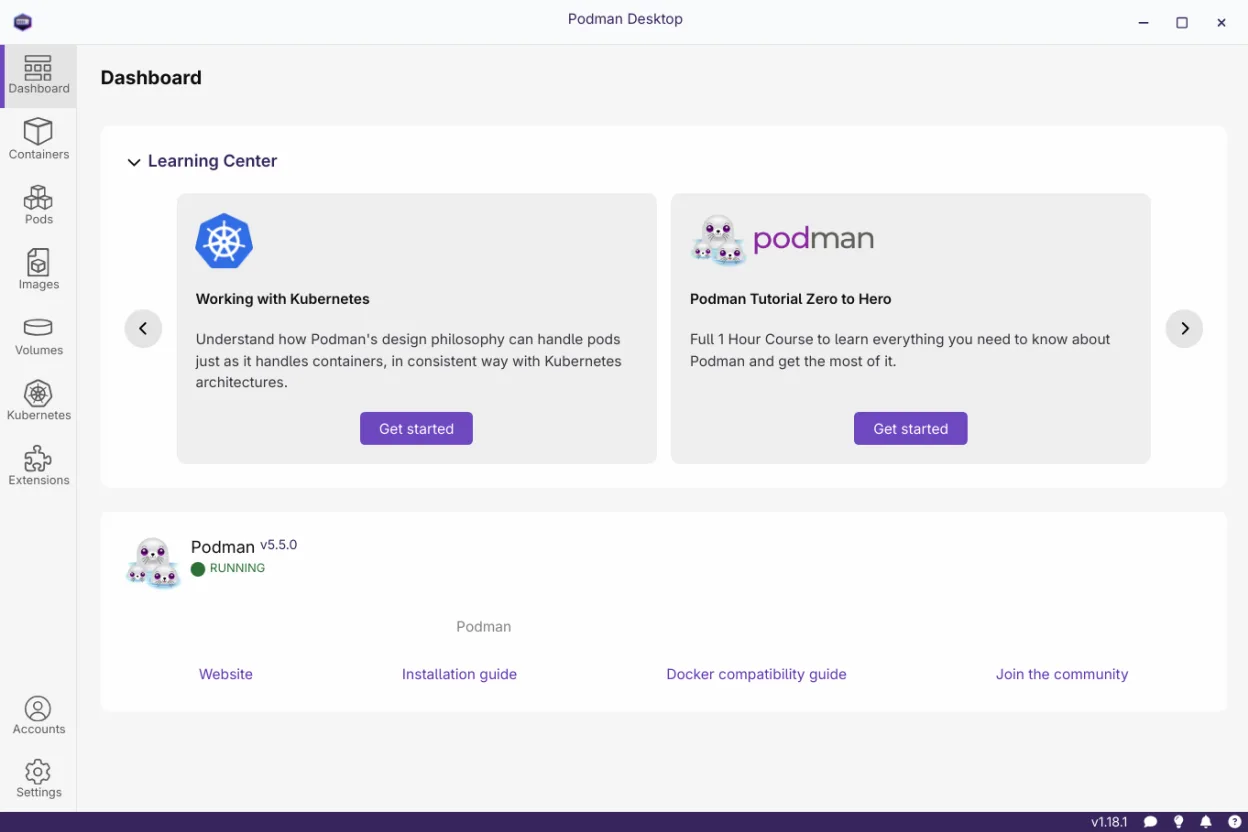
Podman Desktop is not a direct replacement for WSL. It is a GUI for managing container engines, not a Linux kernel integration that lets Windows run native Linux binaries. It will help users who want to build, run, and debug containers on Linux from a single interface, but it does not provide the same terminal, file‑system integration, or package‑manager access that WSL offers.
- Lizenz
- Apache-2.0
- Preis
- Kostenlos
- Aktuelle Version
- 1.30.5 (13. Oktober 2026)
- Bewertung
- —
Was gleich funktioniert
- Provides a terminal interface
- Allows running Linux binaries inside containers
- Supports pulling and pushing images from registries
- Offers package‑manager‑like image builds
- Runs on native Linux systems
Was anders ist
- WSL runs a full Linux kernel inside Windows; Podman Desktop runs containers on Linux, not inside Windows
- WSL gives direct access to Windows files via \wsl$; Podman Desktop does not expose Windows file system to containers by default
- WSL supports apt/dnf for installing packages on the host; Podman Desktop only manages container images
- WSL integrates with Windows tools (e.g., VS Code) via WSL extensions; Podman Desktop has its own plug‑in system
- WSL is a system feature; Podman Desktop is an application
Ihre Windows Subsystem for Linux-Dateien öffnen
Opening or exporting files from a WSL environment is not a feature of Podman Desktop. If you need to move files between WSL and a Linux host, use standard file‑transfer tools (scp, rsync, shared folders) or copy them to a shared directory. The compatibility of WSL files with Podman containers depends on the container image and mount points you configure.
Von Windows Subsystem for Linux zu Podman Desktop wechseln – Schritt für Schritt
- 1. Install Podman Desktop from your distribution’s package manager or Flathub.
- 2. Set up a Podman machine or connect to an existing one via the UI.
- 3. Build or pull the Linux images you previously used in WSL.
- 4. Run the containers and open a terminal inside them to test functionality.
- 5. If you need access to Windows files, configure a bind mount or use a shared folder.
- 6. Replace WSL‑based scripts with container‑based scripts that invoke the same binaries inside the Podman containers.
Wichtige Funktionen von Podman Desktop
- Images aus Containerfile oder Dockerfile erstellen
- Images zu OCI‑Registries pullen und pushen
- Container und Pods starten, stoppen, neu starten
- Terminalzugriff innerhalb von Containern
- Logs und Ressourcennutzung inspizieren
- Mehrere Container‑Engines verwalten (Podman, Docker, Lima)
- Registries und Proxy‑Einstellungen konfigurieren
- Unterstützung für Plug‑ins und Docker Desktop‑Extensions
Podman Desktop unter Linux installieren
flatpak install flathub io.podman_desktop.PodmanDesktopsudo apt install libpodsudo apt install podmansudo dnf install podmansudo pacman -S podman-dockersudo zypper install podmanHäufige Fragen
Can I run the same Linux binaries I used in WSL inside Podman Desktop containers?
Yes, any binary that can run in a standard Linux environment can be run inside a Podman container. Just build an image containing that binary and run it.
Does Podman Desktop replace the need for a Linux kernel on Windows?
No. Podman Desktop runs on a native Linux host; it does not provide a Linux kernel inside Windows like WSL does.
Is Podman Desktop free to use?
Yes. It is open source under the Apache‑2.0 license and available for free on major Linux distributions and Flathub.