
 ChromiumLinux
vs
Microsoft EdgeWindows
ChromiumLinux
vs
Microsoft EdgeWindows
Chromium como alternativa Linux a Microsoft Edge
Actualizado el
Nuestra opinión
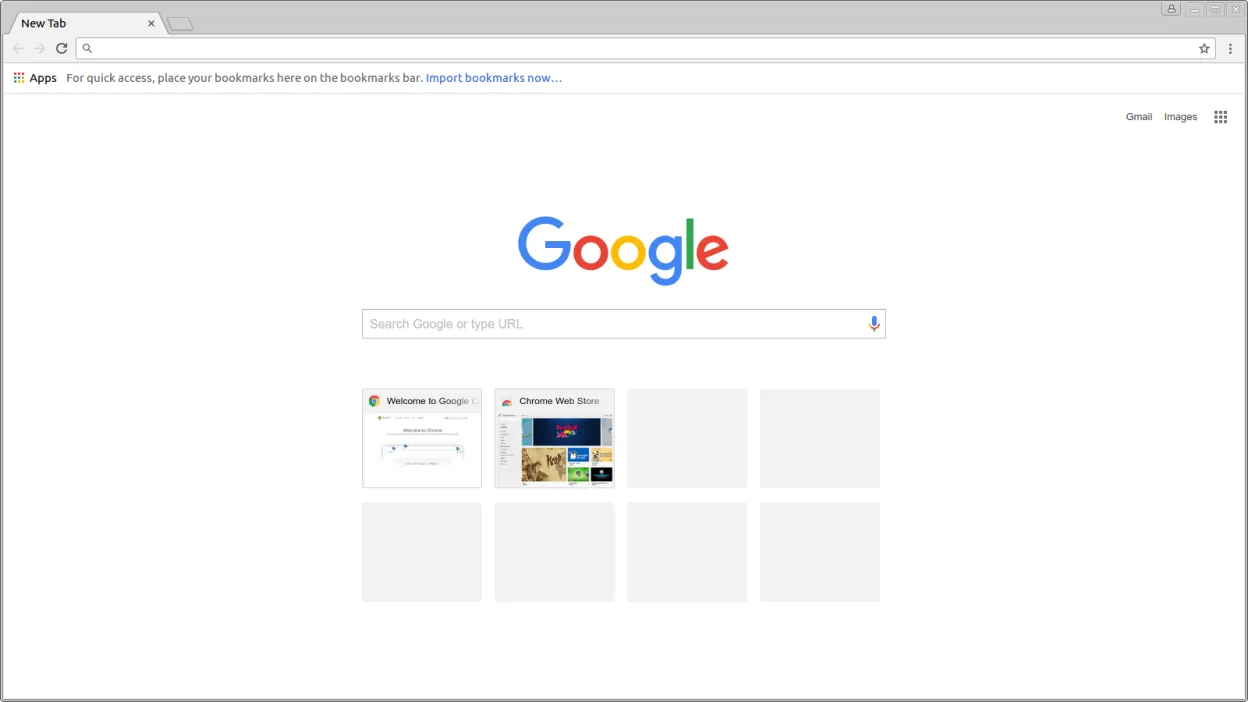
Chromium is a solid replacement for Microsoft Edge on Linux. It shares the same rendering engine, so web pages load the same. It supports tab management, session restore, DevTools, extensions from the Chrome Web Store, and hardware‑accelerated rendering. The main gaps are the lack of a built‑in Microsoft‑specific password manager, native Windows‑style sync across Microsoft accounts, and some Edge‑only features like integration with Windows Defender and Microsoft services. It is ideal for users who want a fast, standards‑compliant browser without the Windows ecosystem lock‑in.
- Licencia
- BSD-3-Clause and LGPL-2.1+ and…
- Precio
- Gratis
- Última versión
- 155.0.8059.39 (6 de octubre de 2026)
- Valoración
- —
Lo que funciona igual
- Both use the Chromium rendering engine and support modern web standards
- Both provide tab management, session restore, and built‑in PDF viewer
- Both include DevTools for debugging
- Both support extensions via the Chrome Web Store
- Both offer hardware acceleration and sandboxed processes
Lo que cambia
- Chromium lacks Microsoft’s built‑in password manager and Edge’s integration with Windows credentials
- Chromium does not sync automatically with Microsoft accounts; sync requires Google or manual setup
- Edge includes Windows Defender SmartScreen and other Microsoft security features not present in Chromium
- Edge has a more polished UI tailored to Windows; Chromium’s UI is more generic
- Edge supports some Microsoft‑specific APIs (e.g., Office integration) that Chromium does not
Abrir tus archivos de Microsoft Edge
Opening Edge‑specific files such as .edg or Edge‑profile data is not supported by Chromium. Exporting bookmarks, passwords, and history from Edge can be done via the Edge export feature (HTML, CSV) and then imported into Chromium using the browser’s import tool. For other Edge data, manual migration or third‑party tools may be required.
Pasar de Microsoft Edge a Chromium, paso a paso
- 1. Export bookmarks, passwords, and history from Edge (Settings → Import/Export).
- 2. Install Chromium from your distro’s package manager or Flathub.
- 3. Open Chromium and use the Import tool (Menu → Bookmarks → Import Bookmarks and Settings).
- 4. If you use Microsoft account sync, set up a Google account in Chromium for sync or use a third‑party sync tool.
- 5. Reinstall any desired extensions from the Chrome Web Store.
- 6. Verify that tabs, history, and saved passwords appear correctly.
Funciones clave de Chromium
- Arquitectura multiproceso rápida con sandboxing
- Soporte para estándares web modernos (HTML5, WebAssembly)
- Amplia biblioteca de extensiones a través de Chrome Web Store
- Sincronización con cuentas de Google (si se configura manualmente)
- Herramientas de desarrollo para depuración y análisis de rendimiento
- Aceleración por hardware y UI receptiva
- Aislamiento de pestañas y resistencia a los errores
- Visor de PDF integrado y soporte multimedia
Cómo instalar Chromium en Linux
flatpak install flathub org.chromium.Chromiumsudo apt install chromium-browsersudo apt install chromiumsudo dnf install chromiumsudo pacman -S chromiumsudo zypper install chromiumPreguntas frecuentes
Does Chromium support Edge extensions?
No, Chromium only supports extensions from the Chrome Web Store. Edge extensions are not compatible.
Will my Edge passwords sync to Chromium?
Passwords can be exported from Edge to a CSV file and then imported into Chromium, but automatic sync is not available.
Is Chromium secure compared to Edge?
Chromium uses the same sandboxing and sandboxed renderer as Edge, but it lacks Microsoft’s Defender SmartScreen. Security depends on your configuration and extensions.
Otras 4 alternativas a Microsoft Edge
 FirefoxFirefox es un navegador web rápido y privado desarrollado por Mozilla.Código abiertoGratisFlatpakFirefox vs Microsoft Edge
 BraveBrave es un navegador web rápido y centrado en la privacidad que bloquea anuncios y rastreadores por defecto…Código abiertoGratisFlatpakBrave vs Microsoft Edge
 VivaldiVivaldi es un navegador web altamente personalizable y con una amplia gama de funciones, diseñado para…FlatpakVivaldi vs Microsoft Edge
 LibreWolfLibreWolf es una bifurcación independiente de Firefox centrada en la privacidad, diseñada para eliminar la…Código abiertoGratisFlatpakLibreWolf vs Microsoft Edge