
 GIMPLinux
vs
Microsoft PaintWindows
GIMPLinux
vs
Microsoft PaintWindows
GIMP como alternativa Linux a Microsoft Paint
Actualizado el
Nuestra opinión
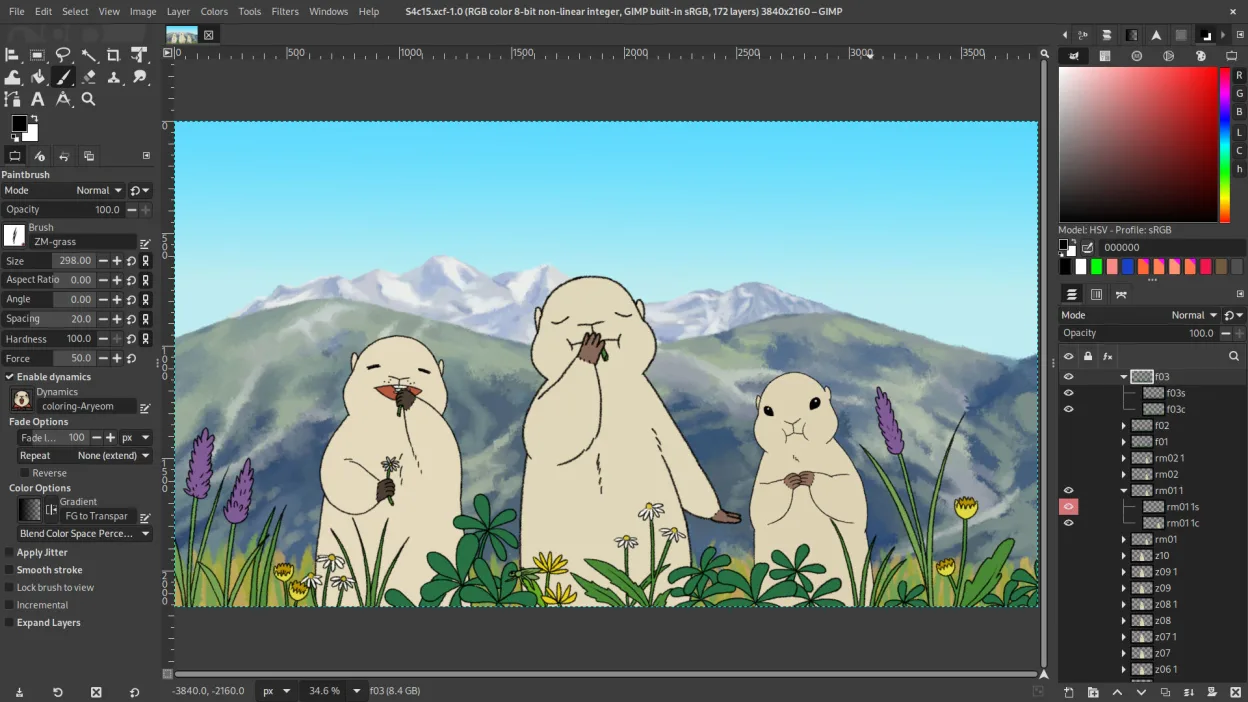
GIMP is a capable replacement for Microsoft Paint, but it's significantly more complex. If you only need basic drawing or cropping, GIMP will do it — and much more — but its interface and features are aimed at advanced users. For casual users who open Paint to make quick edits, screenshots, or simple drawings, GIMP may feel overwhelming. However, for those willing to learn or who need advanced tools, GIMP offers a powerful, free alternative that far exceeds Paint’s capabilities.
- Licencia
- GPL-3.0+ AND LGPL-3.0+
- Precio
- Gratis
- Última versión
- 3.2.6 (10 de septiembre de 2026)
- Valoración
- —
Lo que funciona igual
- Both can create and edit raster images from scratch
- Support for basic painting tools like brush, pencil, eraser, and shape tools
- Ability to crop, resize, and rotate images
- Native support for common formats like PNG and JPEG
- Free and available on multiple platforms
Lo que cambia
- GIMP has a steep learning curve compared to Paint’s simplicity
- Paint has no layer support; GIMP offers full layer and mask editing
- GIMP lacks a true 'simple mode' — interface is always advanced
- Paint allows quick, single-action edits; GIMP requires more steps for basic tasks
- GIMP does not include a built-in 'doodle over desktop' feature like Paint in Windows 11
Abrir tus archivos de Microsoft Paint
GIMP can open and edit Microsoft Paint’s default .BMP files without issue, and it supports saving to .PNG and .JPEG, which are also commonly used in Paint. While Paint doesn’t use layers or advanced features, GIMP handles flat images correctly. You can export from GIMP to formats that Paint can open, ensuring backward compatibility. However, if a .BMP file uses an unusual color mode (like indexed with a custom palette), minor rendering differences may occur, but these are rare.
Pasar de Microsoft Paint a GIMP, paso a paso
- Install GIMP via your package manager (e.g., sudo apt install gimp)
- Open a BMP or PNG file to test basic editing
- Use the Toolbox to try brush, shape, and text tools
- Explore Layers panel to understand non-destructive editing
- Export to PNG or JPEG for sharing with others using basic editors
Funciones clave de GIMP
- Edición basada en capas con máscaras, modos de fusión y transparencia
- Motor de pinceles avanzado para pintura digital y retoque
- Soporte de plug‑ins compatibles con Photoshop (a través de capas de compatibilidad)
- Procesamiento por lotes y scripting con Script‑Fu, Python o GEGL
- Edición no destructiva posible mediante plug‑ins como G'MIC
- Soporte de formato extenso: PNG, JPEG, TIFF, PSD, WebP y más
- Interfaz personalizable con paneles acoplables y temas
- Gestión de color con soporte de perfiles ICC
Cómo instalar GIMP en Linux
flatpak install flathub org.gimp.GIMPsudo apt install gimpsudo apt install gimpsudo dnf install gimpsudo pacman -S gimpsudo zypper install gimpPreguntas frecuentes
Can I use GIMP just like Microsoft Paint for quick drawings?
Yes, but it’s like using a full toolbox for a single screw. You can draw and save simply, but you’ll see advanced panels by default. Stick to the brush and save as PNG to keep it simple.
Is GIMP safe and free from malware?
Yes, especially when installed from your distribution’s official repositories or Flathub. Avoid third-party download sites, which may bundle unwanted software.
Why does GIMP look so different from Paint?
GIMP is designed for detailed image work, not just quick sketches. Its multi-window layout and layer system reflect that. You can dock panels and customize the workspace, but it won’t mimic Paint’s single-window simplicity.
Otras 5 alternativas a Microsoft Paint
 PintaPinta es un editor de bitmaps gratuito y de código abierto que imita a Paint.NET con una interfaz sencilla y…Código abiertoGratisFlatpakPinta vs Microsoft Paint
 KritaKrita es un programa de pintura digital e ilustración de código abierto con todas las funciones.Código abiertoGratisFlatpakKrita vs Microsoft Paint
 DrawpileDrawpile es una aplicación de dibujo colaborativo que permite a varios usuarios pintar juntos en el mismo…Código abiertoGratisFlatpakDrawpile vs Microsoft Paint
 MyPaintMyPaint es un programa de pintura raster rápido, gratuito y de código abierto centrado en la dinámica de…Código abiertoGratisFlatpakMyPaint vs Microsoft PaintmtPaintmtPaint es un editor ligero de gráficos raster para pintar y editar fotos, inspirado originalmente en…Código abiertoGratismtPaint vs Microsoft Paint