
 Google ChromeLinux
vs
Microsoft Edge (Chromium-based)Windows
Google Chrome como alternativa Linux a Microsoft Edge (Chromium-based)
Actualizado el
Nuestra opinión
Google Chrome is a solid replacement for Microsoft Edge if you prioritize speed and extension compatibility over Microsoft ecosystem integration. Both are Chromium-based, so rendering and extension support are nearly identical. However, Chrome lacks Edge’s built-in Windows integration features like clipboard history and PDF editing. If you rely heavily on OneDrive or Microsoft 365 sync, you will lose that seamless connection. For users who primarily browse the web and use Google services, Chrome offers a familiar, fast experience with regular security updates, making it a viable choice for most Linux desktop environments.
- Licencia
- LicenseRef-proprietary
- Precio
- Gratis
- Última versión
- 158.0.8127.88-1 (23 de noviembre de 2026)
- Valoración
- —
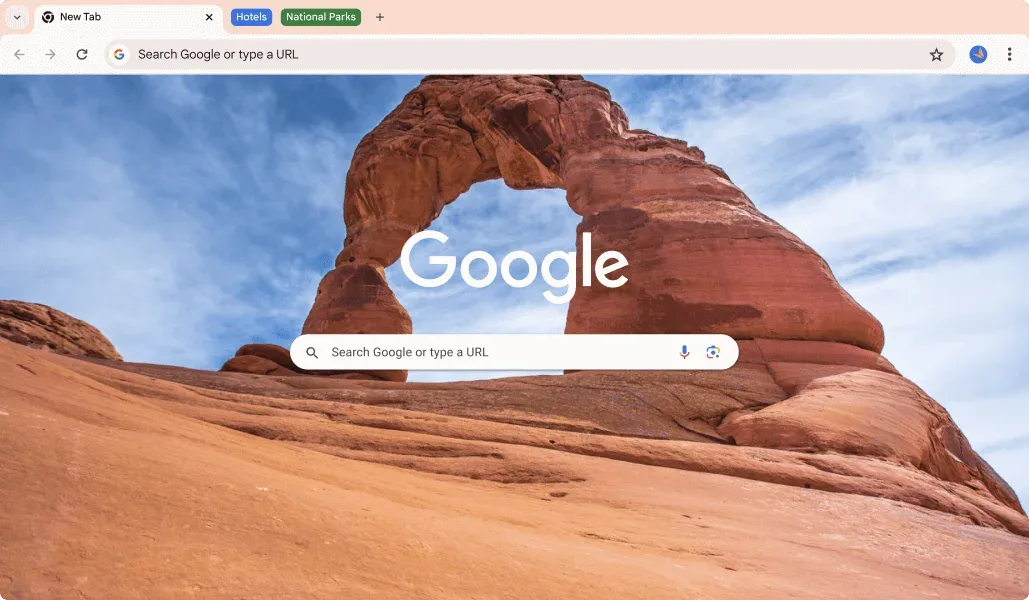
Lo que funciona igual
- Chromium-based rendering engine
- Support for Chrome Web Store extensions
- Built-in password manager and autofill
- Incognito/private browsing mode
- Developer tools for debugging
Lo que cambia
- No built-in Windows-specific features like clipboard history or PDF editing
- Syncs with Google Account instead of Microsoft Account
- Proprietary license rather than Microsoft’s terms
- Lacks Edge’s built-in ad blocker and tracking prevention features by default
- Different default search engine and homepage settings
Abrir tus archivos de Microsoft Edge (Chromium-based)
Both browsers use similar data formats for bookmarks, history, and passwords, typically stored in SQLite databases. You can export bookmarks from Microsoft Edge as an HTML file and import them into Google Chrome. Extensions installed in Edge that are available on the Chrome Web Store can be reinstalled in Chrome, but proprietary Edge extensions or those relying on Windows APIs will not work. Saved passwords can be exported as CSV from Edge and imported into Chrome, though you should verify the import format compatibility before proceeding.
Pasar de Microsoft Edge (Chromium-based) a Google Chrome, paso a paso
- Export bookmarks from Microsoft Edge as an HTML file
- Install Google Chrome via Flathub or official repository
- Import the bookmarks HTML file into Chrome
- Export passwords from Edge as CSV and import into Chrome
- Reinstall necessary extensions from the Chrome Web Store
- Set up Google Account sync for future data portability
Funciones clave de Google Chrome
- Sincroniza marcadores, contraseñas e historial mediante cuenta de Google
- Visor de PDF integrado y soporte para Flash (obsoleto)
- Amplia Tienda Web para extensiones
- Actualizaciones automáticas a través del repositorio de Google
- Arquitectura multiproceso para estabilidad
- Modo incógnito para navegación privada
- Soporte para aplicaciones web progresivas (PWA)
- Aceleración por hardware para la reproducción de video
Cómo instalar Google Chrome en Linux
flatpak install flathub com.google.ChromePreguntas frecuentes
Will my Edge extensions work in Chrome?
Most extensions available on the Chrome Web Store will work in Chrome. However, Edge-specific extensions or those relying on Windows APIs will not be compatible. Check the Chrome Web Store for equivalent extensions if needed.
Can I sync my Microsoft 365 data with Chrome?
No, Chrome syncs with Google Accounts. You will need to use Google Drive or other third-party tools to sync files if you previously relied on OneDrive integration with Edge.
Is Chrome as secure as Edge?
Both are Chromium-based and receive regular security updates. Edge includes additional tracking prevention features by default, while Chrome relies on user-installed extensions or manual settings for similar protection.
Otras 4 alternativas a Microsoft Edge (Chromium-based)
 Mozilla FirefoxMozilla Firefox es un navegador web de código abierto que funciona de forma nativa en Linux, ofreciendo una…Código abiertoGratisMozilla Firefox vs Microsoft Edge (Chromium-based)
 BraveUn navegador Chromium centrado en la privacidad que bloquea anuncios y rastreadores por defecto, ofreciendo…Código abiertoGratisFlatpakBrave vs Microsoft Edge (Chromium-based)
 VivaldiVivaldi es un navegador web altamente personalizable y con una amplia gama de funciones, diseñado para…FlatpakVivaldi vs Microsoft Edge (Chromium-based)
 LibreWolfLibreWolf es una bifurcación independiente de Firefox centrada en la privacidad, diseñada para eliminar la…Código abiertoGratisFlatpakLibreWolf vs Microsoft Edge (Chromium-based)