
 MyPaintLinux
vs
PaintWindows
MyPaintLinux
vs
PaintWindows
MyPaint como alternativa Linux a Paint
Actualizado el
Nuestra opinión
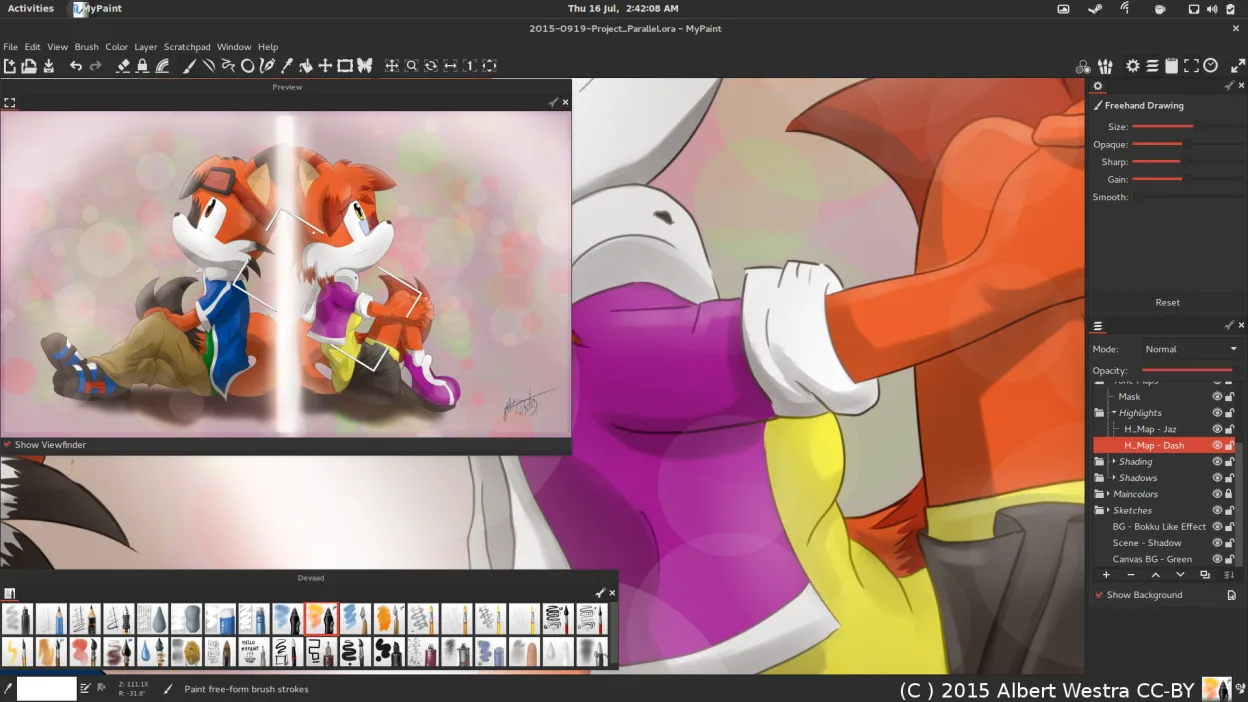
MyPaint is a good replacement for Paint if you're moving beyond basic edits into drawing or digital art, especially with a tablet. It excels for artists who want expressive brushes and a clean workspace. However, for users who only need to crop, resize, or annotate simple images, MyPaint is overkill. Its interface hides tools by default, which can confuse beginners. If your goal is casual sketching or painting with rich brush dynamics, it's a strong step up. For quick edits, stick with simpler tools.
- Licencia
- GPL-2.0+
- Precio
- Gratis
- Última versión
- 2.0.1 (29 de mayo de 2020)
- Valoración
- —
Lo que funciona igual
- Both are raster graphics editors
- Support freehand drawing with a mouse or stylus
- Allow creating and saving image files
- Offer basic layer support
- Export to PNG and JPEG
Lo que cambia
- MyPaint focuses on brush customization; Paint offers only basic tools
- MyPaint assumes tablet use; Paint is designed for mouse
- MyPaint has a minimal, canvas-first UI; Paint shows all tools upfront
- MyPaint supports pressure sensitivity; Paint does not
- Paint allows simple text and shapes; MyPaint lacks built-in text tools
Abrir tus archivos de Paint
MyPaint can open and export PNG and JPEG files, which are common formats used by Paint, so basic image exchange works. It also supports OpenRaster (.ora), which Paint cannot read. BMP files, often associated with Paint, are not explicitly listed as supported in MyPaint—conversion may be needed. If you're sharing simple drawings or screenshots saved as PNG, compatibility is solid. For BMP or complex Paint files with text or shapes, expect manual rework.
Pasar de Paint a MyPaint, paso a paso
- Install MyPaint via your distro’s package manager or Flatpak
- Connect and calibrate your graphics tablet if using one
- Open a new canvas and explore the default brushes
- Use Ctrl+Z and Shift+Ctrl+Z for unlimited undo/redo
- Export your work as PNG or JPEG for sharing
Funciones clave de MyPaint
- Motor de pinceles con cientos de parámetros configurables
- Soporta sensibilidad a la presión e inclinación en tabletas gráficas
- Interfaz simple y sin distracciones, solo lienzo
- Soporte de capas con modos de mezcla básicos
- Exporta a PNG, JPEG, OpenRaster y otros formatos comunes
- Extensible mediante plugins de Python
- Paquetes de pinceles preinstalados de artistas profesionales
- Historial de deshacer/rehacer con pasos ilimitados
Cómo instalar MyPaint en Linux
flatpak install flathub org.mypaint.MyPaintsudo apt install mypaintsudo apt install mypaintsudo dnf install mypaintsudo pacman -S mypaintsudo zypper install mypaintPreguntas frecuentes
Can I use MyPaint with a mouse instead of a tablet?
Yes, but it's designed for pressure-sensitive tablets. With a mouse, you lose brush dynamics like pressure control, limiting its strengths.
Does MyPaint have a text tool?
No, MyPaint does not include a text tool. You’ll need to add text in another program or use an external editor.
Is MyPaint suitable for editing screenshots?
Not ideal. It lacks cropping, arrow tools, and text—basic screenshot-editing features. Use GIMP or Pinta instead.
Otras 4 alternativas a Paint
 PintaPinta es un editor de bitmaps gratuito y de código abierto que imita a Paint.NET con una interfaz sencilla y…Código abiertoGratisFlatpakPinta vs Paint
 GIMPGIMP es un editor de gráficos rasterizados gratuito y de código abierto para edición fotográfica, pintura…Código abiertoGratisFlatpakGIMP vs Paint
 KolourPaintKolourPaint es un editor de gráficos raster ligeros de KDE para dibujar rápido y retoques simples de imágenes.Código abiertoGratisFlatpakKolourPaint vs Paint
 DrawpileDrawpile es una aplicación de dibujo colaborativo que permite a varios usuarios pintar juntos en el mismo…Código abiertoGratisFlatpakDrawpile vs Paint