
 PiTiViLinux
vs
iMovieWindows
PiTiViLinux
vs
iMovieWindows
PiTiVi como alternativa Linux a iMovie
Actualizado el
Nuestra opinión
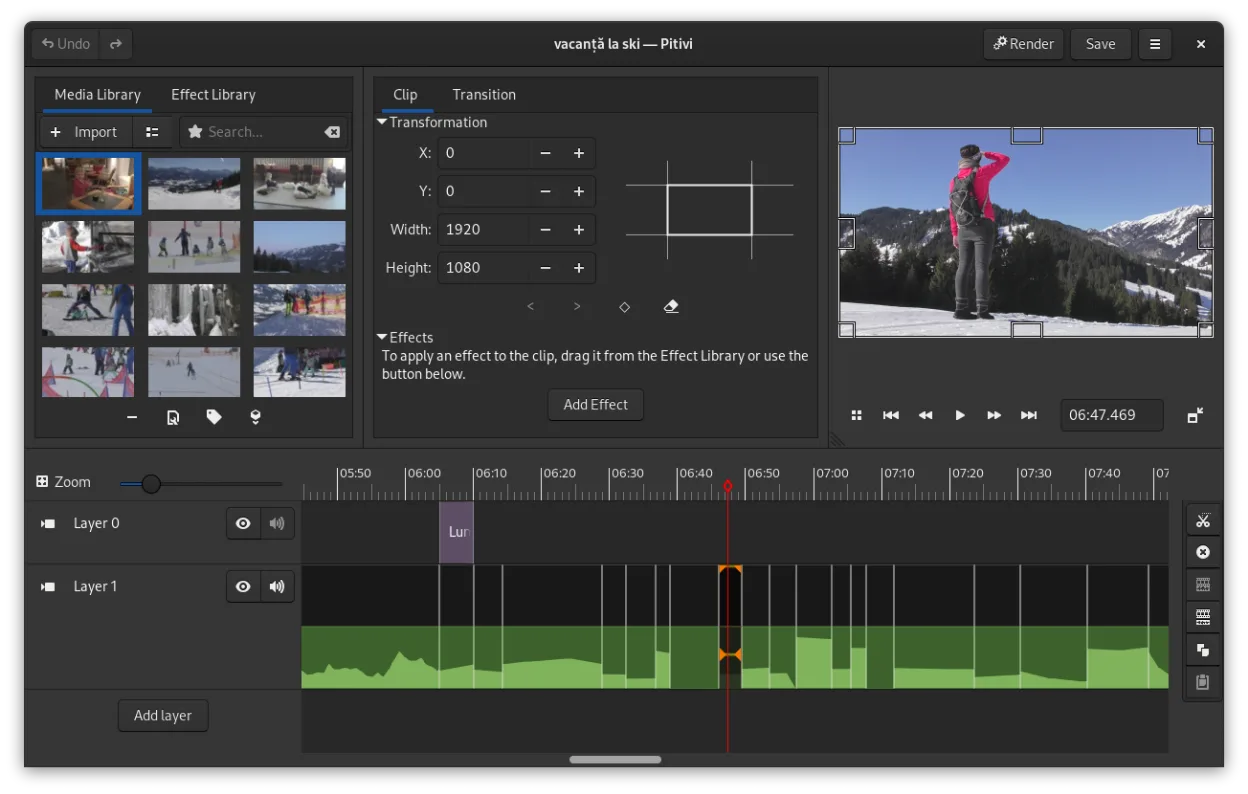
PiTiVi is a solid, free replacement for iMovie if you are moving from Mac to Linux and want a native, non-linear editor. It covers the core needs: drag-and-drop timeline, transitions, and basic effects. However, it lacks iMovie's polished, template-driven simplicity and built-in music library. It is best for users willing to learn a slightly more technical interface in exchange for open-source freedom and low resource usage. If you need one-click social media exports or extensive built-in assets, you may find it less intuitive than iMovie, but for basic editing, it works well.
- Licencia
- LGPL-2.0+
- Precio
- Gratis
- Última versión
- 2023.03 (26 de marzo de 2023)
- Valoración
- —
Lo que funciona igual
- Non-linear timeline editing with drag-and-drop clips
- Support for common video formats like MP4 and MOV via GStreamer
- Built-in transitions and crossfades
- Basic color correction and filters
- Low resource usage suitable for older hardware
Lo que cambia
- No built-in library of background music or sound effects
- Lacks iMovie's highly simplified, template-based workflow for absolute beginners
- No specific one-click presets for social media platforms
- Interface is GNOME-integrated and functional, but less polished visually than iMovie
- Stabilization features may require manual keyframing or external tools rather than being a simple toggle
Abrir tus archivos de iMovie
PiTiVi does not open iMovie project files (.imovied) directly. You will need to export your finished videos from iMovie as standard formats like MP4 or MOV before importing them into PiTiVi. Since PiTiVi relies on GStreamer, it supports a wide range of codecs, so standard H.264/H.265 MP4 files will work without issue. There is no direct project file conversion tool available.
Pasar de iMovie a PiTiVi, paso a paso
- Export all your iMovie projects as MP4 files before switching to Linux
- Install PiTiVi via your package manager or Flathub
- Import your MP4 clips into PiTiVi's media library
- Recreate your timeline by dragging clips into the tracks
- Apply transitions and effects manually using the filters panel
- Render your final video using a custom or default preset
Funciones clave de PiTiVi
- Edición no lineal con una línea de tiempo independiente de la velocidad de fotogramas
- Admite cualquier formato manejado por GStreamer
- Animación por fotogramas clave para efectos y filtros
- Edición ripple y roll para ajustes eficientes de la línea de tiempo
- Relaciones de aspecto, velocidades de fotogramas y preajustes de renderizado personalizados
- Fundidos cruzados y transiciones estándar SMPTE
- Paneles UI desmontables para configuraciones de varios monitores
- Flujo de trabajo no modal con diseño centrado en la cabeza de reproducción
Cómo instalar PiTiVi en Linux
flatpak install flathub org.pitivi.Pitivisudo apt install pitivisudo apt install pitivisudo dnf install pitivisudo pacman -S pitivisudo zypper install pitiviPreguntas frecuentes
Does PiTiVi have a built-in music library?
No, PiTiVi does not come with a pre-loaded library of songs or sound effects. You need to import your own audio files, such as MP3 or WAV, into the project.
Is PiTiVi suitable for absolute beginners?
It is easier than professional editors like Kdenlive or DaVinci Resolve, but it is not as simplified as iMovie. You will need to learn where to find filters and transitions, which are not always one-click templates.
Can I edit 4K video in PiTiVi?
Yes, PiTiVi can handle 4K video, but performance depends heavily on your hardware. It uses GStreamer, so efficient hardware acceleration is key for smooth playback of high-resolution footage.
Otras 5 alternativas a iMovie
 KdenliveKdenlive es un editor de video no lineal gratuito y con muchas funciones, basado en el framework MLT.Código abiertoGratisFlatpakKdenlive vs iMovie
 ShotcutShotcut es un editor de video gratuito y de código abierto para Linux con soporte para una amplia gama de…Código abiertoGratisFlatpakShotcut vs iMovie
 OpenShotOpenShot es un editor de vídeo no lineal gratuito, de código abierto, para Linux y otras plataformas…Código abiertoGratisFlatpakOpenShot vs iMovie
 BlenderBlender es una suite 3D gratuita y de código abierto para modelado, animación, renderizado y edición de video.Código abiertoGratisFlatpakBlender vs iMovie
 NatronNatron es una herramienta de composición de video basada en nodos, libre y de código abierto, para crear VFX…Código abiertoGratisFlatpakNatron vs iMovie