
 RustDeskLinux
vs
Quick AssistWindows
RustDeskLinux
vs
Quick AssistWindows
RustDesk como alternativa Linux a Quick Assist
Actualizado el
Nuestra opinión
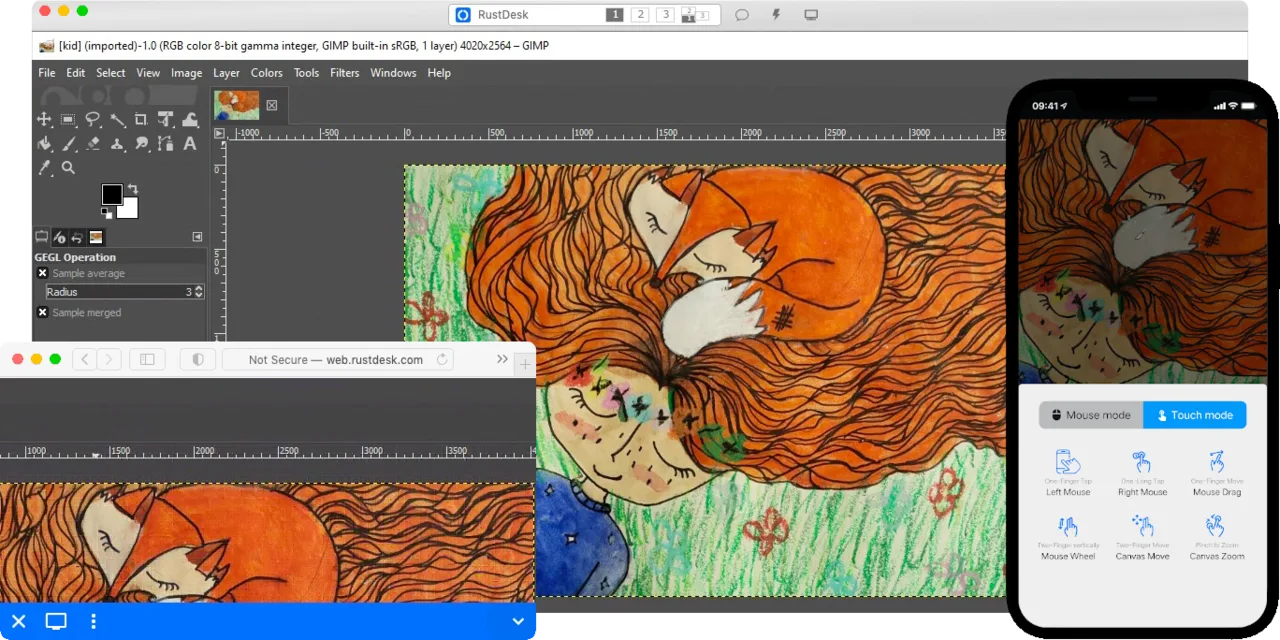
RustDesk can replace Quick Assist for most users who need a free, cross‑platform remote‑desktop tool. It offers the same core functions—screen sharing, mouse/keyboard control, and end‑to‑end encryption—while adding the option to self‑host for full data control. It is ideal for small teams, developers, or home users who want a lightweight, open‑source alternative. Users who rely on Windows‑only features such as built‑in RDP support or tight integration with Windows Security Center may find it less convenient.
- Licencia
- AGPL-3.0-only
- Precio
- Gratis
- Última versión
- 1.5.0 (30 de septiembre de 2026)
- Valoración
- —
Lo que funciona igual
- Cross‑platform clients (Windows, macOS, Linux, Android, iOS)
- Remote screen viewing and input control
- End‑to‑end encryption (NaCl)
- Peer‑to‑peer connection with relay fallback
- Free and open‑source
Lo que cambia
- RustDesk does not use the native RDP protocol; it relies on its own protocol and optional VNC compatibility
- No built‑in Windows‑only features like Windows Security Center integration
- Requires a self‑hosted relay or server for full control over data (though a public relay is available)
- No direct support for Windows‑specific clipboard or file transfer protocols used by Quick Assist
- No official Windows‑only installer—portable binary is used
Abrir tus archivos de Quick Assist
Quick Assist does not produce portable files that can be opened by other remote‑desktop tools. Sessions are created on the fly and managed through the Windows UI. Therefore, there is no file format to import or export into RustDesk.
Pasar de Quick Assist a RustDesk, paso a paso
- 1. Download the latest RustDesk release from the official site or Flathub.
- 2. Install the Linux package (deb, rpm, or flatpak) or run the portable binary on Windows.
- 3. On the target machine, open RustDesk, note the ID and password, and share them with the helper.
- 4. On the helper’s machine, enter the ID and password in RustDesk to start the session.
- 5. If you want end‑to‑end encryption, keep the default settings; for additional security, set up a self‑hosted relay server and configure both clients to use it.
Funciones clave de RustDesk
- Soporte multiplataforma (Windows, Linux, macOS, Android, iOS, Web)
- Soporta códecs de video VP8, VP9, AV1, H.264 y H.265
- Cifrado de extremo a extremo con NaCl (Biblioteca de Redes y Criptografía)
- Conexiones peer-to-peer con fallback opcional a relay
- Servidor autoalojable para control total de datos
- Sin instalación requerida en Windows (modo portátil)
- Escalada de privilegios local o remoto
- Configuración sencilla enfocada en usabilidad
Cómo instalar RustDesk en Linux
flatpak install flathub com.rustdesk.RustDeskPreguntas frecuentes
Is RustDesk safe to use over the internet?
Yes. All traffic is encrypted with NaCl end‑to‑end encryption. Peer‑to‑peer connections are used when possible, and a relay server can be self‑hosted for privacy.
Can I use RustDesk without installing anything on Windows?
Yes. The Windows portable binary does not require admin rights and can be run from a USB stick.
Does RustDesk support file transfer between hosts?
Yes, it supports drag‑and‑drop and clipboard sharing, but it uses its own protocol rather than the Windows RDP file transfer mechanism.
Otras 3 alternativas a Quick Assist
 RemminaRemmina es un cliente de escritorio remoto para Linux que soporta RDP, VNC, SSH y X2Go para conectarse a…Código abiertoGratisFlatpakRemmina vs Quick Assist
 KRDCKRDC es un cliente de escritorio remoto de KDE que se conecta a máquinas Windows o Linux mediante RDP o VNC.Código abiertoGratisFlatpakKRDC vs Quick Assist
 VinagreVinagre es un visor de escritorio remoto para GNOME que soporta VNC, RDP, SSH y SPICE, y que ahora está…Código abiertoGratisAbandonadoVinagre vs Quick Assist