
 AcetoneISOLinux
vs
AcetoneISOLinux
vs
 Daemon ToolsWindows
AcetoneISO, alternative Linux à Daemon Tools
Mis à jour le
Notre avis
AcetoneISO is a solid replacement for Daemon Tools if you mainly need to mount common disc image formats and manage virtual drives through a GUI. It handles ISO, MDF, NRG, and others directly, integrates with file managers, and supports conversion and extraction. However, it won’t work with copy-protected images that rely on emulation, which Daemon Tools sometimes supports. So while it covers basic mounting and unmounting well, users depending on protection emulation for older software or games will need extra tools like fuse-iso or commercial alternatives.
- Licence
- GPL-3.0
- Prix
- Gratuit
- Dernière version
- 2.4_7
- Note
- 5/5 (1)
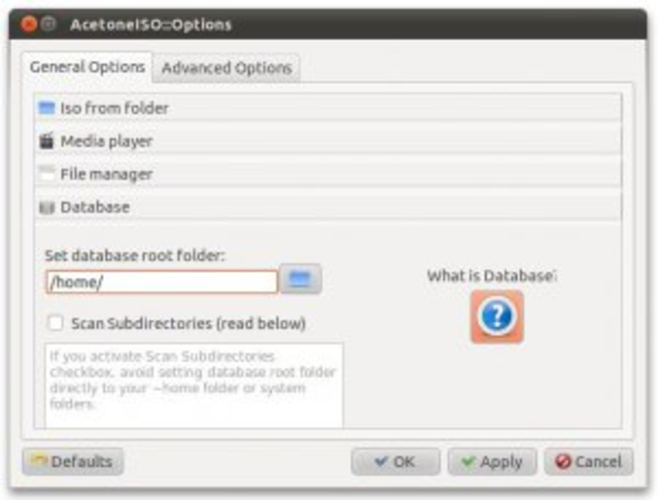
Ce qui fonctionne pareil
- Mounts ISO, MDF, NRG, and BIN files graphically
- Manages virtual drives with add/remove options
- Supports unmounting safely via GUI
- Converts between image formats
- Integrates with desktop environments and file managers
Ce qui change
- No emulation of copy protection schemes
- Lacks support for SCSI virtual drive emulation
- Fewer advanced daemon features like iSCSI or remote image access
- Does not handle .mds/.mdf split metadata the same way Daemon Tools does by default
- No built-in image compression; relies on external tools
Ouvrir vos fichiers Daemon Tools
AcetoneISO can open most image types created with Daemon Tools, including .iso, .mdf, .nrg, and .bin, as long as they don't require copy protection emulation. You can mount and extract from these directly. However, if the image relies on SafeDisc or SecuROM protection, AcetoneISO won't bypass it. For exporting, AcetoneISO creates standard ISOs or IMGs, not proprietary Daemon Tools formats like .dt. Conversion is limited to open formats.
Passer de Daemon Tools à AcetoneISO, étape par étape
- Install AcetoneISO via your package manager: sudo apt install acetoneiso
- Enable FUSE and loop modules if prompted during first run
- Use the GUI to add images — drag and drop or right-click in file manager
- Mount and unmount through the application or context menu
- Convert images using the 'Convert' tab; burning available in 'Burn' section
Fonctionnalités clés de AcetoneISO
- Monter les formats d'image ISO, BIN, IMG, MDF, NRG et autres
- Créer des images ISO à partir de dossiers ou de disques physiques
- Convertir entre les formats d'image pris en charge
- Graver des images sur des supports CD/DVD/BD
- Gérer les lecteurs virtuels (ajouter/supprimer) via l'interface graphique
- Extraire des fichiers d'images sans les monter
- Prise en charge de la ligne de commande via acetoneiso-cli
- Intégration avec les menus contextuels du gestionnaire de fichiers
Installer AcetoneISO sous Linux
sudo apt install acetoneisosudo apt install acetoneisoQuestions fréquentes
Can AcetoneISO mount .mdf/.mds files from Daemon Tools?
Yes, AcetoneISO supports .mdf files directly. Just open it in the app or use the context menu in your file manager.
Why won’t some old game images mount in AcetoneISO?
Many older games use copy protection like SafeDisc or SecuROM. AcetoneISO doesn’t emulate these, so the image won’t mount or run correctly without additional tools.
Is there a command-line version?
Yes, use acetoneiso-cli for scripting or headless operations. It supports mounting, conversion, and extraction.
3 autres alternatives à Daemon Tools
 CDemuCDEmu est un démon gratuit et open source qui monte des images de disques en tant que lecteurs optiques…Open sourceGratuitAbandonnéCDemu ou Daemon Tools
 Furius ISO MountFurius ISO Mount est un outil GTK léger pour monter et démonter des images ISO sur Linux.Open sourceGratuitAbandonnéFurius ISO Mount ou Daemon Tools
 Gmount-isoGmount-iso est un outil GUI léger pour monter des images ISO sur Linux.Open sourceGratuitAbandonnéGmount-iso ou Daemon Tools