
 Bambu StudioLinux
vs
3D BuilderWindows
Bambu Studio, alternative Linux à 3D Builder
Mis à jour le
Notre avis
Bambu Studio is a strong replacement for 3D Builder if your primary goal is preparing models for 3D printing. It handles the core slicing and G-code generation tasks that 3D Builder’s limited mesh editing tools often struggle with. However, it is not a direct 1:1 swap for casual mesh manipulation. If you rely heavily on 3D Builder’s simple 'repair' or 'combine' tools for non-printing purposes, you will find Bambu Studio’s interface more complex and focused on print parameters rather than basic geometry editing. It is best suited for users who want to move from casual viewing to serious print preparation.
- Licence
- AGPL-3.0-only
- Prix
- Gratuit
- Dernière version
- 2.9.1 Public Release (3 novembre 2026)
- Note
- —
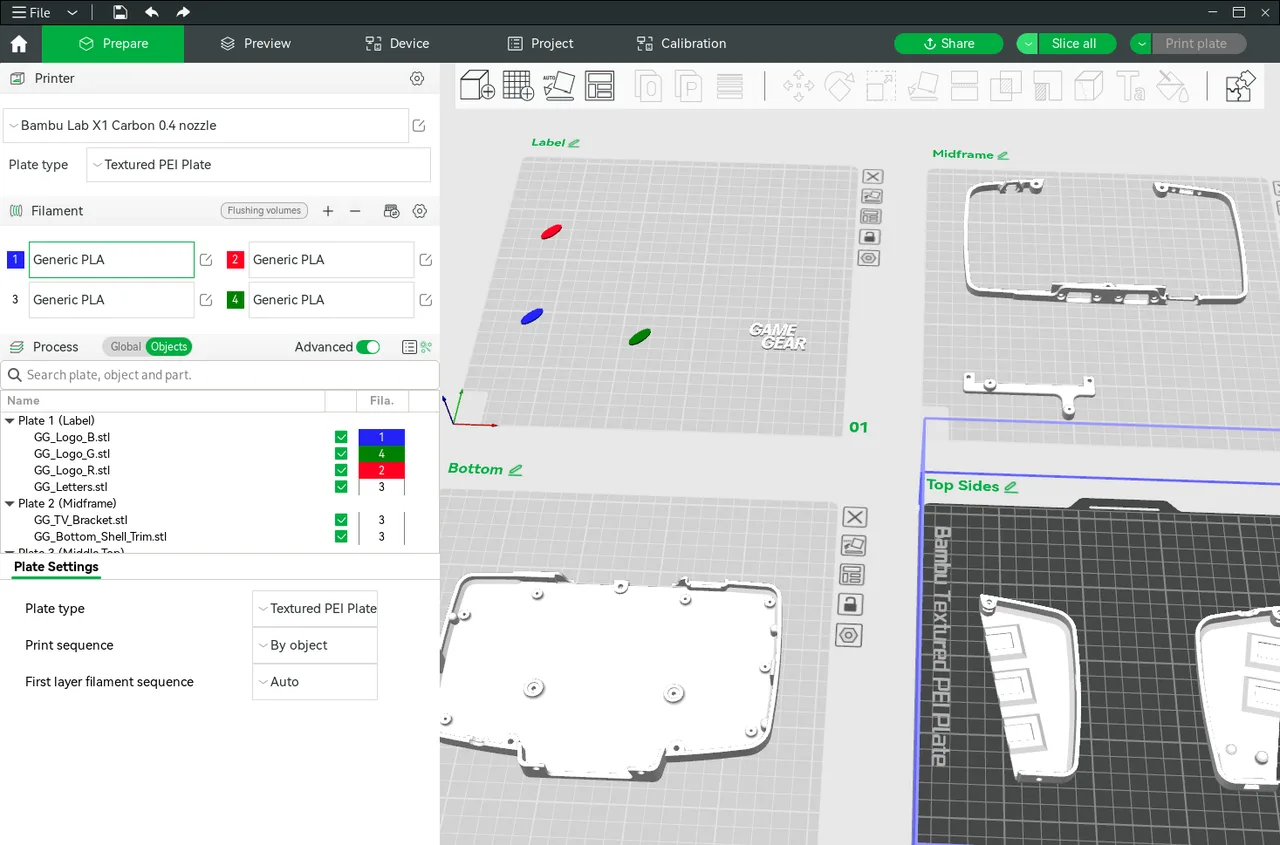
Ce qui fonctionne pareil
- Supports importing and exporting STL and OBJ files
- Allows basic transformation of models (scale, rotate, position)
- Provides visual preview of the final print layers
- Generates G-code for 3D printers
- Available as a free, open-source application
Ce qui change
- Lacks the simple, one-click 'repair' tools for non-manifold geometry found in 3D Builder
- Interface is significantly more complex, focusing on print settings rather than basic mesh editing
- Does not support PLY file import/export as a primary workflow
- Requires more setup for non-Bambu printers compared to 3D Builder's generic support
- No direct 'combine' tool for merging meshes without using external plugins or scripts
Ouvrir vos fichiers 3D Builder
Bambu Studio natively supports STL and OBJ files, which are the primary formats used by 3D Builder. You can directly open STL files exported from 3D Builder and slice them. However, Bambu Studio does not natively support PLY or 3MF in the same way 3D Builder does for general viewing. If you have complex 3D Builder projects saved in proprietary formats, you may need to export them as STL first. G-code generated by Bambu Studio is standard and compatible with most printers, but it will not be directly readable by 3D Builder, which is not a slicer.
Passer de 3D Builder à Bambu Studio, étape par étape
- Install Bambu Studio via Flatpak or your distribution's package manager.
- Export your 3D models from 3D Builder as STL or OBJ files.
- Open Bambu Studio and create a new project.
- Import your STL/OBJ files into the workspace.
- Configure your printer profile and material settings.
- Slice the model and export the G-code for your printer.
Fonctionnalités clés de Bambu Studio
- Flux de travail basé sur des projets avec modèles réutilisables
- Algorithmes de découpage optimisés pour la vitesse et la qualité
- Paramètres complets des matériaux
- Support intégré pour les imprimantes Bambu Lab
- Export vers G‑code et STL
- Raccourcis clavier personnalisables
- Distribution multiplateforme via Flatpak
- Aperçu détaillé des couches
Installer Bambu Studio sous Linux
flatpak install flathub com.bambulab.BambuStudioQuestions fréquentes
Can I repair broken meshes in Bambu Studio like in 3D Builder?
No, Bambu Studio does not have the simple 'repair' button. You will need to use external tools like Meshmixer or Blender to fix non-manifold geometry before importing into Bambu Studio.
Does Bambu Studio work with non-Bambu printers?
Yes, it supports many other FDM printers, but the interface is heavily optimized for Bambu Lab printers. You may need to manually configure profiles for other brands.
Is Bambu Studio suitable for viewing 3D models?
It is primarily a slicer. While you can view models, it is not as user-friendly for casual viewing as 3D Builder or dedicated viewers like MeshLab.
4 autres alternatives à 3D Builder
 BlenderBlender est une suite 3D libre et open-source pour la modélisation, l’animation, le rendu et le montage vidéo.Open sourceGratuitFlatpakBlender ou 3D Builder
 FreeCADFreeCAD est un modélisateur 3D paramétrique open‑source pour la conception, l’ingénierie et l’impression 3D.Open sourceGratuitFlatpakFreeCAD ou 3D Builder
 MeshLabOutil gratuit et open-source pour le traitement, le nettoyage et l’édition de maillages triangulaires 3D…Open sourceGratuitFlatpakMeshLab ou 3D Builder
 Wings 3DWings 3D est un modélisateur de subdivision avancé open source pour Linux.Open sourceGratuitFlatpakWings 3D ou 3D Builder