
 GIMPLinux
vs
XnViewWindows
GIMPLinux
vs
XnViewWindows
GIMP, alternative Linux à XnView
Mis à jour le
Notre avis
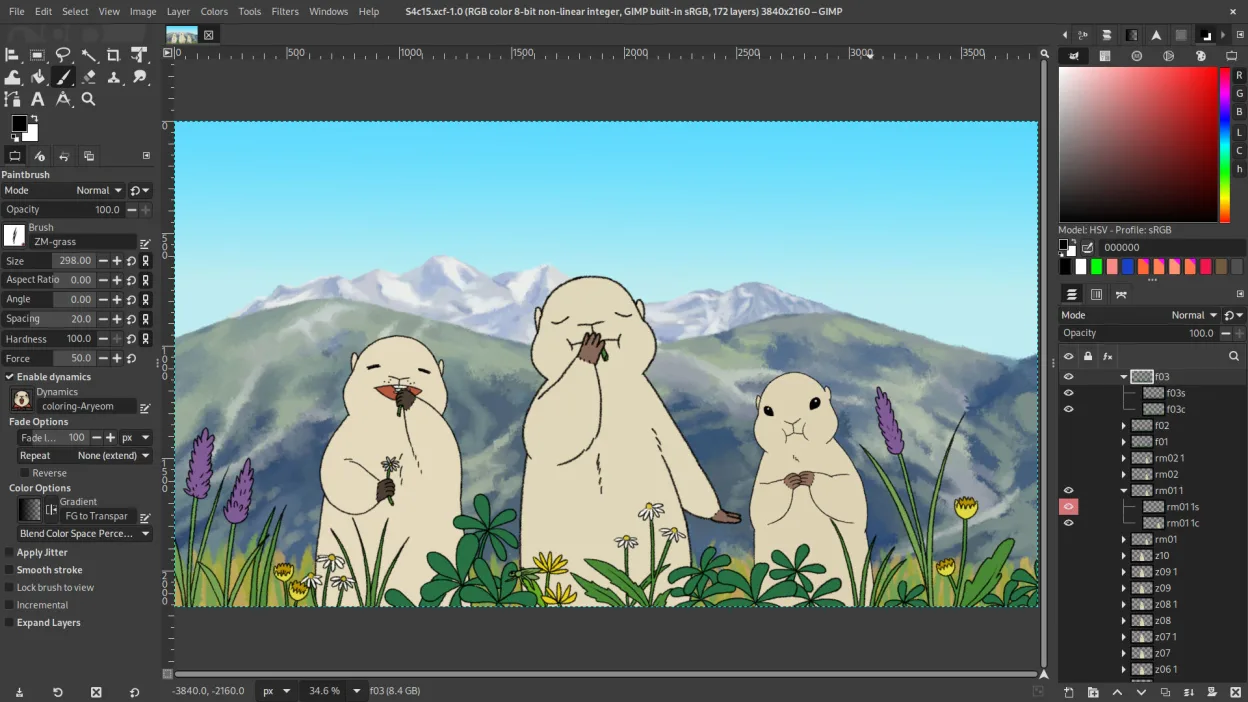
GIMP can replace XnView for users who need more than just viewing and batch conversion, such as advanced editing, layer work, or scripting. It covers most of XnView’s core tasks—format support, batch processing, basic edits, and metadata handling—while adding powerful image manipulation tools. However, it is heavier and less focused on quick viewing or simple organization. It is best for photographers, designers, or hobbyists who already use GIMP for editing and want a single tool for conversion and basic management.
- Licence
- GPL-3.0+ AND LGPL-3.0+
- Prix
- Gratuit
- Dernière version
- 3.2.6 (10 septembre 2026)
- Note
- —
Ce qui fonctionne pareil
- Both support over 500 image formats including PNG, JPEG, TIFF, and WebP
- Both offer batch conversion and renaming
- Both allow basic edits like crop, rotate, and resize
- Both can edit metadata such as EXIF, IPTC, and XMP
- Both run on Linux, Windows, and macOS
Ce qui change
- GIMP is a full‑featured editor with layers, brushes, and plugins; XnView is a lightweight viewer/organizer
- XnView has a dedicated tagging and folder organization UI; GIMP relies on external tools or manual folder management
- XnView’s batch processing is GUI‑driven and simpler; GIMP requires scripts or plug‑ins for complex batches
- XnView offers a built‑in thumbnail browser and quick preview; GIMP opens images in separate windows
- GIMP’s learning curve is steeper; XnView is more approachable for casual users
Ouvrir vos fichiers XnView
GIMP can open most XnView‑handled formats such as JPEG, PNG, TIFF, BMP, GIF, and PSD. Exporting to XnView‑specific containers (e.g., XnView’s proprietary album files) is not supported. For standard image files, simply open them in GIMP and save or export in the desired format.
Passer de XnView à GIMP, étape par étape
- 1. Install GIMP from your distro’s package manager or Flathub.
- 2. Open XnView and export any album or tag structure to a simple folder hierarchy if needed.
- 3. In GIMP, use the Batch Process dialog (Filters → Batch → Batch Process) or Script‑Fu to convert images to the desired formats.
- 4. For metadata editing, use the Metadata dialog (Image → Metadata → Edit) or plug‑ins like ExifTool.
- 5. Replace XnView shortcuts with GIMP’s keyboard shortcuts or customize them via Edit → Keyboard Shortcuts.
Fonctionnalités clés de GIMP
- Édition par calques avec masques, modes de fusion et transparence
- Moteur de pinceau avancé pour la peinture numérique et la retouche
- Prise en charge des plug-ins compatibles Photoshop (via des couches de compatibilité)
- Traitement par lots et scriptage avec Script-Fu, Python ou GEGL
- Édition non destructive possible grâce à des plug-ins comme G'MIC
- Prise en charge étendue des formats : PNG, JPEG, TIFF, PSD, WebP et plus
- Interface personnalisable avec panneaux ancrables et thèmes
- Gestion des couleurs avec prise en charge des profils ICC
Installer GIMP sous Linux
flatpak install flathub org.gimp.GIMPsudo apt install gimpsudo apt install gimpsudo dnf install gimpsudo pacman -S gimpsudo zypper install gimpQuestions fréquentes
Does GIMP support EXIF editing?
Yes, GIMP can edit EXIF data through the Metadata dialog or external plug‑ins such as ExifTool.
Can I use GIMP for simple image viewing?
GIMP can open images for viewing, but it is not as fast or lightweight as XnView for quick previews.
Is GIMP free to use?
Yes, GIMP is released under GPL‑3.0+ and LGPL‑3.0+ and is free to download and use.
5 autres alternatives à XnView
 darktabledarktable est un éditeur photo gratuit et open‑source qui gère les fichiers RAW et propose un flux de travail…Open sourceGratuitFlatpakdarktable ou XnView
 KritaKrita est un programme de peinture numérique et d'illustration open‑source complet.Open sourceGratuitFlatpakKrita ou XnView
 ShotwellShotwell est un gestionnaire de photos GNOME pour l'importation, l'organisation et l'édition légère d'images.Open sourceGratuitFlatpakShotwell ou XnView
 digiKamdigiKam est un gestionnaire de photos KDE complet pour organiser, étiqueter et retoucher des photos…Open sourceGratuitFlatpakdigiKam ou XnView