
 KRDCLinux
vs
UltraVNCWindows
KRDCLinux
vs
UltraVNCWindows
KRDC, alternative Linux à UltraVNC
Mis à jour le
Notre avis
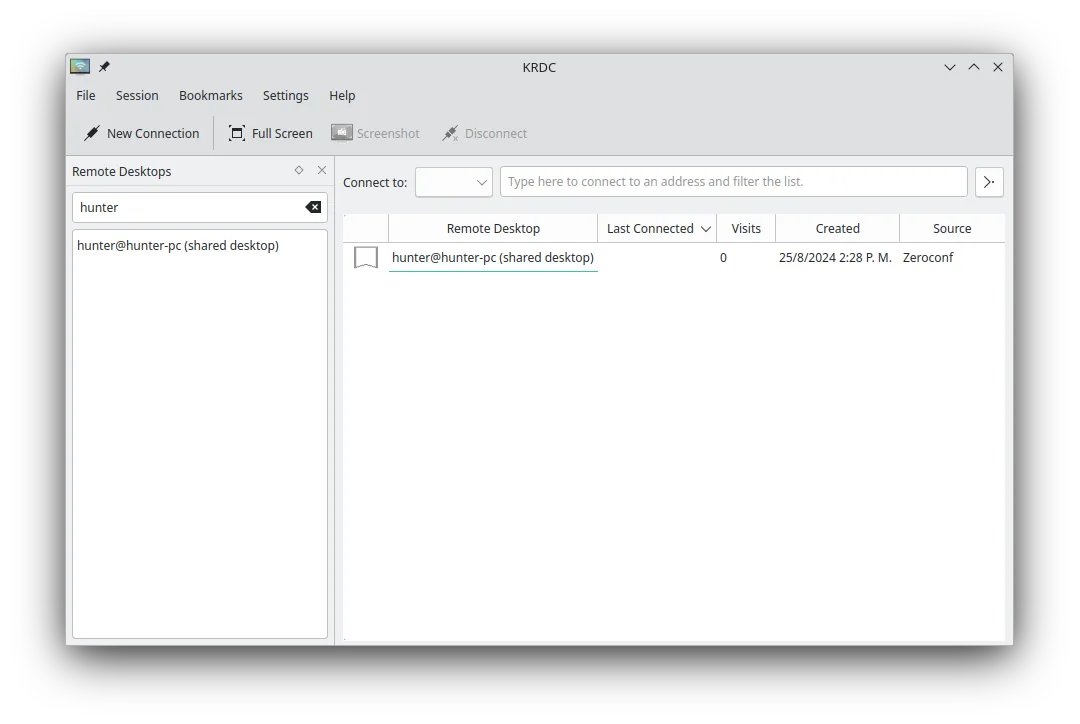
KRDC is a solid replacement for UltraVNC for most users who need VNC connectivity on Linux. It supports VNC connections, encryption via TLS for RDP and optional VNC encryption, file transfer through the VNC protocol, multiple monitors, and dynamic scaling. Its KDE‑styled UI and bookmark system make occasional remote support convenient. Users who rely heavily on UltraVNC’s Windows‑specific features, such as the dedicated UltraVNC server or advanced plug‑ins, may find KRDC lacking, but for typical VNC clients it delivers the core functionality.
- Licence
- GPL-2.0+
- Prix
- Gratuit
- Dernière version
- 26.04.3 (2 juillet 2026)
- Note
- —
Ce qui fonctionne pareil
- Both allow VNC connections to remote machines
- Both support file transfer over VNC
- Both can handle multiple monitors and scaling
- Both run as a client on Linux
- Both have a simple UI for occasional use
Ce qui change
- KRDC does not provide a VNC server; UltraVNC does
- KRDC lacks UltraVNC’s plug‑in ecosystem and Windows‑specific features
- KRDC’s VNC encryption is optional and requires configuration, whereas UltraVNC can use built‑in encryption
- KRDC is KDE‑centric, may feel heavy for non‑KDE desktops
- KRDC does not run as a Windows‑style service/daemon on Linux
- KRDC’s file transfer uses the standard VNC protocol, not UltraVNC’s custom file‑transfer extensions
Ouvrir vos fichiers UltraVNC
KRDC does not read or write UltraVNC configuration files (.vnc or .vncserver). To migrate, you would manually recreate the connection details in KRDC’s bookmark system; no direct import is available.
Passer de UltraVNC à KRDC, étape par étape
- Open KRDC and choose "New Connection".
- Select "VNC" as the protocol and enter the host IP or hostname.
- Enter the VNC password and enable encryption if needed.
- Save the connection as a bookmark for future use.
- Use the bookmark to connect and test the session.
- Optional: configure keyboard shortcuts in KRDC’s settings for remote input.
Fonctionnalités clés de KRDC
- Prend en charge les protocoles RDP et VNC
- Interface graphique stylée KDE
- Gestion des signets pour les connexions fréquentes
- Modes plein écran et fenêtré
- Prise en charge des raccourcis clavier (Ctrl+Alt+Shift pour la saisie distante)
- Mise à l'échelle dynamique de l'affichage distant
- Chiffrement TLS pour les sessions RDP
- Intégration avec KDE Wallet pour le stockage des mots de passe
Installer KRDC sous Linux
flatpak install flathub org.kde.krdcsudo apt install krdcsudo apt install krdcsudo dnf install krdcsudo pacman -S krdcsudo zypper install krdc4 autres alternatives à UltraVNC
 TigerVNC ViewerTigerVNC Viewer est un client sous licence GPL pour se connecter à des bureaux VNC distants sur Linux.Open sourceGratuitFlatpakTigerVNC Viewer ou UltraVNC
 RemminaRemmina est un client de bureau à distance Linux prenant en charge RDP, VNC, SSH et X2Go pour se connecter à…Open sourceGratuitFlatpakRemmina ou UltraVNCx11vncUn serveur VNC pour X11 qui vous permet de contrôler votre bureau Linux à distance depuis n’importe quel…Open sourceGratuitx11vnc ou UltraVNC
 VinagreVinagre est un outil GNOME de visualisation de bureau distant pour VNC, RDP, SSH et SPICE, désormais…Open sourceGratuitAbandonnéVinagre ou UltraVNC