
 QtractorLinux
vs
GarageBandWindows
QtractorLinux
vs
GarageBandWindows
Qtractor, alternative Linux à GarageBand
Mis à jour le
Notre avis
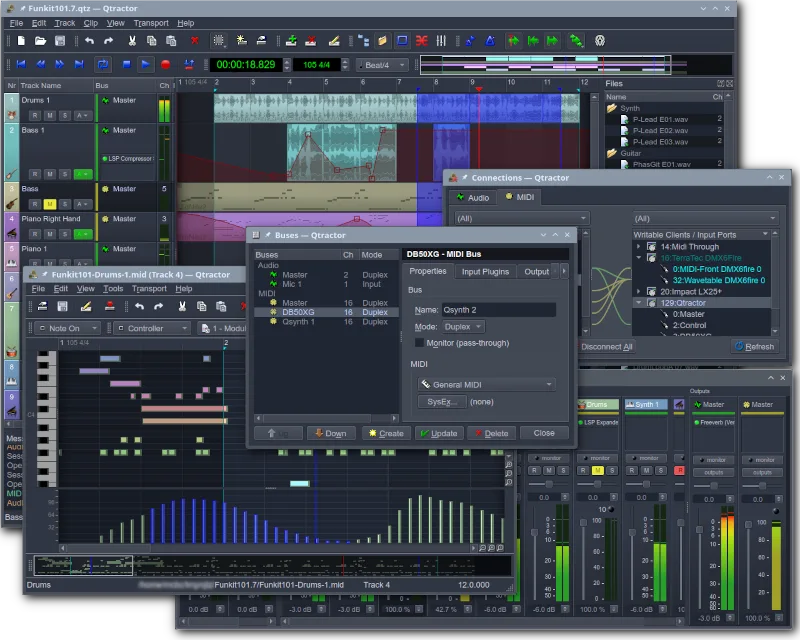
Qtractor is a solid, free replacement for GarageBand if you are comfortable with Linux audio infrastructure. It handles multitrack recording, MIDI sequencing, and mixing well, making it suitable for hobbyists who want a dedicated DAW. However, it lacks GarageBand’s intuitive, drag-and-drop simplicity. If you need a quick, visual loop-based workflow without learning JACK or plugin management, Qtractor might feel steep. For users ready to engage with a traditional Linux DAW structure, it covers the core needs of recording and producing music effectively.
- Licence
- GPL-2.0+
- Prix
- Gratuit
- Dernière version
- 1.6.4 (6 septembre 2026)
- Note
- —
Ce qui fonctionne pareil
- Multitrack audio and MIDI recording capabilities
- Support for software synthesizers and drum machines via plugins
- Basic audio editing and effects processing
- Session management and project saving
- Export options for standard audio formats
Ce qui change
- Requires JACK audio server setup for optimal performance
- Lacks a built-in, extensive library of pre-made audio loops
- Interface is more complex and less beginner-friendly than GarageBand
- No direct integration with Apple-specific hardware or ecosystem
- Plugin management relies on VST/LADSPA rather than a unified app store
Ouvrir vos fichiers GarageBand
Qtractor does not natively open GarageBand project files (.band). You will need to export your GarageBand projects as standard audio files (WAV/AIFF) or MIDI files first. Qtractor can then import these standard formats to continue working on the tracks. Direct project file conversion is not supported.
Passer de GarageBand à Qtractor, étape par étape
- Export your GarageBand project as a multitrack WAV or MIDI file.
- Install Qtractor and set up the JACK audio server.
- Create a new session in Qtractor and import the exported audio/MIDI files.
- Load your preferred VST or LADSPA plugins for synths and effects.
- Reconstruct your mix using Qtractor’s mixer and automation features.
- Save the session and test the playback to ensure all tracks are aligned.
Fonctionnalités clés de Qtractor
- Enregistrement audio et MIDI multi-pistes
- Intégration avec le serveur audio JACK
- Prise en charge d'ALSA pour les périphériques MIDI
- Prise en charge des plugins VST et LADSPA
- Édition et mixage non destructifs
- Effets et traitement intégrés
- Gestion des sessions et sauvegarde des projets
- Compatibilité multiplateforme via Qt
Installer Qtractor sous Linux
flatpak install flathub org.rncbc.qtractorsudo apt install qtractorsudo apt install qtractorsudo dnf install qtractorsudo pacman -S qtractorsudo zypper install qtractorQuestions fréquentes
Does Qtractor have a built-in loop library like GarageBand?
No, Qtractor does not come with a large built-in loop library. You will need to source loops from free online repositories or create your own using the MIDI sequencer and synths.
Is Qtractor difficult to set up for a beginner?
It has a steeper learning curve than GarageBand. You need to understand basic Linux audio concepts like JACK and ALSA. However, once set up, the interface is manageable for intermediate users.
Can I use my existing VST plugins in Qtractor?
Yes, Qtractor supports VST and LADSPA plugins. You can load your favorite Windows-compatible VSTs (if they run on Linux via Wine or native Linux builds) or use Linux-specific plugins.
4 autres alternatives à GarageBand
 LMMSLMMS est une station de travail audio numérique gratuite pour composer, séquencer et mixer de la musique à…Open sourceGratuitFlatpakLMMS ou GarageBand
 ArdourArdour est une station de travail audio numérique professionnelle et open source pour l'enregistrement…Open sourceGratuitFlatpakArdour ou GarageBand
 AudacityAudacity est un éditeur et enregistreur audio gratuit et multiplateforme, utilisé pour l'édition, le mixage…Open sourceGratuitFlatpakAudacity ou GarageBand
 MuseScoreMuseScore est un logiciel de notation musicale gratuit et open source pour créer et lire des partitions de…Open sourceGratuitFlatpakMuseScore ou GarageBand