
 VLC media playerLinux
vs
Windows Media Player LegacyWindows
VLC media playerLinux
vs
Windows Media Player LegacyWindows
VLC media player, alternative Linux à Windows Media Player Legacy
Mis à jour le
Notre avis
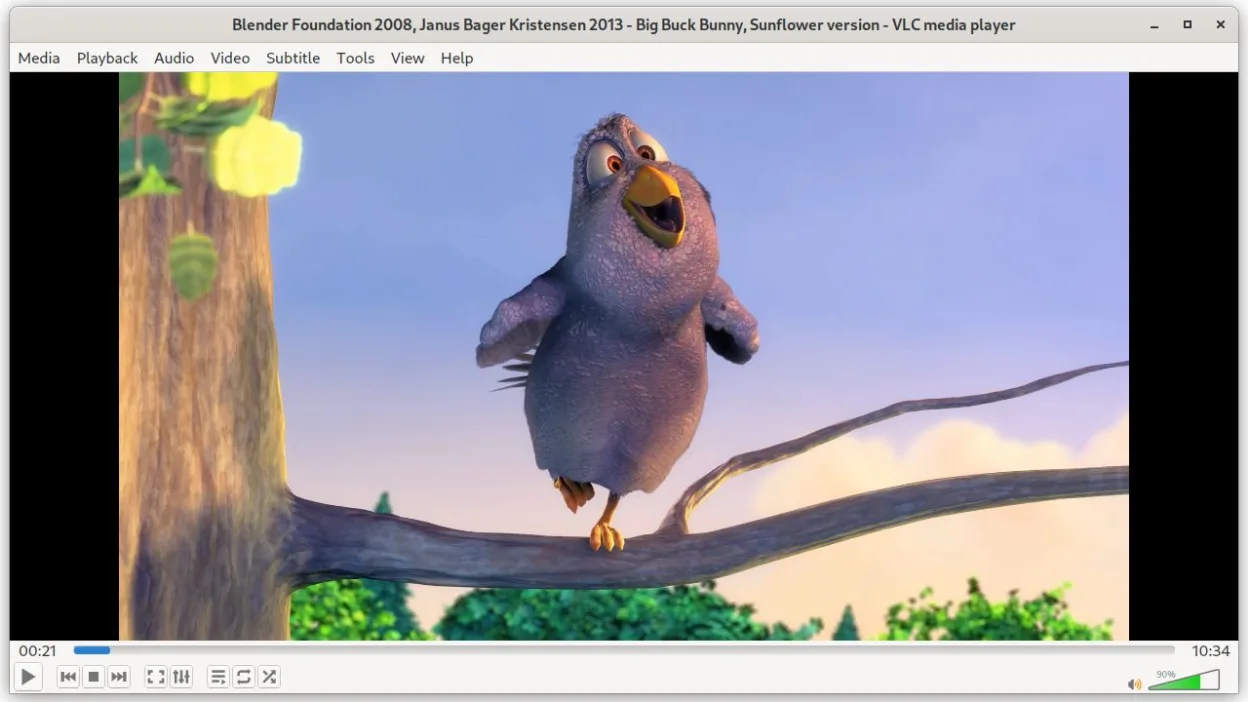
VLC media player is a solid replacement for Windows Media Player Legacy. It plays MP3, WMA, AAC, MP4, AVI, MKV, and DVDs without extra codecs, supports playlists and libraries, and offers a lightweight interface. The only downside is that it lacks the very simple Windows‑style UI and some Windows‑specific metadata handling. It’s ideal for users who want a free, cross‑platform player that covers all the core tasks of WMP Legacy.
- Licence
- GPL-2.0+
- Prix
- Gratuit
- Dernière version
- 3.0.23 (1 janvier 2026)
- Note
- —
Ce qui fonctionne pareil
- Both play common audio formats (MP3, WMA, AAC) and video formats (MP4, AVI, MKV, DVD).
- Both support playlists and media libraries.
- Both are free and do not require paid upgrades.
- Both have a lightweight interface suitable for everyday use.
Ce qui change
- VLC supports a wider range of formats (VCD, Audio CD, network streams) and has subtitle synchronization, which WMP Legacy does not.
- VLC offers media conversion, basic editing, and a streaming server, features absent in WMP Legacy.
- VLC’s interface is more modern and configurable, but less Windows‑style; users accustomed to the classic WMP look may find it unfamiliar.
- VLC includes command‑line tools for scripting, not present in WMP Legacy.
- VLC’s plugin and skin system allows extensions, whereas WMP Legacy is a single‑package player.
Ouvrir vos fichiers Windows Media Player Legacy
VLC can open all standard audio and video files that WMP Legacy handles, including MP3, WMA, AAC, MP4, AVI, MKV, and DVD. It can also read WMP’s playlist files (.wpl) and media library data, but exporting to a Windows‑specific library format is not supported. For most users, simply opening the files in VLC works fine.
Passer de Windows Media Player Legacy à VLC media player, étape par étape
- Install VLC from your distribution’s package manager or Flathub.
- Open VLC and use the Media → Open File menu to load your existing audio/video files.
- If you have WMP playlists (.wpl), import them via Media → Open Playlist.
- Adjust VLC’s preferences (Audio → Output, Video → Output) to match your hardware.
- Optional: Use VLC’s library feature to create a new media library for easier browsing.
- Save any custom playlists you create for future use.
Fonctionnalités clés de VLC media player
- Lit la plupart des formats audio et vidéo sans configuration
- Prend en charge les DVD, CD audio, VCD et flux réseau
- Prise en charge intégrée des sous-titres avec synchronisation
- Conversion de médias et édition de base
- Fonctionnalités de serveur de streaming
- Extensible via des plugins et des skins
- Interface en ligne de commande pour le scripting
Installer VLC media player sous Linux
flatpak install flathub org.videolan.VLCQuestions fréquentes
Does VLC play Windows Media files like WMA and WMV?
Yes, VLC supports WMA and WMV out of the box, so you can play those files without extra codecs.
Can I use VLC to stream media to my smart TV?
Yes, VLC’s streaming server feature lets you share media over the network; you can configure it to stream to most smart TVs.
Will VLC replace the Windows Media Player library feature?
VLC offers a media library, but it’s not a direct drop‑in replacement for the Windows Media Player library. You’ll need to rebuild your library in VLC if you want the same organization.
3 autres alternatives à Windows Media Player Legacy
 mpvmpv est un lecteur multimédia gratuit, open source et multiplateforme qui lit presque tous les formats vidéo…Open sourceGratuitFlatpakmpv ou Windows Media Player Legacy
 RhythmboxRhythmbox est le lecteur audio par défaut de GNOME, conçu pour gérer et lire des fichiers audio locaux et en…Open sourceGratuitFlatpakRhythmbox ou Windows Media Player Legacy
 CelluloidCelluloid est un lecteur multimédia léger pour Linux utilisant le moteur mpv et GTK, offrant une interface…Open sourceGratuitFlatpakCelluloid ou Windows Media Player Legacy