
 ZenLinux
vs
BraveWindows
ZenLinux
vs
BraveWindows
Zen, alternative Linux à Brave
Mis à jour le
Notre avis
Zen is not a direct drop-in replacement for Brave if you rely on its default ad-blocking or Chromium extension ecosystem. Zen is a distinct, lightweight browser focused on organization and speed, lacking Brave's built-in tracker blocking and fingerprinting resistance. It suits users who prioritize clean tab management and split views over aggressive privacy defaults. If you need Brave's specific privacy stack or crypto rewards, stick with Brave. If you want a faster, organized browsing experience and are willing to install third-party ad blockers, Zen is a solid, native Linux option.
- Licence
- MPL-2.0
- Prix
- Gratuit
- Dernière version
- 1.23.4b (21 octobre 2026)
- Note
- —
Ce qui fonctionne pareil
- Both are privacy-focused web browsers available natively on Linux.
- Both support modern web standards for browsing.
- Both offer customizable interfaces.
- Both are open-source projects with active development.
Ce qui change
- Brave blocks ads and trackers by default; Zen does not mention built-in filtering.
- Brave is Chromium-based, supporting Chrome extensions; Zen's extension support is not specified.
- Brave resists fingerprinting; Zen focuses on minimal data collection but lacks specific anti-fingerprinting details.
- Brave offers crypto rewards; Zen has no reward system.
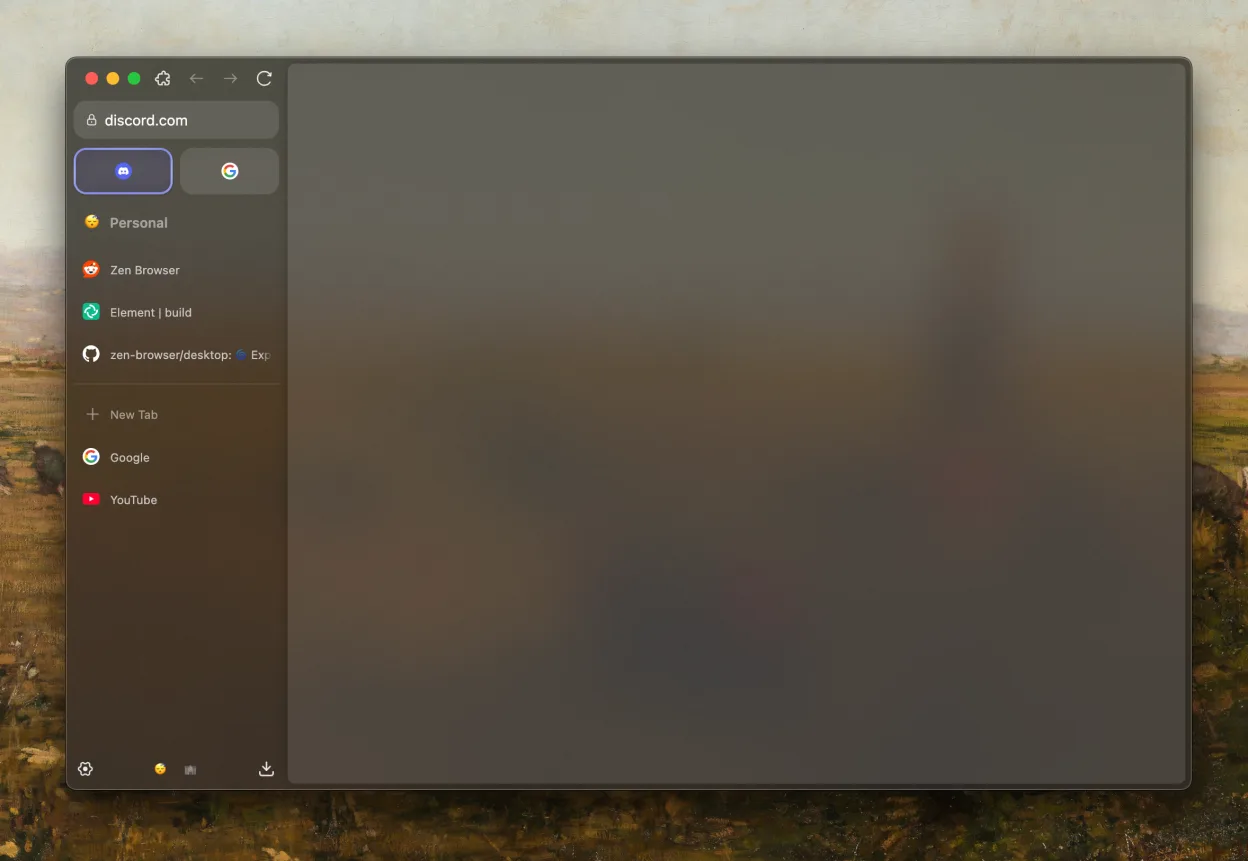
- Zen emphasizes split views and vertical tabs; Brave focuses on speed and privacy.
Ouvrir vos fichiers Brave
Zen likely supports standard web formats (HTML, CSS, JS) and can open local files similarly to other browsers. However, importing Brave-specific data such as encrypted profiles, bookmarks in Brave's format, or extension states is not guaranteed. You may need to export bookmarks as HTML from Brave and import them into Zen, but other data like passwords or session states may not transfer directly without manual re-entry or third-party tools.
Passer de Brave à Zen, étape par étape
- Export bookmarks from Brave as an HTML file.
- Install Zen via Flathub or your package manager.
- Launch Zen and navigate to the import settings.
- Select the exported HTML file to import bookmarks.
- Install third-party ad-blocking extensions if available for Zen.
- Manually re-enter critical passwords or session data.
Fonctionnalités clés de Zen
- Vue divisée pour le multitâche
- Barre latérale web pour une navigation rapide
- Groupes d'onglets pour organiser les sessions
- Interface personnalisable avec des thèmes
- Onglets verticaux pour une meilleure utilisation de l'espace
- Conception axée sur la confidentialité avec une collecte de données minimale
Installer Zen sous Linux
flatpak install flathub app.zen_browser.zenQuestions fréquentes
Does Zen block ads by default?
No, Zen does not advertise built-in ad or tracker blocking. You will need to install third-party extensions or use a different browser if this is a hard requirement.
Can I use Chrome extensions in Zen?
The provided facts do not specify extension support. Since Zen is not explicitly Chromium-based, compatibility with Chrome extensions is uncertain. Check the Zen documentation for supported extension formats.
Is Zen faster than Brave?
Zen markets itself as lightweight and fast, particularly for tab management. Performance comparisons depend on hardware and usage patterns, but Zen may feel snappier for users who rely heavily on split views and tab groups.
5 autres alternatives à Brave
 FirefoxFirefox est un navigateur web rapide et privé développé par Mozilla.Open sourceGratuitFlatpakFirefox ou Brave
 ChromiumChromium est le projet de navigateur open source derrière Chrome et Edge, offrant une expérience web rapide…Open sourceGratuitFlatpakChromium ou Brave
 LibreWolfLibreWolf est une version dérivée indépendante de Firefox axée sur la confidentialité, conçue pour éliminer…Open sourceGratuitFlatpakLibreWolf ou Brave
 Tor Browser LauncherUn outil d’assistance pour télécharger, vérifier, mettre à jour et lancer Tor Browser en toute sécurité sous…Open sourceGratuitFlatpakTor Browser Launcher ou Bravequtebrowserqutebrowser est un navigateur web minimaliste, piloté au clavier, conçu pour l'efficacité et la…Open sourceGratuitqutebrowser ou Brave