
 BraveLinux
vs
BraveLinux
vs
 Mozilla FirefoxWindows
Brave como alternativa Linux ao Mozilla Firefox
Atualizado em
Nossa avaliação
Brave can replace Firefox for most everyday users who value speed and built‑in privacy. It supports HTML5, WebGL, bookmarks, passwords, and extensions via Chromium. The sync works across devices. However, users who rely on Firefox‑specific add‑ons, certain developer tools, or the long‑standing Firefox‑only features may notice gaps. Overall, Brave is a solid choice for privacy‑conscious users on Linux.
- Licença
- MPL-2.0
- Preço
- Grátis
- Versão mais recente
- 1.97.59 (16 de outubro de 2026)
- Avaliação
- —
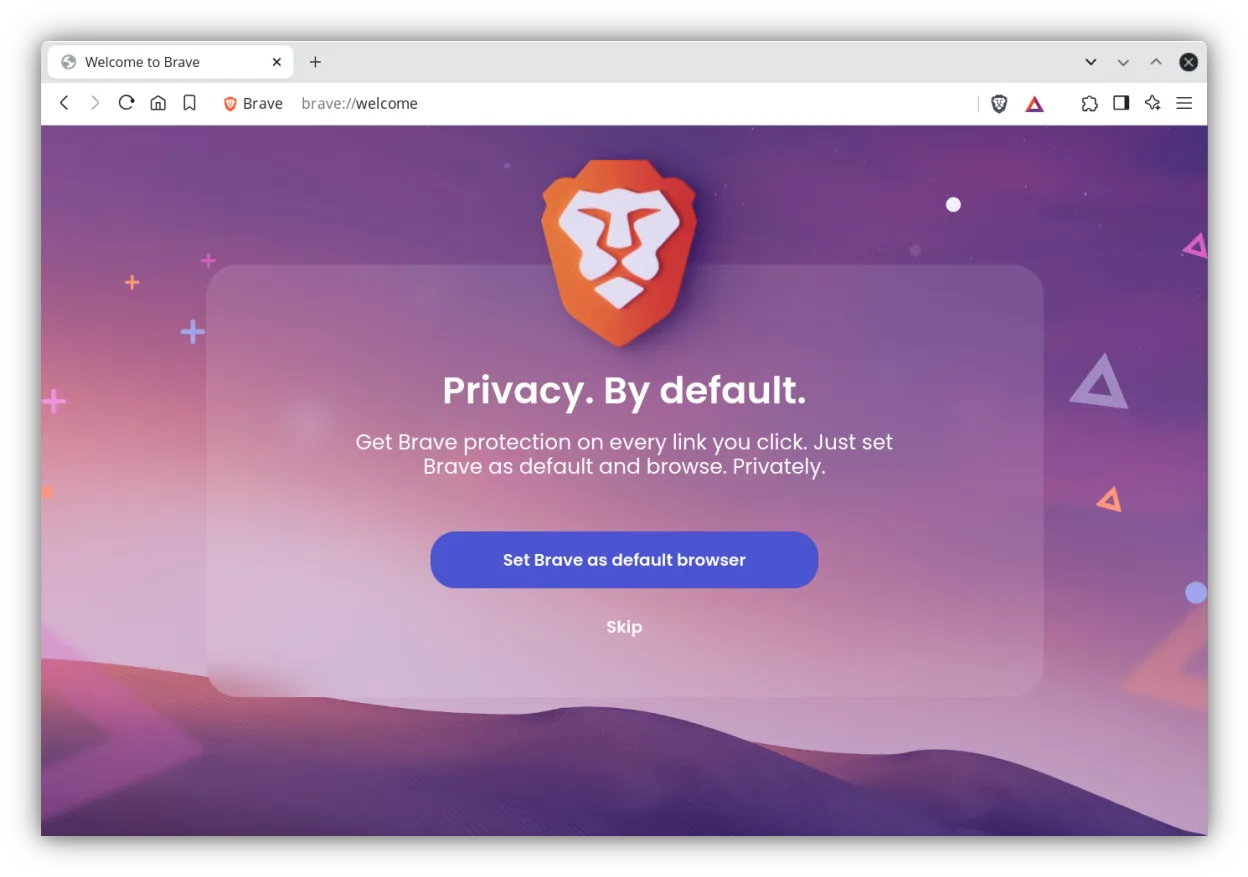
O que funciona igual
- Both run on Linux and support modern web standards (HTML5, WebGL).
- Both offer bookmark and password import/export and cross‑platform sync.
- Both allow extensions/add‑ons (Firefox add‑ons vs Chromium extensions).
- Both provide privacy controls and tracking protection.
- Both receive regular security updates.
O que muda
- Brave blocks ads and trackers by default; Firefox requires add‑ons for similar protection.
- Brave uses a Chromium engine, Firefox uses Gecko – rendering differences may affect site compatibility.
- Firefox has a dedicated developer tools suite; Brave’s dev tools are Chromium‑based and slightly different.
- Firefox supports a wide range of legacy add‑ons; Brave only supports Chromium extensions.
- Firefox includes a built‑in PDF viewer and many native features that Brave lacks or implements differently.
Abrindo seus arquivos do Mozilla Firefox
Firefox profile files (bookmarks, passwords, history) can be exported to JSON or HTML and imported into Brave via its import wizard. Brave can also import Firefox extensions that are available in the Chromium Web Store, but Firefox‑only add‑ons are not compatible. If you need to migrate a full profile, use Firefox’s Export feature and then import into Brave; some settings may need manual adjustment.
Trocando o Mozilla Firefox pelo Brave, passo a passo
- Export bookmarks and passwords from Firefox (Tools → Export).
- Download and install Brave from Flathub or the official site.
- Open Brave, go to Settings → Import Bookmarks and Settings, and select Firefox.
- Install any needed Chromium extensions from the Chrome Web Store.
- Set up Brave Sync to sync across devices.
- Verify that bookmarks, passwords, and tabs appear correctly.
Principais recursos do Brave
- Bloqueador de anúncios e proteção contra rastreadores integrados
- Motor baseado em Chromium com renderização rápida
- Integração com HTTPS Everywhere
- Sistema de recompensas baseado em tokens
- Suporte para extensões do Chromium
- Atualizações de segurança regulares
- Sincronização multiplataforma via Brave Sync
Como instalar o Brave no Linux
flatpak install flathub com.brave.BrowserPerguntas frequentes
Does Brave support Firefox add‑ons?
No, Brave only supports Chromium extensions. Firefox‑only add‑ons will not work. Use the Chrome Web Store for compatible extensions.
Will my Firefox sync data transfer to Brave?
Brave Sync is separate from Firefox Sync. You need to set up Brave Sync independently; bookmarks and passwords can be imported, but tabs and history require manual export/import.
Is Brave truly faster than Firefox?
Brave’s ad‑blocking and tracker removal reduce page load times, but actual speed depends on the site. In many tests, Brave loads pages slightly faster than Firefox, but the difference is not dramatic for all users.
Outras 8 alternativas ao Mozilla Firefox
 FirefoxO Firefox é um navegador da web rápido e privado desenvolvido pela Mozilla.Código abertoGrátisFlatpakFirefox vs Mozilla Firefox
 Google ChromeO Google Chrome é o navegador web proprietário baseado em Chromium da Google, disponível para Linux.GrátisFlatpakGoogle Chrome vs Mozilla Firefox
 ChromiumChromium é o projeto de navegador de código aberto por trás do Chrome e do Edge, oferecendo uma experiência…Código abertoGrátisFlatpakChromium vs Mozilla Firefox
 OperaOpera GX é um navegador proprietário para Linux criado para jogadores, oferecendo controles de desempenho…FlatpakOpera vs Mozilla Firefox
 KonquerorKonqueror é um navegador web e gerenciador de arquivos do KDE com suporte a sistemas de arquivos locais e…Código abertoGrátisKonqueror vs Mozilla Firefox
 SeaMonkeySeaMonkey é uma suíte de internet gratuita com navegador, e‑mail e editor HTML, baseada no antigo código do…Código abertoGrátisSeaMonkey vs Mozilla Firefox
 EpiphanyEpiphany (GNOME Web) is a lightweight GNOME‑based web browser built on WebKit.Código abertoGrátisEpiphany vs Mozilla Firefox
 Mozilla FirefoxMozilla Firefox is an open‑source web browser that runs natively on Linux, providing a fast, secure browsing…Código abertoGrátisMozilla Firefox vs Mozilla Firefox