
 Eclipse IDE for Java DevelopersLinux
vs
IntelliJ IDEAWindows
Eclipse IDE for Java DevelopersLinux
vs
IntelliJ IDEAWindows
Eclipse IDE for Java Developers como alternativa Linux ao IntelliJ IDEA
Atualizado em
Nossa avaliação
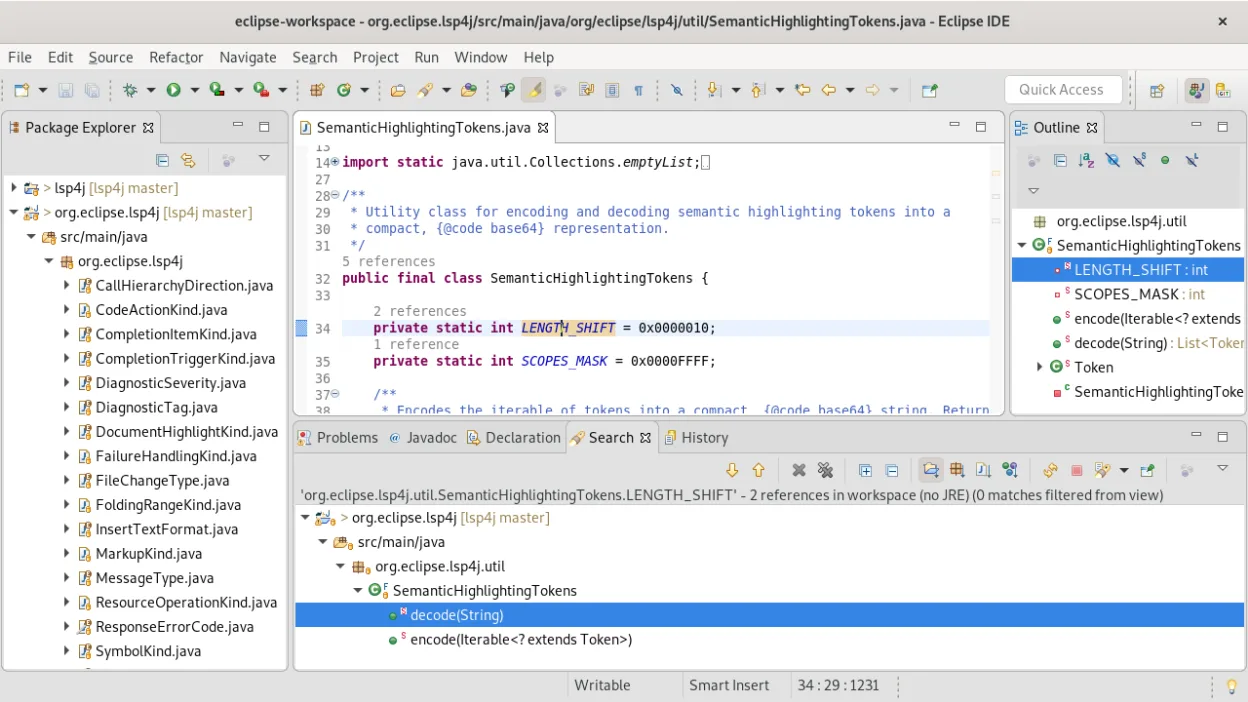
Eclipse is a solid, free alternative for developers who prioritize standard Java and enterprise tooling over modern Kotlin-first workflows. It handles large codebases well with its mature refactoring tools and integrated Git client. However, if your project relies heavily on Kotlin, you will struggle because Eclipse's Kotlin support is a third-party plugin, not a first-class citizen like in IntelliJ. For pure Java development, Eclipse is a viable, cost-effective choice. For mixed Java/Kotlin teams, it is a significant step down in developer experience.
- Licença
- EPL-2.0
- Preço
- Grátis
- Versão mais recente
- 4.41 (9 de setembro de 2026)
- Avaliação
- —
O que funciona igual
- Integrated debugger for JVM applications with advanced profiling capabilities
- Comprehensive code refactoring and static analysis tools
- Built-in Git client for version control integration
- Support for Maven and Gradle project management
- Extensive plugin marketplace for extending IDE functionality
O que muda
- Kotlin support in Eclipse is a third-party plugin, whereas IntelliJ has first-class, native Kotlin integration
- IntelliJ IDEA Ultimate offers deeper database and web framework support out-of-the-box
- Eclipse has a steeper learning curve and less intuitive UI compared to IntelliJ's streamlined interface
- IntelliJ provides superior code completion and inference for complex Java generics
Abrindo seus arquivos do IntelliJ IDEA
Eclipse cannot directly open IntelliJ IDEA project files (.idea folder, .iml files). You must recreate the project structure in Eclipse by importing the source code and build files (pom.xml or build.gradle). The .classpath and .project files generated by Eclipse are specific to its workspace and are not compatible with IntelliJ. You will need to configure your build tools manually in Eclipse to match your existing setup.
Trocando o IntelliJ IDEA pelo Eclipse IDE for Java Developers, passo a passo
- Export your source code from the IntelliJ project directory
- Create a new Java Project in Eclipse and import the source folders
- Configure the build path to point to your Maven or Gradle files
- Set up your JDK and JRE in Eclipse's Preferences
- Import your Git repository using Eclipse's built-in Git client
- Install necessary plugins for specific frameworks or languages
Principais recursos do Eclipse IDE for Java Developers
- IDE Java nativo com conclusão de código e refatoração
- Cliente Git integrado para controle de versão
- Suporte integrado a projetos Maven e Gradle
- Suporte poliglota para JavaScript, C/C++ e PHP
- Marketplace extensivo de plugins para ferramentas adicionais
- Compatibilidade multiplataforma incluindo Linux, Windows e macOS
- Capacidades avançadas de depuração e perfilamento
Como instalar o Eclipse IDE for Java Developers no Linux
flatpak install flathub org.eclipse.JavaPerguntas frequentes
Does Eclipse support Kotlin as well as IntelliJ?
No, Eclipse supports Kotlin via a third-party plugin. It works, but it lacks the seamless integration, inference, and first-class support found in IntelliJ IDEA.
Is Eclipse free for commercial use?
Yes, Eclipse is free and open-source under the EPL-2.0 license, making it suitable for both personal and commercial use without licensing fees.
Can I use the same plugins in Eclipse and IntelliJ?
No, the plugin ecosystems are completely different. Plugins written for IntelliJ are not compatible with Eclipse, and vice versa. You will need to find Eclipse-specific alternatives for any IntelliJ plugins you rely on.
Outras 4 alternativas ao IntelliJ IDEA
 Visual Studio CodeUm editor de código leve e extensível que oferece depuração, Git e suporte a muitas linguagens.GrátisFlatpakVisual Studio Code vs IntelliJ IDEA
 NetBeans IDENetBeans é um IDE gratuito e de código aberto focado em desenvolvimento Java, com suporte a PHP, C/C++, HTML5…Código abertoGrátisFlatpakNetBeans IDE vs IntelliJ IDEA
 KDevelopKDevelop é um IDE gratuito, baseado em plugins, para KDE que suporta C++, Python, PHP e outras linguagens…Código abertoGrátisFlatpakKDevelop vs IntelliJ IDEA
 GeanyGeany é uma IDE leve e rápida que suporta muitas linguagens e plugins prontos para uso.Código abertoGrátisFlatpakGeany vs IntelliJ IDEA