
 GIMPLinux
vs
Affinity PhotoWindows
GIMPLinux
vs
Affinity PhotoWindows
GIMP como alternativa Linux ao Affinity Photo
Atualizado em
Nossa avaliação
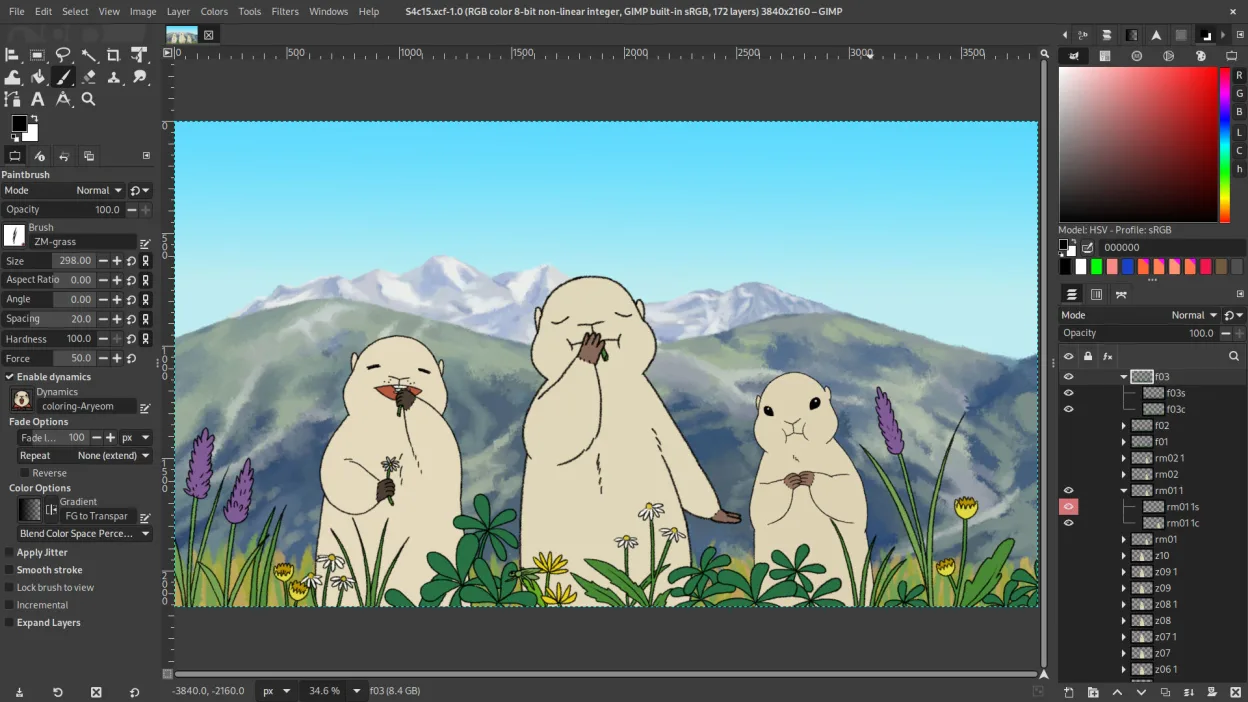
GIMP is a solid replacement for Affinity Photo if you need professional-grade photo editing and compositing without paying for software. It handles layers, masks, non-linear workflows via plug-ins like G'MIC, and has a capable brush engine for retouching and painting. RAW support works through UFRaw or Darktable. While the interface feels dated and some automation features are less polished, Linux users comfortable with open-source tools will find it powerful. It’s best for photographers, artists, and hobbyists who prioritize functionality over modern UI polish and don’t rely on native Affinity file compatibility.
- Licença
- GPL-3.0+ AND LGPL-3.0+
- Preço
- Grátis
- Versão mais recente
- 3.2.6 (10 de setembro de 2026)
- Avaliação
- —
O que funciona igual
- Layer-based editing with masks and transparency
- Support for PSD files (open and save)
- Advanced brush engine for digital painting and retouching
- Non-destructive editing possible with G'MIC and GEGL
- Export to JPEG, PNG, TIFF, and other common formats
O que muda
- No native RAW editor — requires external tools like Darktable
- Interface is less polished and not as intuitive
- No built-in non-linear editing timeline (relies on plug-ins)
- Lacks some advanced selection AI tools found in Affinity
- No native support for Affinity's .afphoto format
Abrindo seus arquivos do Affinity Photo
GIMP cannot open Affinity Photo's .afphoto files directly — no known converter exists. However, you can export layered work from Affinity Photo to PSD before switching. GIMP reads and writes PSD files reasonably well, preserving layers, masks, and blending modes, though complex layer effects may not translate perfectly. For ongoing projects, save in PSD or use TIFF for maximum compatibility. If the original .afphoto files are all you have, you’ll need to open them in Affinity Photo first (if still installed) to export to a usable format.
Trocando o Affinity Photo pelo GIMP, passo a passo
- Install GIMP from your distro’s repository or Flathub
- Export any Affinity Photo projects to PSD or TIFF
- Install G'MIC plug-in for non-destructive editing and filters
- Import PSD files into GIMP and verify layer integrity
- Adjust workflow to GIMP’s interface and brush settings
Principais recursos do GIMP
- Edição baseada em camadas com máscaras, modos de mesclagem e transparência
- Motor avançado de pincéis para pintura digital e retoque
- Suporte a plug‑ins compatíveis com Photoshop (via camadas de compatibilidade)
- Processamento em lote e scripting com Script-Fu, Python ou GEGL
- Edição não destrutiva possível via plug‑ins como G'MIC
- Suporte extensivo a formatos: PNG, JPEG, TIFF, PSD, WebP e mais
- Interface customizável com painéis ancoráveis e temas
- Gerenciamento de cores com suporte a perfis ICC
Como instalar o GIMP no Linux
flatpak install flathub org.gimp.GIMPsudo apt install gimpsudo apt install gimpsudo dnf install gimpsudo pacman -S gimpsudo zypper install gimpPerguntas frequentes
Can GIMP open .afphoto files?
No, GIMP cannot open .afphoto files. You must export from Affinity Photo to PSD or TIFF before using in GIMP.
Is GIMP as good as Affinity Photo for photo retouching?
GIMP is capable for most retouching tasks with the right brushes and plug-ins like G'MIC, though its tools are less automated and require more manual work.
Does GIMP support RAW images?
Yes, but not directly in the main interface. Use UFRaw or Darktable to process RAW files and import them into GIMP as TIFFs.
Outras 4 alternativas ao Affinity Photo
 KritaKrita é um programa de pintura digital e ilustração de código aberto com recursos completos.Código abertoGrátisFlatpakKrita vs Affinity Photo
 darktabledarktable é um editor de fotos gratuito e de código aberto que gerencia arquivos RAW e oferece um fluxo de…Código abertoGrátisFlatpakdarktable vs Affinity Photo
 RawTherapeeRawTherapee é um programa de desenvolvimento de fotos raw de código aberto e multiplataforma.Código abertoGrátisFlatpakRawTherapee vs Affinity Photo
 InkscapeInkscape é um editor de gráficos vetoriais livre e de código aberto que rivaliza com o Adobe Illustrator e o…Código abertoGrátisFlatpakInkscape vs Affinity Photo