
 gThumb Image ViewerLinux
vs
Windows Photo ViewerWindows
gThumb Image ViewerLinux
vs
Windows Photo ViewerWindows
gThumb Image Viewer como alternativa Linux ao Windows Photo Viewer
Atualizado em
Nossa avaliação
gThumb is a capable replacement for Windows Photo Viewer if you're comfortable with a slightly heavier app that does more. It opens all common image formats quickly and supports fullscreen viewing, zoom, keyboard navigation, and slideshow—core needs are met. However, it’s part of the GNOME ecosystem and feels more feature-rich than minimal, which may slow startup on older systems. If you want basic viewing with clean controls and don’t need editing or organizing tools, simpler alternatives like Eye of GNOME or Mirage might suit better. For users who occasionally edit or manage small photo sets, gThumb works well.
- Licença
- GPL-2.0+
- Preço
- Grátis
- Versão mais recente
- 3.12.10 (10 de fevereiro de 2026)
- Avaliação
- —
O que funciona igual
- Supports JPEG, PNG, BMP, and GIF (including animated) out of the box
- Fast fullscreen mode with zoom using mouse or keyboard
- Keyboard navigation with arrow keys, spacebar for next image
- Basic slideshow functionality with customizable delay
- Clean, single-image view focused on the photo
O que muda
- Includes editing tools (crop, rotate, color adjustment) not in Windows Photo Viewer
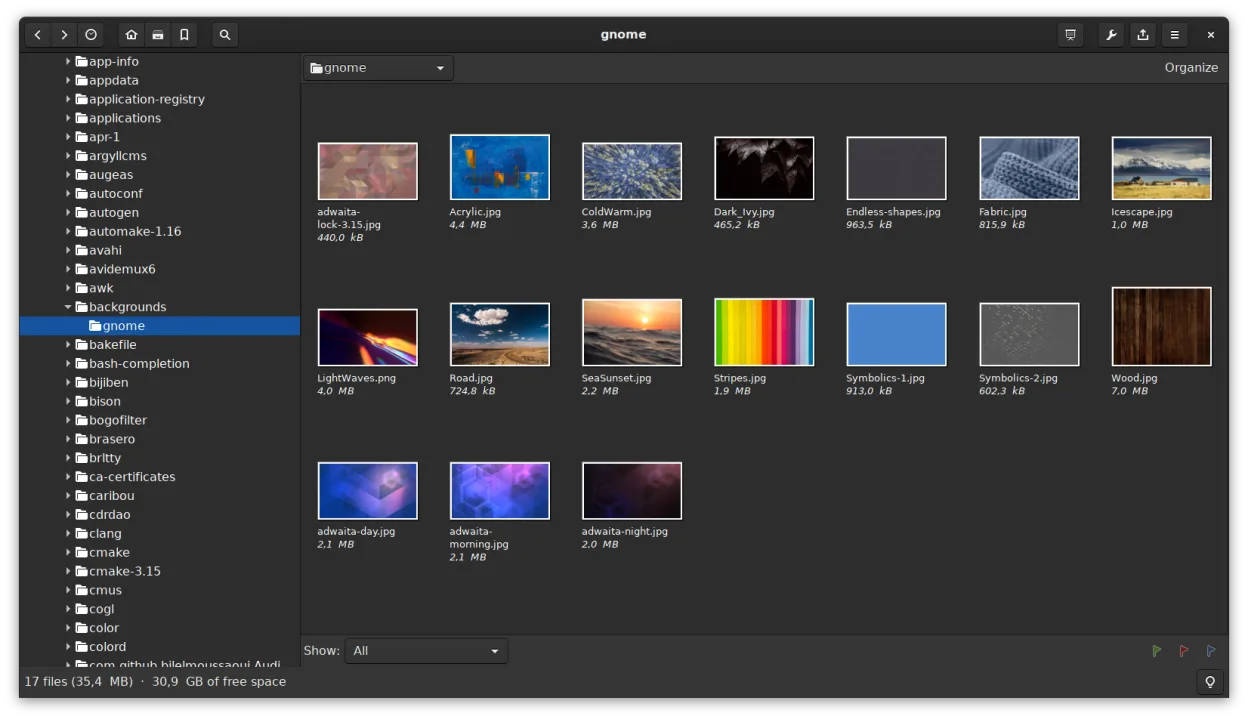
- Offers thumbnail browser and file management (copy, move, delete)
- Supports catalogs and metadata search, adding complexity
- Higher memory use and slower startup than ultra-light viewers
- Missing borderless window mode; interface is more cluttered by default
Abrindo seus arquivos do Windows Photo Viewer
gThumb opens all image formats used by Windows Photo Viewer—JPEG, PNG, BMP, and GIF—without issue. It also supports additional formats like TIFF, RAW, and TGA, which can be helpful. You can view and save changes to these files directly. There's no need for conversion when moving from Windows Photo Viewer, and metadata such as EXIF is preserved. Exporting or saving in different formats is supported through the 'Save As' and batch tools, making format flexibility a plus.
Trocando o Windows Photo Viewer pelo gThumb Image Viewer, passo a passo
- Install gThumb via your distro's package manager (e.g., sudo apt install gthumb on Debian/Ubuntu)
- Open an image folder to browse thumbnails or double-click a file to view
- Use F11 for fullscreen, + and - to zoom, arrow keys to navigate
- Enable 'Single Click to Open' in preferences if desired
- Set gThumb as default for image types in your file manager
Principais recursos do gThumb Image Viewer
- Suporta formatos BMP, JPEG, GIF (incluindo animação), PNG, TIFF, TGA e RAW
- Exibe metadados EXIF, IPTC e XMP
- Edição básica: girar, cortar, escalar, ajustar saturação, luminosidade e contraste
- Operações em lote: redimensionar, converter formato, transformações JPEG sem perda
- Navegação por miniaturas com operações de arquivo semelhantes a pastas (copiar, mover, excluir)
- Catálogos e bibliotecas para organizar grandes coleções
- Modo de apresentação e possibilidade de definir imagens como plano de fundo
- Busca por metadados e salvamento de resultados como catálogo
Como instalar o gThumb Image Viewer no Linux
flatpak install flathub org.gnome.gThumbsudo apt install gthumbsudo apt install gthumbsudo dnf install gthumbsudo pacman -S gthumbsudo zypper install gthumbPerguntas frequentes
Can gThumb open HEIC or WebP images?
Yes, if the required GStreamer plugins or codecs are installed. WebP is usually supported by default on modern systems. HEIC may require installing additional packages like libheif.
Is gThumb slow to start compared to Windows Photo Viewer?
It can be slightly slower, especially on older hardware, because it loads more features at startup. For pure speed, lightweight viewers like Eye of GNOME or Mirage may feel snappier.
Can I disable the editing and catalog features to make it simpler?
You can't fully remove them, but you can ignore the side panel and avoid catalogs. Use it in fullscreen or simple view mode to keep the experience focused on viewing.
Outras 5 alternativas ao Windows Photo Viewer
 Eye of GNOMEEye of GNOME é um visualizador de imagens leve para o GNOME, projetado para navegar e girar imagens com o…Código abertoGrátisFlatpakEye of GNOME vs Windows Photo Viewer
 nomacs - Image LoungeNomacs é um visualizador de imagens gratuito e de código aberto que suporta miniaturas, metadados…Código abertoGrátisFlatpaknomacs - Image Lounge vs Windows Photo Viewer
 GwenViewGwenView é o visualizador de imagens rápido do KDE, com ferramentas básicas de edição e anotação, ideal para…Código abertoGrátisFlatpakGwenView vs Windows Photo ViewermirageMirage is a lightweight image viewer for Linux, designed for fast browsing with minimal distractions.Código abertoGrátismirage vs Windows Photo Viewer
 ShotwellShotwell é um gerenciador de fotos GNOME para importar, organizar e editar imagens de forma leve.Código abertoGrátisFlatpakShotwell vs Windows Photo Viewer