
 KwaveLinux
vs
Windows Voice RecorderWindows
KwaveLinux
vs
Windows Voice RecorderWindows
Kwave como alternativa Linux ao Windows Voice Recorder
Atualizado em
Nossa avaliação
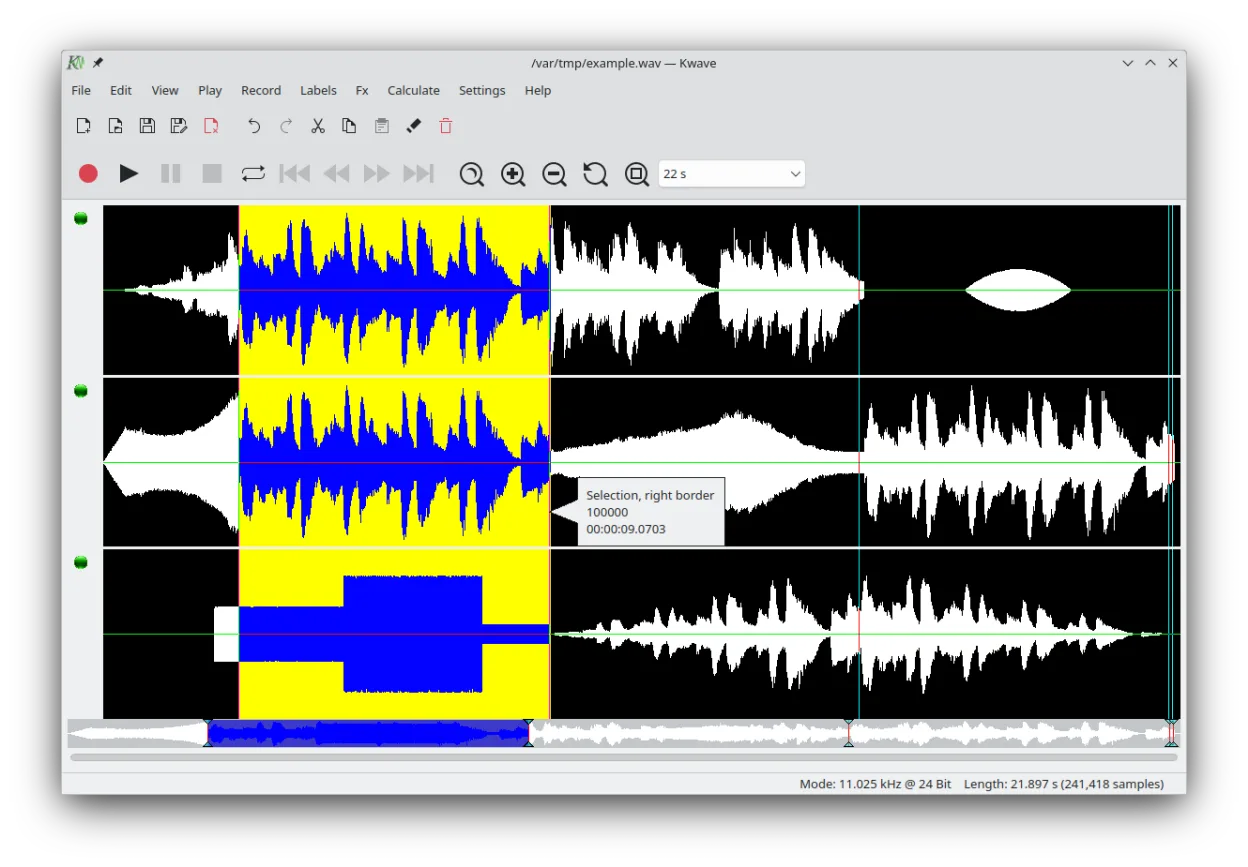
Kwave is a capable replacement for Windows Voice Recorder if you need more control than basic recording. It handles recording and playback reliably, but its real strength is editing—useful for users who want to trim, clean up, or enhance voice memos. However, its interface is more complex than the minimalist Windows Voice Recorder, making it overkill for users who only need to capture quick notes. If you're comfortable with audio tools and occasionally edit recordings, Kwave is a solid Linux-native choice.
- Licença
- GPL-2.0+
- Preço
- Grátis
- Versão mais recente
- 26.08.2 (8 de outubro de 2026)
- Avaliação
- —
O que funciona igual
- Both can record and play back audio directly
- Supports WAV and MP3, common formats for voice notes
- Simple playback controls available
- Allows trimming and basic editing of recordings
- Runs natively on the desktop without extra setup
O que muda
- Kwave has a steeper learning curve due to advanced features
- No automatic cloud sync or integration like Windows Voice Recorder may have
- Lacks one-click 'record and stop' simplicity for rapid notes
- No mobile companion or cross-device sync
- Editing focus means less emphasis on quick capture and organization
Abrindo seus arquivos do Windows Voice Recorder
Windows Voice Recorder typically saves in M4A or WAV. Kwave supports WAV natively and can open MP3, FLAC, Ogg, and Opus. M4A files are not explicitly listed, but if encoded as AAC in an MP4 container, they may require additional codecs. Most voice recordings saved as WAV from Windows can be opened directly in Kwave. For reliable transfer, convert M4A to WAV or FLAC on the Windows side first.
Trocando o Windows Voice Recorder pelo Kwave, passo a passo
- Install Kwave via your package manager or Flathub
- Copy your Windows Voice Recorder files to Linux
- Convert M4A files to WAV if they don’t open
- Open recordings in Kwave for playback or editing
- Use 'Save As' to export in preferred formats like FLAC or MP3
Principais recursos do Kwave
- Record, play, and edit audio in multiple formats
- Apply fade in/out and normalize volume
- Use filters like lowpass, bandpass, and notch
- Shift pitch and adjust sample rate
- View spectrogram (sonagram) for frequency analysis
- Insert silence, reverse audio, add noise
- Save labeled regions as separate files
- Supports WAV, MP3, FLAC, Ogg, Opus, and more
Como instalar o Kwave no Linux
flatpak install flathub org.kde.kwavesudo apt install kwavesudo apt install kwavesudo dnf install kwavesudo pacman -S kwavesudo zypper install kwavePerguntas frequentes
Can Kwave record voice memos directly?
Yes, Kwave can record directly from your microphone and save voice memos in formats like WAV or FLAC.
Is Kwave easier to use than Windows Voice Recorder?
No, Kwave is more complex. It’s better suited for users who want to edit audio, not just record quickly.
Does Kwave support modern voice note formats like M4A?
Not directly. M4A files may need conversion or additional codecs. Use WAV or MP3 for best compatibility.
Outras 3 alternativas ao Windows Voice Recorder
 AudacityO Audacity é um editor e gravador de áudio gratuito e multiplataforma, usado para editar, mixar e restaurar…Código abertoGrátisFlatpakAudacity vs Windows Voice RecorderGNOME Sound RecorderGNOME Sound Recorder is a simple audio recording app for Linux that captures voice and sound with minimal…Código abertoGrátisGNOME Sound Recorder vs Windows Voice Recorder
 ocenaudioocenaudio é um editor de áudio gratuito e multiplataforma, com pré-visualização de efeitos em tempo real e…GrátisDescontinuadoocenaudio vs Windows Voice Recorder