
 QtractorLinux
vs
GarageBandWindows
QtractorLinux
vs
GarageBandWindows
Qtractor como alternativa Linux ao GarageBand
Atualizado em
Nossa avaliação
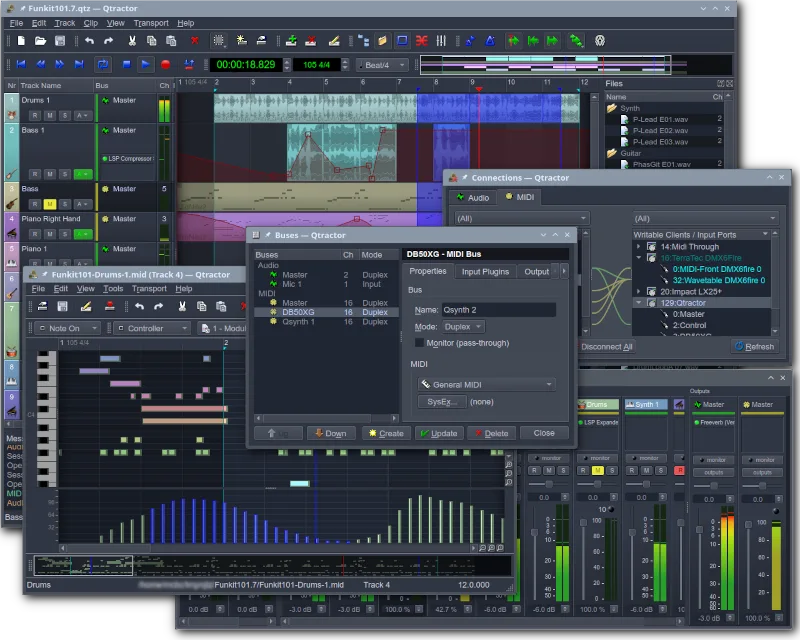
Qtractor is a solid, free replacement for GarageBand if you are comfortable with Linux audio infrastructure. It handles multitrack recording, MIDI sequencing, and mixing well, making it suitable for hobbyists who want a dedicated DAW. However, it lacks GarageBand’s intuitive, drag-and-drop simplicity. If you need a quick, visual loop-based workflow without learning JACK or plugin management, Qtractor might feel steep. For users ready to engage with a traditional Linux DAW structure, it covers the core needs of recording and producing music effectively.
- Licença
- GPL-2.0+
- Preço
- Grátis
- Versão mais recente
- 1.6.4 (6 de setembro de 2026)
- Avaliação
- —
O que funciona igual
- Multitrack audio and MIDI recording capabilities
- Support for software synthesizers and drum machines via plugins
- Basic audio editing and effects processing
- Session management and project saving
- Export options for standard audio formats
O que muda
- Requires JACK audio server setup for optimal performance
- Lacks a built-in, extensive library of pre-made audio loops
- Interface is more complex and less beginner-friendly than GarageBand
- No direct integration with Apple-specific hardware or ecosystem
- Plugin management relies on VST/LADSPA rather than a unified app store
Abrindo seus arquivos do GarageBand
Qtractor does not natively open GarageBand project files (.band). You will need to export your GarageBand projects as standard audio files (WAV/AIFF) or MIDI files first. Qtractor can then import these standard formats to continue working on the tracks. Direct project file conversion is not supported.
Trocando o GarageBand pelo Qtractor, passo a passo
- Export your GarageBand project as a multitrack WAV or MIDI file.
- Install Qtractor and set up the JACK audio server.
- Create a new session in Qtractor and import the exported audio/MIDI files.
- Load your preferred VST or LADSPA plugins for synths and effects.
- Reconstruct your mix using Qtractor’s mixer and automation features.
- Save the session and test the playback to ensure all tracks are aligned.
Principais recursos do Qtractor
- Multi-track audio and MIDI recording
- Integration with JACK audio server
- ALSA support for MIDI devices
- Support for VST and LADSPA plugins
- Non-destructive editing and mixing
- Built-in effects and processing
- Session management and project saving
- Cross-platform compatibility via Qt
Como instalar o Qtractor no Linux
flatpak install flathub org.rncbc.qtractorsudo apt install qtractorsudo apt install qtractorsudo dnf install qtractorsudo pacman -S qtractorsudo zypper install qtractorPerguntas frequentes
Does Qtractor have a built-in loop library like GarageBand?
No, Qtractor does not come with a large built-in loop library. You will need to source loops from free online repositories or create your own using the MIDI sequencer and synths.
Is Qtractor difficult to set up for a beginner?
It has a steeper learning curve than GarageBand. You need to understand basic Linux audio concepts like JACK and ALSA. However, once set up, the interface is manageable for intermediate users.
Can I use my existing VST plugins in Qtractor?
Yes, Qtractor supports VST and LADSPA plugins. You can load your favorite Windows-compatible VSTs (if they run on Linux via Wine or native Linux builds) or use Linux-specific plugins.
Outras 4 alternativas ao GarageBand
 LMMSLMMS é uma estação de áudio digital gratuita para compor, sequenciar e mixar música usando sintetizadores e…Código abertoGrátisFlatpakLMMS vs GarageBand
 ArdourArdour é uma estação de trabalho de áudio digital profissional de código aberto para gravação, edição e…Código abertoGrátisFlatpakArdour vs GarageBand
 AudacityO Audacity é um editor e gravador de áudio gratuito e multiplataforma, usado para editar, mixar e restaurar…Código abertoGrátisFlatpakAudacity vs GarageBand
 MuseScoreO MuseScore é um software de notação musical gratuito e de código aberto para criar e reproduzir partituras…Código abertoGrátisFlatpakMuseScore vs GarageBand