
 VLC media playerLinux
vs
VLC media playerLinux
vs
 Windows Media Player (wmp)Windows
VLC media player como alternativa Linux ao Windows Media Player (wmp)
Atualizado em
Nossa avaliação
VLC is a solid replacement for Windows Media Player for most users. It plays the same core audio and video formats, manages playlists, shows album art, and supports subtitles without extra plugins. The UI is slightly different but functional. Users who need advanced library features or tight Windows integration may prefer the native player, but for everyday playback and basic organization VLC works well on Linux.
- Licença
- GPL-2.0+
- Preço
- Grátis
- Versão mais recente
- 3.0.23 (1 de janeiro de 2026)
- Avaliação
- —
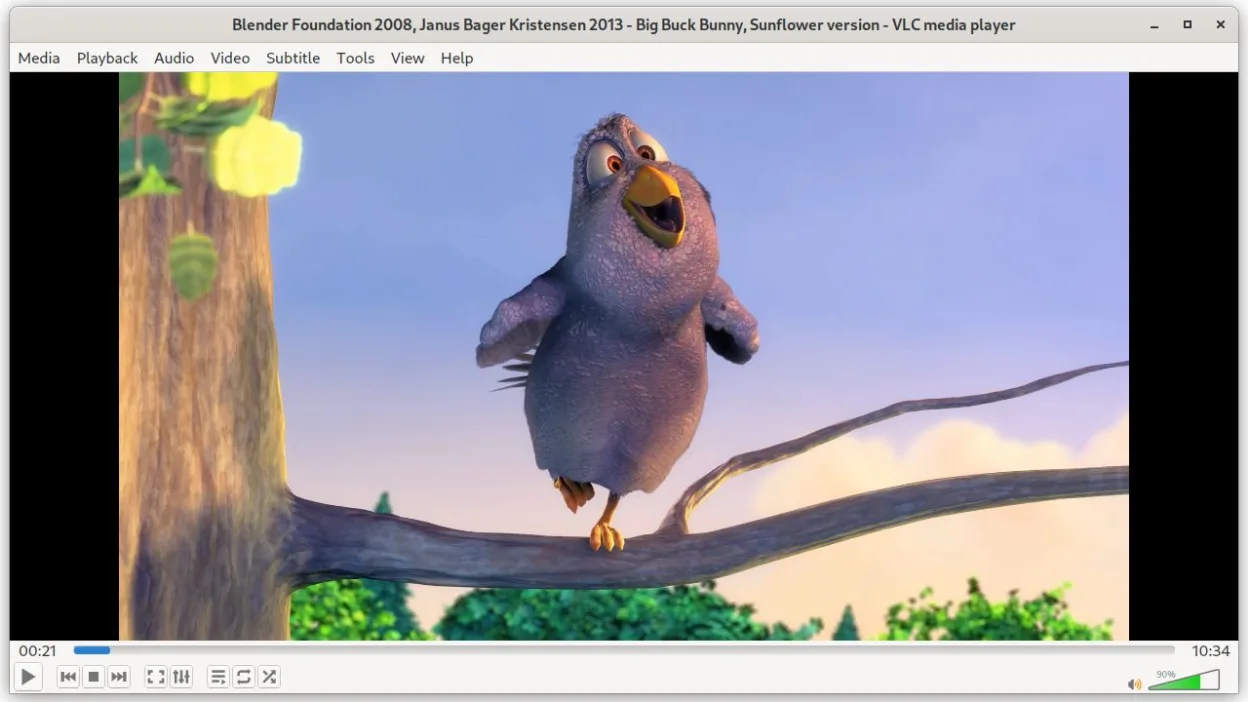
O que funciona igual
- Plays MP3, AAC, WAV, MP4, AVI, WMV
- Handles playlists and basic library organization
- Shows album art and metadata
- Supports subtitles
- No extra codecs required
O que muda
- No built‑in Windows‑specific DRM or protected content support
- Lacks the Windows‑style library view with detailed sorting options
- No integration with Windows Media Center features
- No native support for Windows‑specific playlist file formats like .wpl
- Interface is more minimalistic and may feel unfamiliar to Windows users
Abrindo seus arquivos do Windows Media Player (wmp)
VLC can open most media files that WMP plays, including .mp3, .aac, .wav, .mp4, .avi, .wmv, and DVD files. It can read Windows Media Player playlist files (.wpl) if you import them, but it does not export to .wpl. For WMP‑specific libraries or metadata stored in Windows Media Player’s database, VLC will not import those directly; you may need to export the library to a generic format first.
Trocando o Windows Media Player (wmp) pelo VLC media player, passo a passo
- Install VLC from your distro’s package manager or Flathub (v3.0.23).
- Open Windows Media Player’s library or playlist files and export them to a common format (e.g., M3U).
- Import the exported playlist into VLC via File → Open Playlist.
- Use VLC’s library feature (View → Playlist) to organize media and add album art.
- Adjust subtitle settings in Tools → Preferences if needed.
- If you need Windows‑specific DRM content, you’ll need a separate solution; VLC cannot play protected files.
Principais recursos do VLC media player
- Reproduz a maioria dos formatos de áudio e vídeo sem necessidade de plugins
- Suporta DVDs, CDs de áudio, VCDs e streams de rede
- Suporte interno a legendas com sincronização
- Conversão de mídia e edição básica
- Capacidades de servidor de streaming
- Extensível via plugins e skins
- Interface de linha de comando para scripts
Como instalar o VLC media player no Linux
flatpak install flathub org.videolan.VLCOutras 3 alternativas ao Windows Media Player (wmp)
 MplayerMPlayer é um reprodutor de mídia gratuito e de linha de comando que suporta uma ampla variedade de formatos e…Código abertoGrátisMplayer vs Windows Media Player (wmp)
 TotemTotem (GNOME Vídeos) é o player de vídeo padrão do GNOME baseado no GStreamer.Código abertoGrátisTotem vs Windows Media Player (wmp)
 Gnome MPlayerGnome MPlayer é um frontend GUI leve para o MPlayer, projetado para desktops GNOME.Código abertoGrátisDescontinuadoGnome MPlayer vs Windows Media Player (wmp)