
 digiKamLinux
vs
digiKamLinux
vs
 PicasaWindows
digiKam als Linux-Alternative zu Picasa
Aktualisiert am
Unser Fazit
digiKam is a solid replacement for Picasa for users who need a folder‑based workflow, basic editing, batch operations and metadata handling. It offers far more depth than Picasa in RAW support, tagging and search, but its interface is richer and may feel heavier for those who only wanted a quick viewer. If you are comfortable with KDE‑style applications and want long‑term, actively maintained software, digiKam will cover most Picasa tasks; casual users who prefer a minimal UI might still prefer lighter tools like Shotwell.
- Lizenz
- GPL-2.0+
- Preis
- Kostenlos
- Aktuelle Version
- 9.1.0 (7. Juni 2026)
- Bewertung
- —
Was gleich funktioniert
- Folder‑based organization without a mandatory database
- Basic editing tools such as crop, rotate and color adjustments
- Batch renaming and processing capabilities
- Metadata viewing and editing (EXIF/IPTC/XMP)
- Fast image preview and slideshow
Was anders ist
- Face detection exists but is less automatic and requires manual training
- Picasa’s one‑click sharing to Google services is absent
- Interface is more complex; no simple “auto‑enhance” button
- No built‑in web album publishing like Picasa’s web albums
- Video handling is present but not as streamlined as Picasa’s simple video thumbnails
Ihre Picasa-Dateien öffnen
digiKam can open any standard image format that Picasa supported, including JPEG, PNG, TIFF and most RAW files. Picasa’s proprietary .picasa.ini side‑car files are ignored; digiKam stores its own metadata in the image files or its SQLite database. Exporting to a folder will preserve the original files, so moving a Picasa library to digiKam is safe, though any Picasa‑specific tags will need to be recreated manually.
Von Picasa zu digiKam wechseln – Schritt für Schritt
- Install digiKam from your distribution’s repository or via Flathub
- Launch digiKam and run the Import wizard pointing at your Picasa picture folders
- Configure import rules to preserve existing folder hierarchy
- Use the Tagging panel to recreate any Picasa tags or albums as digiKam tags/labels
- Run a quick search to verify that metadata (dates, ratings) imported correctly
Wichtige Funktionen von digiKam
- Direkter Import von Kameras, SD-Karten und USB-Laufwerken mit konfigurierbaren Regeln
- Fortgeschrittenes Tagging, Bewertung und Label-System für komplexe Bibliotheksorganisation
- Leistungsstarker Such-Engine, die EXIF, IPTC und XMP-Metadatakriterien unterstützt
- Nicht-destruktive Bearbeitung mit Farbkorrekturen, Zuschneiden und Schärfen
- Native RAW-Unterstützung über LibRaw zum Dekodieren und Voransicht
- Videokatalogisierung und Metadatenerfassung mit FFmpeg-Backends
- Albumorganisation mit Drag-and-Drop-Oberfläche
- Plattformübergreifende Verfügbarkeit für Linux, Windows und macOS
digiKam unter Linux installieren
flatpak install flathub org.kde.digikamsudo apt install digikamsudo apt install digikamsudo dnf install digikamsudo pacman -S digikamsudo zypper install digikamHäufige Fragen
Does digiKam run on non‑KDE desktops?
Yes, it runs on any desktop environment; it just pulls in KDE libraries, which are available on most distributions.
Can I batch‑edit exposure or white balance like in Picasa?
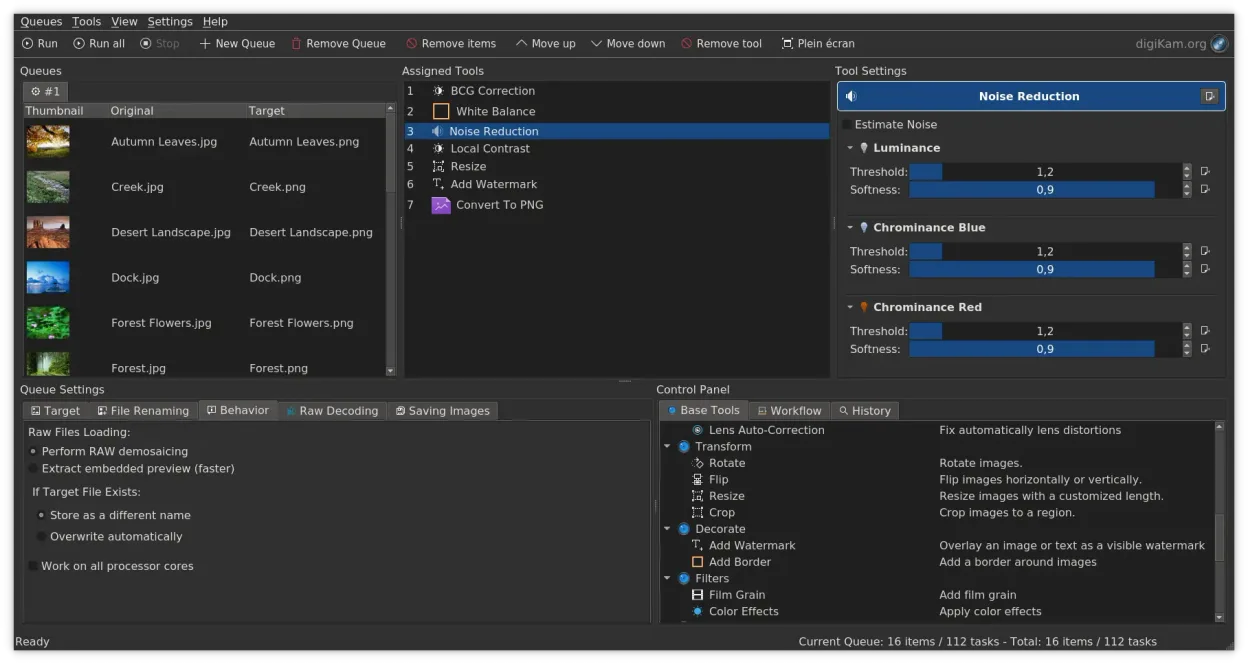
digiKam’s batch queue lets you apply exposure, white‑balance, contrast and other adjustments to many files at once.
Is face recognition as easy as Picasa’s auto‑tagging?
digiKam offers face detection, but you need to train the system by labeling faces; it isn’t fully automatic out of the box.
3 weitere Alternativen zu Picasa
 ShotwellShotwell ist ein GNOME-Fotoverwaltungstool zum Importieren, Organisieren und leichten Bearbeiten von Bildern.Open SourceKostenlosFlatpakShotwell vs. Picasa
 F-SpotF-Spot is a discontinued GNOME photo organizer with basic editing features.Open SourceKostenlosEingestelltF-Spot vs. Picasa
 PicasaPicasa was a discontinued cross‑platform photo organizer and viewer, once popular on Windows and run on Linux…KostenlosEingestelltPicasa vs. Picasa