
 GNOME System MonitorLinux
vs
GNOME System MonitorLinux
vs
 Windows Task ManagerWindows
GNOME System Monitor als Linux-Alternative zu Windows Task Manager
Aktualisiert am
Unser Fazit
GNOME System Monitor is a solid, native Linux replacement for Windows Task Manager if you stick to basic monitoring. It handles process lists, CPU/memory graphs, and killing tasks well. However, it lacks advanced controls like setting CPU affinity or detailed per-process I/O stats found in Windows. For casual users checking system health or ending a frozen app, it works fine. Power users who rely on Task Manager for granular resource management will find it limiting and may need to supplement it with command-line tools like htop or nmon for deeper control.
- Lizenz
- GPL-2.0
- Preis
- Kostenlos
- Aktuelle Version
- 51.1
- Bewertung
- 5/5 (1)
Was gleich funktioniert
- Lists running processes with PID, user, and resource usage
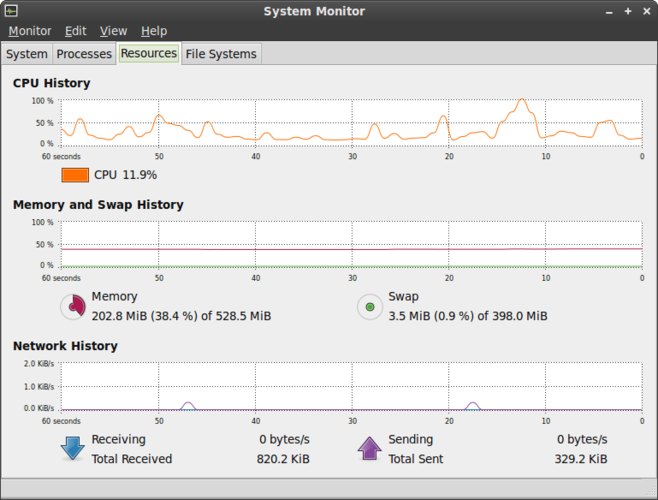
- Displays real-time CPU and memory load graphs
- Allows terminating or killing specific processes
- Shows system uptime and load average
Was anders ist
- No interface for changing process priority or CPU affinity
- Lacks detailed per-process disk I/O and network throughput metrics
- Does not manage startup applications directly; use GNOME Settings or autostart directories instead
- No integrated GPU usage monitoring in the default view
- User session management is limited compared to Windows Task Manager's user tab
Ihre Windows Task Manager-Dateien öffnen
Windows Task Manager does not generate exportable data files that GNOME System Monitor can open. Both are live monitoring tools, not data loggers. You cannot import a Task Manager snapshot into System Monitor. If you need historical data, you must use separate logging tools on both systems, as neither app natively saves or reads performance logs in a compatible format.
Von Windows Task Manager zu GNOME System Monitor wechseln – Schritt für Schritt
- Install GNOME System Monitor if it is not already present on your system
- Open the application from your application menu or desktop environment
- Use the Processes tab to view and sort running applications by CPU or memory
- Select a process and click the End Process button to terminate it
- Check the Resources tab for real-time CPU and memory graphs
- Refer to GNOME Settings for managing startup applications instead of Task Manager
Wichtige Funktionen von GNOME System Monitor
- Alle laufenden Prozesse mit CPU‑ und Speichernutzung auflisten
- Prozesse nach Name, PID, Benutzer oder Ressourcenverbrauch sortieren
- Detaillierte Informationen zu einem bestimmten Prozess anzeigen
- Laufende Prozesse beenden oder killen
- Systemweite CPU‑ und Speicherlast überwachen
- Systemlaufzeit und Load‑Average anzeigen
- Übersicht über Netzwerkaktivität zeigen
- Integration in die GNOME‑Desktopumgebung
GNOME System Monitor unter Linux installieren
sudo apt install gnome-system-monitorsudo apt install gnome-system-monitorsudo dnf install gnome-system-monitorsudo pacman -S gnome-system-monitorsudo zypper install gnome-system-monitorHäufige Fragen
Can I change CPU affinity in GNOME System Monitor?
No, the GUI does not support setting CPU affinity. You must use command-line tools like taskset or chrt to change process affinity on Linux.
Where do I manage startup apps since it is not in System Monitor?
Use the GNOME Settings application under the Startup section, or manage files in the ~/.config/autostart directory for user-specific startup tasks.
Does it show GPU usage like Windows Task Manager?
GNOME System Monitor does not display GPU usage by default. You need third-party tools or command-line utilities like nvidia-smi or rocm-smi to monitor GPU performance.