
 GNOME System MonitorLinux
vs
GNOME System MonitorLinux
vs
 Windows Task ManagerWindows
GNOME System Monitor as a Linux alternative to Windows Task Manager
Updated
Our verdict
GNOME System Monitor is a solid, native Linux replacement for Windows Task Manager if you stick to basic monitoring. It handles process lists, CPU/memory graphs, and killing tasks well. However, it lacks advanced controls like setting CPU affinity or detailed per-process I/O stats found in Windows. For casual users checking system health or ending a frozen app, it works fine. Power users who rely on Task Manager for granular resource management will find it limiting and may need to supplement it with command-line tools like htop or nmon for deeper control.
- License
- GPL-2.0
- Price
- Free
- Latest version
- 51.1
- Rating
- 5/5 (1)
What works the same
- Lists running processes with PID, user, and resource usage
- Displays real-time CPU and memory load graphs
- Allows terminating or killing specific processes
- Shows system uptime and load average
What is different
- No interface for changing process priority or CPU affinity
- Lacks detailed per-process disk I/O and network throughput metrics
- Does not manage startup applications directly; use GNOME Settings or autostart directories instead
- No integrated GPU usage monitoring in the default view
- User session management is limited compared to Windows Task Manager's user tab
Opening your Windows Task Manager files
Windows Task Manager does not generate exportable data files that GNOME System Monitor can open. Both are live monitoring tools, not data loggers. You cannot import a Task Manager snapshot into System Monitor. If you need historical data, you must use separate logging tools on both systems, as neither app natively saves or reads performance logs in a compatible format.
Switching from Windows Task Manager to GNOME System Monitor, step by step
- Install GNOME System Monitor if it is not already present on your system
- Open the application from your application menu or desktop environment
- Use the Processes tab to view and sort running applications by CPU or memory
- Select a process and click the End Process button to terminate it
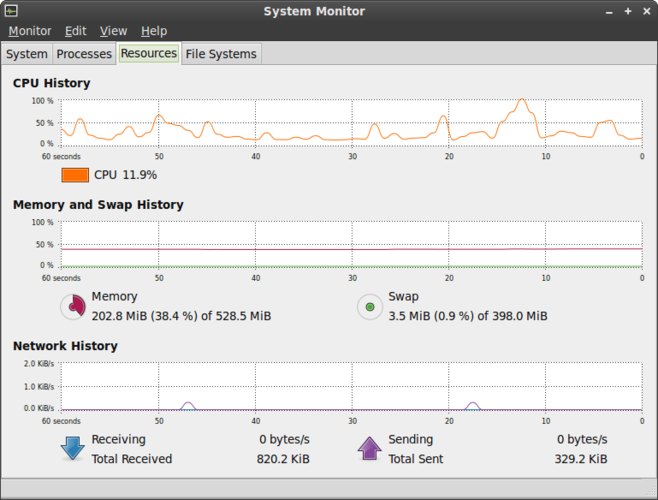
- Check the Resources tab for real-time CPU and memory graphs
- Refer to GNOME Settings for managing startup applications instead of Task Manager
Key features of GNOME System Monitor
- List all running processes with CPU and memory usage
- Sort processes by name, PID, user, or resource consumption
- View detailed information for a specific process
- End or kill running processes
- Monitor system-wide CPU and memory load
- Display system uptime and load average
- Show network activity overview
- Integrate with GNOME desktop environment
How to install GNOME System Monitor on Linux
sudo apt install gnome-system-monitorsudo apt install gnome-system-monitorsudo dnf install gnome-system-monitorsudo pacman -S gnome-system-monitorsudo zypper install gnome-system-monitorFrequently asked questions
Can I change CPU affinity in GNOME System Monitor?
No, the GUI does not support setting CPU affinity. You must use command-line tools like taskset or chrt to change process affinity on Linux.
Where do I manage startup apps since it is not in System Monitor?
Use the GNOME Settings application under the Startup section, or manage files in the ~/.config/autostart directory for user-specific startup tasks.
Does it show GPU usage like Windows Task Manager?
GNOME System Monitor does not display GPU usage by default. You need third-party tools or command-line utilities like nvidia-smi or rocm-smi to monitor GPU performance.
