
 KRDCLinux
vs
Microsoft Remote DesktopWindows
KRDCLinux
vs
Microsoft Remote DesktopWindows
KRDC als Linux-Alternative zu Microsoft Remote Desktop
Aktualisiert am
Unser Fazit
KRDC is a solid replacement for Microsoft Remote Desktop for Linux users who need to connect to Windows machines via RDP. It covers most everyday tasks: connecting, full‑screen mode, keyboard/mouse integration, and encryption. It is ideal for KDE users who want a native, open‑source client. However, it lacks some advanced features that Windows users might expect, such as multi‑session handling and built‑in file transfer. Overall, KRDC works well for standard remote‑desktop use cases.
- Lizenz
- GPL-2.0+
- Preis
- Kostenlos
- Aktuelle Version
- 26.04.3 (2. Juli 2026)
- Bewertung
- —
Was gleich funktioniert
- Both use the RDP protocol to connect to Windows machines
- Support full‑screen and windowed display modes
- Provide keyboard and mouse integration
- Encrypt connections (TLS for KRDC, optional in Microsoft Remote Desktop)
- Allow remote control of the desktop
Was anders ist
- KRDC does not support simultaneous multiple RDP sessions from a single client
- No native file‑transfer feature (VNC can be used but requires separate setup)
- KRDC lacks the Windows‑specific authentication options like NTLM/kerberos integration out of the box
- No built‑in clipboard sync between local and remote
- KRDC is KDE‑centric and may not integrate with non‑KDE desktop environments as tightly as Microsoft Remote Desktop does in Windows
Ihre Microsoft Remote Desktop-Dateien öffnen
Microsoft Remote Desktop does not use a standard file format that KRDC can import or export. Users cannot directly open or export connection files from the Windows client into KRDC. Connection details must be entered manually or saved as bookmarks within KRDC.
Von Microsoft Remote Desktop zu KRDC wechseln – Schritt für Schritt
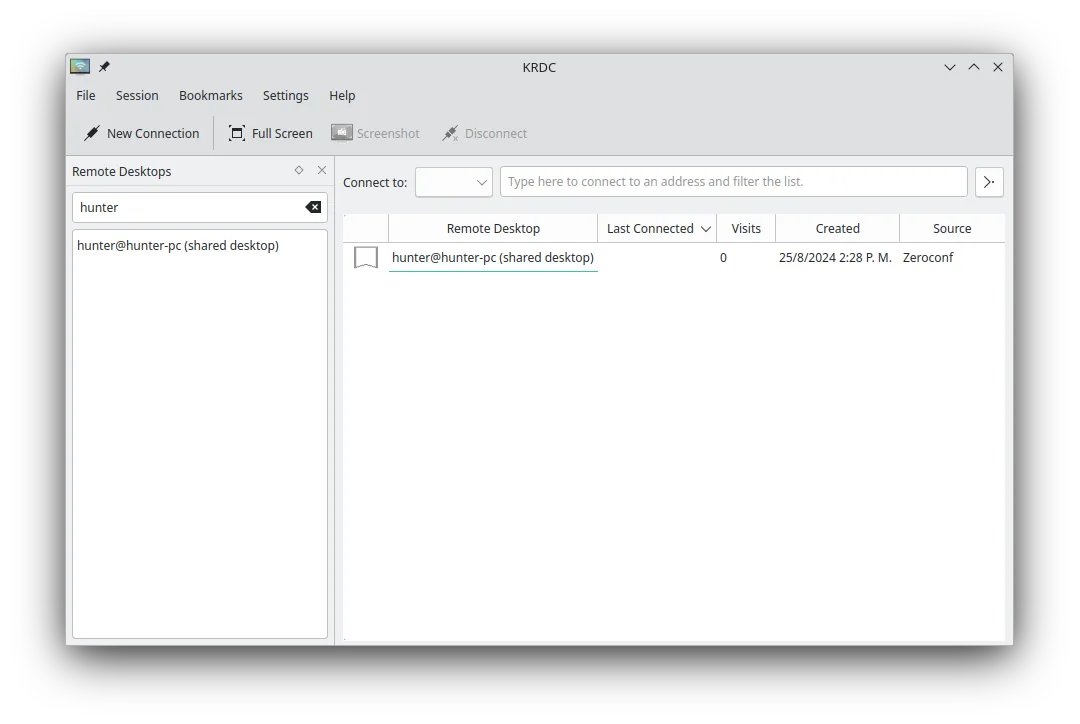
- Open KRDC from the application menu.
- Select "New Connection" and choose "Remote Desktop (RDP)".
- Enter the Windows machine’s IP address or hostname, and provide credentials (use KDE Wallet if desired).
- Click "Connect" to establish the session. If needed, enable full‑screen or adjust scaling from the view menu.
Wichtige Funktionen von KRDC
- Unterstützt sowohl RDP- als auch VNC-Protokolle
- KDE‑gestylte grafische Oberfläche
- Lesezeichenverwaltung für häufige Verbindungen
- Vollbild- und Fenstermodus
- Unterstützung von Tastenkombinationen (Ctrl+Alt+Shift für Fernsteuerung)
- Dynamische Skalierung des Fernbildschirms
- TLS‑Verschlüsselung für RDP-Sitzungen
- Integration mit KDE Wallet für Passwortspeicherung
KRDC unter Linux installieren
flatpak install flathub org.kde.krdcsudo apt install krdcsudo apt install krdcsudo dnf install krdcsudo pacman -S krdcsudo zypper install krdcHäufige Fragen
Does KRDC support file transfer?
KRDC itself does not provide a built‑in file‑transfer feature. You can use a separate tool like WinSCP or an SFTP client to transfer files to/from the remote Windows machine.
Can I use KRDC on a non‑KDE desktop?
Yes. KRDC runs on any Linux desktop that has the required dependencies, but its appearance and some integration features are optimized for KDE.
Is KRDC free?
KRDC is released under the GPL‑2.0+ license and is available in major Linux distributions free of charge.
4 weitere Alternativen zu Microsoft Remote Desktop
 RemminaRemmina ist ein Linux-Remote-Desktop-Client, der RDP, VNC, SSH und X2Go unterstützt, um von GTK-basierten…Open SourceKostenlosFlatpakRemmina vs. Microsoft Remote DesktopFreeRDPFreeRDP ist eine Open-Source-Implementierung des Remote Desktop Protocol, mit der Sie sich mit Windows- oder…Open SourceKostenlosFreeRDP vs. Microsoft Remote Desktoprdesktoprdesktop ist ein kostenloser, quelloffener Client, der es Linux-Nutzern ermöglicht, über RDP Verbindungen zu…rdesktop vs. Microsoft Remote Desktop
 VinagreVinagre ist ein GNOME‑Remote‑Desktop‑Betrachter für VNC, RDP, SSH und SPICE, der jetzt eingestellt wurde.Open SourceKostenlosEingestelltVinagre vs. Microsoft Remote Desktop