
 ProtonPlusLinux
vs
Epic Games LauncherWindows
ProtonPlusLinux
vs
Epic Games LauncherWindows
ProtonPlus als Linux-Alternative zu Epic Games Launcher
Aktualisiert am
Unser Fazit
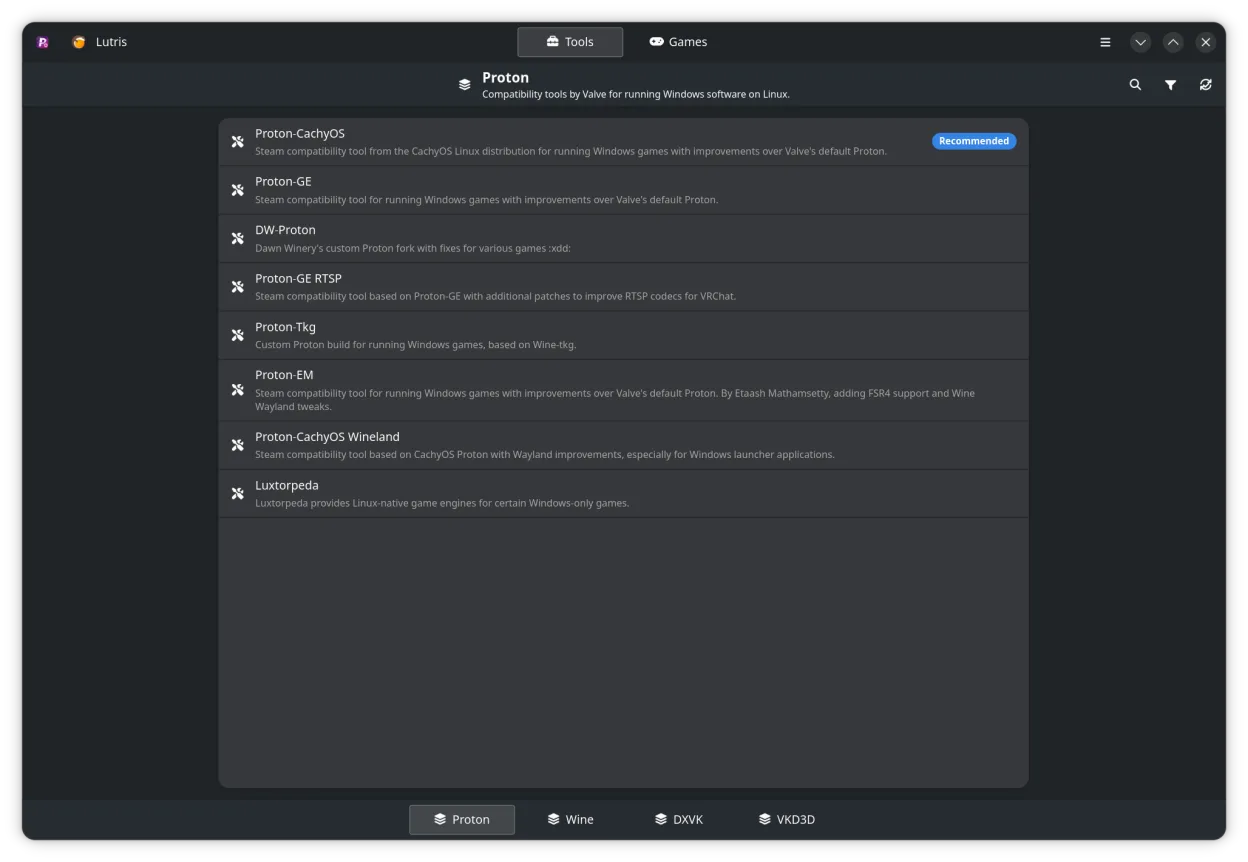
ProtonPlus is not a direct replacement for the Epic Games Launcher. It is a tool that manages compatibility layers for Linux game launchers, but it does not provide a storefront, account login, or native Epic Games Store integration. It can help you run Epic games that you already have on a Linux launcher that supports Proton, but you still need the Epic Games Store client or a third‑party launcher that can download the games. ProtonPlus is useful for users who want fine‑grained control over Proton/Wine versions and want to automate updates, but not for people looking for a single, all‑in‑one Epic Games Store experience.
- Lizenz
- GPL-3.0-or-later
- Preis
- Kostenlos
- Aktuelle Version
- 0.6.8 (8. September 2026)
- Bewertung
- —
Was gleich funktioniert
- Both target game distribution on Linux
- Both can be used with Proton or Wine backends
- Both manage game libraries
- Both support download and update management
- Both provide a GUI for configuration
Was anders ist
- ProtonPlus has no Epic Games Store storefront or account login
- ProtonPlus does not claim free games automatically
- ProtonPlus lacks cloud save sync for Epic games
- ProtonPlus does not organize games into a unified library like the Epic Launcher
- ProtonPlus does not handle Epic game updates directly, only through underlying launchers
Ihre Epic Games Launcher-Dateien öffnen
ProtonPlus does not read or write Epic Games Launcher configuration files. It cannot import an Epic Games library or export settings from the Epic Launcher. Users would need to use the Epic Games Store client on Windows or a compatible Linux launcher that supports Epic games to transfer data.
Von Epic Games Launcher zu ProtonPlus wechseln – Schritt für Schritt
- 1. Install the Epic Games Store client on Windows or a Linux launcher that supports Epic games (e.g., Heroic).
- 2. Download and install the desired Epic games through that client.
- 3. Open ProtonPlus and add the game’s executable to a launcher that ProtonPlus manages (e.g., Lutris).
- 4. Configure the desired Proton/Wine version and launch options in ProtonPlus.
- 5. Use ProtonPlus to keep the compatibility tools up to date.
- 6. Launch the game from the chosen launcher; ProtonPlus will handle the backend.
Wichtige Funktionen von ProtonPlus
- Verwalten von Proton, Wine, DXVK, VKD3D und verwandten Tools
- Unterstützung für Steam, Faugus Launcher, Lutris, Heroic Games Launcher, Bottles und WineZGUI
- Durchsuchen der Steam-Bibliothek und Ändern der Kompatibilitätseinstellungen pro Spiel
- Direktes Bearbeiten von Startoptionen über die Oberfläche
- Verfolgen von Downloads und Updates mit Benachrichtigungen
- CLI-Unterstützung für Skripting und Automatisierung
ProtonPlus unter Linux installieren
flatpak install flathub com.vysp3r.ProtonPlussudo zypper install ProtonPlusHäufige Fragen
Can ProtonPlus claim free Epic games?
No, ProtonPlus does not claim free games. You must claim them through the Epic Games Store client or a supported launcher.
Does ProtonPlus provide cloud save sync for Epic games?
No, ProtonPlus does not sync cloud saves. Cloud sync must be handled by the Epic Games Store client or the underlying launcher.
Can I use ProtonPlus to run Epic games on Linux?
Yes, if you have the game installed via a compatible launcher that supports Proton, ProtonPlus can manage the Proton version and launch options for that game.
6 weitere Alternativen zu Epic Games Launcher
 LutrisLutris ist eine kostenlose, Open‑Source‑Plattform, die die Installation und das Starten von PC‑ und…Open SourceKostenlosFlatpakLutris vs. Epic Games Launcher
 SteamSteam ist eine digitale Spielevertriebsplattform mit integrierter Store-Funktion, Updates, Cloud-Speichern…KostenlosFlatpakSteam vs. Epic Games Launcher
 BottlesBottles führt Windows-Anwendungen auf Linux aus und verwaltet sie in isolierten Umgebungen.Open SourceKostenlosFlatpakBottles vs. Epic Games Launcher
 PlayOnLinux 4PlayOnLinux ist ein grafisches Front‑End für Wine, das es Ihnen ermöglicht, Windows-Spiele und -Anwendungen…Open SourceKostenlosFlatpakPlayOnLinux 4 vs. Epic Games Launcher
 HeroicHeroic ist ein Open‑Source‑Launcher, mit dem Sie Epic-, GOG‑ und Amazon‑Spiele unter Linux spielen können…Open SourceKostenlosFlatpakHeroic vs. Epic Games Launcher