
 GIMPLinux
vs
PhotoScapeWindows
GIMP como alternativa Linux a PhotoScape
Actualizado el
Nuestra opinión
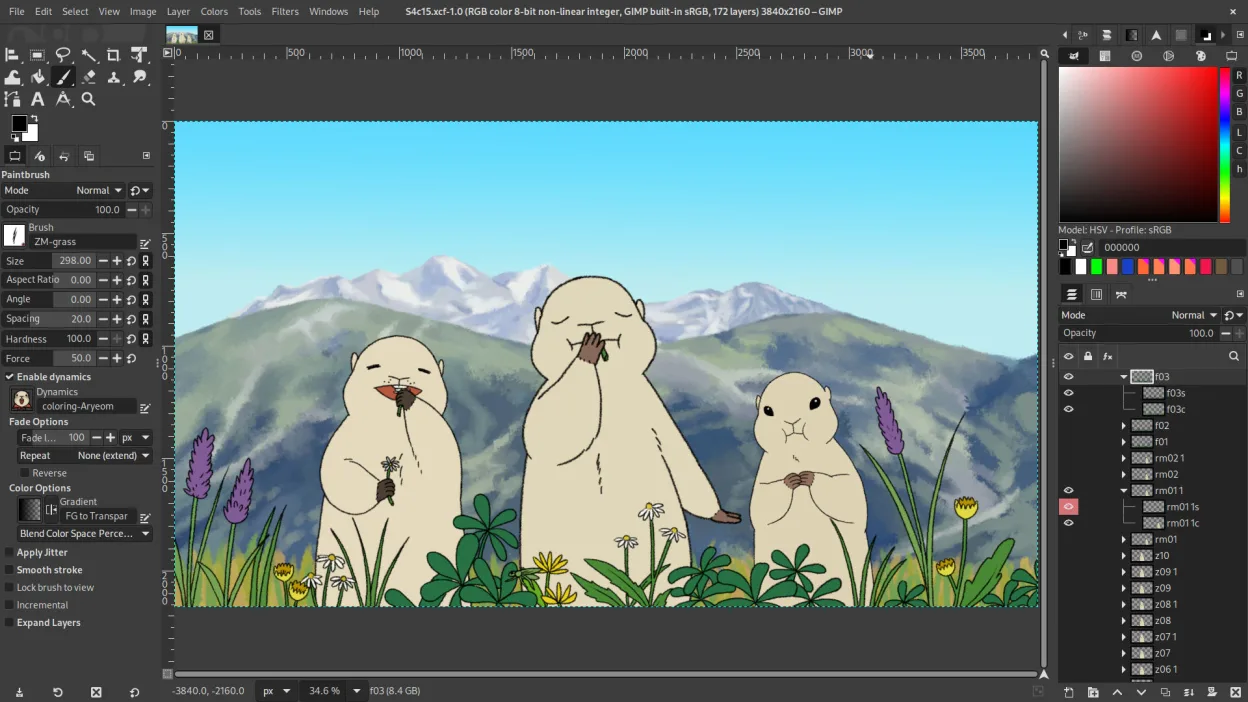
GIMP can replace PhotoScape for users who need more than basic edits and want a free, open‑source tool. It covers batch resizing, cropping, color tweaks, and GIF creation through scripts or plugins. However, it lacks a dedicated red‑eye correction button and the simple, wizard‑style collage interface that PhotoScape offers. Advanced users who appreciate GIMP’s layer system, scripting, and plugin ecosystem will find it a strong alternative, while casual users may feel overwhelmed by its learning curve.
- Licencia
- GPL-3.0+ AND LGPL-3.0+
- Precio
- Gratis
- Última versión
- 3.2.8 (2 de noviembre de 2026)
- Valoración
- —
Lo que funciona igual
- Both allow batch processing of images
- Both support resizing, cropping, and basic color adjustments
- Both can create GIF animations from a sequence of images
Lo que cambia
- PhotoScape has a built‑in red‑eye correction tool; GIMP requires manual retouching or a plugin
- PhotoScape’s collage/contact‑sheet creation is a single‑click wizard; GIMP requires manual layout or external scripts
- PhotoScape’s interface is designed for quick, one‑time edits; GIMP’s interface is more complex with layers and panels
- PhotoScape exports directly to common formats via a simple dialog; GIMP needs export dialogs or command‑line scripts
Abrir tus archivos de PhotoScape
PhotoScape does not use a proprietary file format; it works with standard image files (JPEG, PNG, GIF, BMP, etc.). GIMP can open and export these formats without issue. If you have PhotoScape‑specific project files (e.g., .psp), they are not supported by GIMP.
Pasar de PhotoScape a GIMP, paso a paso
- Open PhotoScape and export your images to a common format such as PNG or JPEG.
- Install GIMP from your distribution’s package manager or Flathub.
- Use GIMP’s "Batch Process" (via BIMP plugin) to resize, rename, or apply filters to many files at once.
- Use the "Filters → Animation → Make GIF" feature or a script to create GIFs.
- For red‑eye correction, use the Clone or Heal tool or install a dedicated plugin like G'MIC.
- Save your finished images in the desired format using File → Export As.
Funciones clave de GIMP
- Edición basada en capas con máscaras, modos de fusión y transparencia
- Motor de pinceles avanzado para pintura digital y retoque
- Soporte de plug‑ins compatibles con Photoshop (a través de capas de compatibilidad)
- Procesamiento por lotes y scripting con Script‑Fu, Python o GEGL
- Edición no destructiva posible mediante plug‑ins como G'MIC
- Soporte de formato extenso: PNG, JPEG, TIFF, PSD, WebP y más
- Interfaz personalizable con paneles acoplables y temas
- Gestión de color con soporte de perfiles ICC
Cómo instalar GIMP en Linux
flatpak install flathub org.gimp.GIMPsudo apt install gimpsudo apt install gimpsudo dnf install gimpsudo pacman -S gimpsudo zypper install gimpOtras 5 alternativas a PhotoScape
 darktabledarktable es un editor de fotos gratuito y de código abierto que gestiona archivos raw y ofrece un flujo de…Código abiertoGratisFlatpakdarktable vs PhotoScape
 ShotwellShotwell es un gestor de fotos de GNOME para importar, organizar y editar ligeramente imágenes.Código abiertoGratisFlatpakShotwell vs PhotoScape
 KritaKrita es un programa de pintura digital e ilustración de código abierto con todas las funciones.Código abiertoGratisFlatpakKrita vs PhotoScape
 gThumb Image ViewergThumb es un visor, editor y organizador de imágenes integrado en GNOME para Linux.Código abiertoGratisFlatpakgThumb Image Viewer vs PhotoScape
 nomacs - Image LoungeNomacs es un visor de imágenes gratuito y de código abierto que admite miniaturas, metadatos, histogramas y…Código abiertoGratisFlatpaknomacs - Image Lounge vs PhotoScape