
 PlayOnLinux 4Linux
vs
LutrisWindows
PlayOnLinux 4 como alternativa Linux a Lutris
Actualizado el
Nuestra opinión
PlayOnLinux 4 is a functional replacement for basic Wine management but falls short for power users. It handles automated prefix creation and library installation well, making it suitable for casual gamers who need simple one-click setups. However, it lacks the deep scripting flexibility, Proton integration, and multi-store support found in Lutris. If you rely on complex custom scripts or non-Wine compatibility layers, Lutris remains the better choice. For straightforward Wine-based game launches, PlayOnLinux provides a sufficient, if less flexible, alternative.
- Licencia
- GPL-3.0
- Precio
- Gratis
- Última versión
- 4.4 (17 de mayo de 2020)
- Valoración
- —
Lo que funciona igual
- Both are native Linux GUI front-ends for managing Wine prefixes.
- Both automate the creation of isolated Wine environments for individual applications.
- Both support downloading and installing Windows libraries and dependencies automatically.
- Both allow users to select specific Wine versions for different applications.
Lo que cambia
- PlayOnLinux lacks native support for Proton and other non-Wine compatibility layers like Boxtron.
- Lutris offers a more powerful Python-based scripting engine for complex game setups, whereas PlayOnLinux uses a simpler script database.
- Lutris integrates directly with multiple game launchers (Steam, GOG, etc.), while PlayOnLinux focuses primarily on standalone Wine installs.
- PlayOnLinux 4 is older and less actively updated compared to Lutris, which receives frequent improvements and bug fixes.
Abrir tus archivos de Lutris
There is no direct file compatibility between Lutris and PlayOnLinux. Lutris uses its own JSON-based configuration files and directory structure for game definitions, while PlayOnLinux stores its metadata in a separate internal database and uses its own prefix naming conventions. You cannot simply copy Lutris configuration files into PlayOnLinux to import games; you must manually re-install or configure each game within the PlayOnLinux interface.
Pasar de Lutris a PlayOnLinux 4, paso a paso
- Identify the specific Wine version and dependencies required for each game in your Lutris library.
- Install PlayOnLinux 4 via your package manager or Flathub.
- Create a new application entry in PlayOnLinux for each game.
- Select the matching Wine version and install necessary Windows libraries via winetricks.
- Manually point PlayOnLinux to the existing game executable or re-download the game files if necessary.
Funciones clave de PlayOnLinux 4
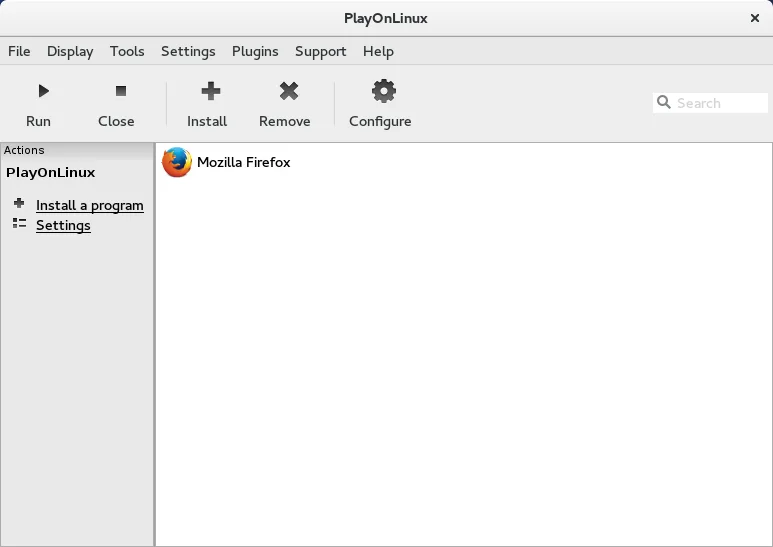
- Instalador gráfico para aplicaciones de Windows
- Creación automatizada de prefijos de Wine
- Base de datos de scripts de instalación preconfigurados
- Soporte para múltiples versiones de Wine por aplicación
- Capacidad para instalar bibliotecas de Windows mediante winetricks
- Integración con Flatpak a través de Flathub
- Código abierto y mantenido por la comunidad
Cómo instalar PlayOnLinux 4 en Linux
flatpak install flathub com.playonlinux.PlayOnLinux4sudo apt install playonlinuxsudo apt install playonlinuxsudo dnf install playonlinuxsudo zypper install PlayOnLinuxPreguntas frecuentes
Can PlayOnLinux run Steam games natively?
No, PlayOnLinux does not integrate with the Steam client. You must install Steam separately and use it to launch games, or use Lutris which has direct Steam integration.
Is PlayOnLinux 4 still maintained?
The latest release listed is from 2020. While it is open source and available in repositories, it receives far less frequent updates than Lutris, so newer games may require manual tweaking.
Does PlayOnLinux support Proton?
No, PlayOnLinux is strictly a Wine front-end. It does not support Proton or other Valve-specific compatibility layers, limiting its use for newer Steam titles that rely on them.
Otras 3 alternativas a Lutris
 BottlesBottles ejecuta aplicaciones de Windows en Linux, gestionándolas en entornos aislados.Código abiertoGratisFlatpakBottles vs Lutris
 SteamSteam es una plataforma digital de distribución de juegos con tienda integrada, actualizaciones, guardados en…GratisFlatpakSteam vs Lutris