
 VLC media playerLinux
vs
VLC media playerLinux
vs
 Media Player Classic (MPC)Windows
VLC media player como alternativa Linux a Media Player Classic (MPC)
Actualizado el
Nuestra opinión
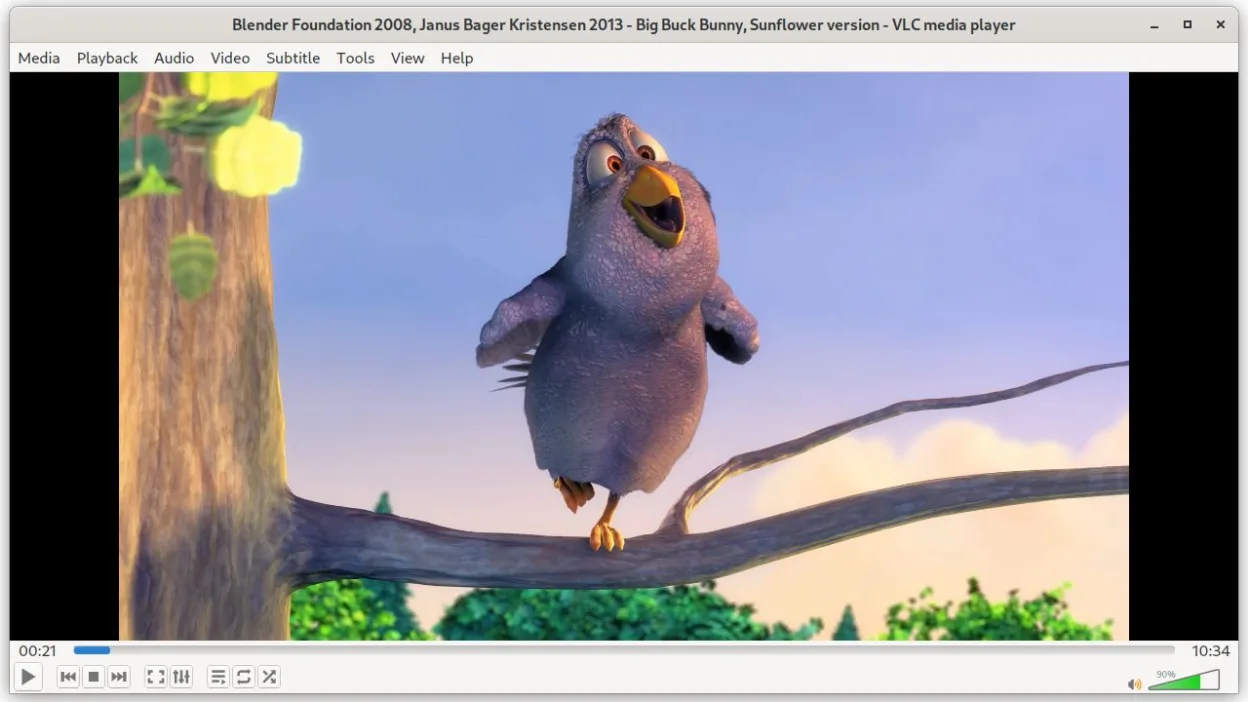
VLC is a solid replacement for Media Player Classic (MPC) for most users, especially those who value format compatibility and cross-platform support. It handles common audio and video files without extra codecs, supports subtitles, playlists, and keyboard shortcuts, and runs on Linux natively. While it uses slightly more memory and has a more modern interface, its core playback functionality matches MPC’s. Users who rely on lightweight performance and a minimalist UI may need to adjust, but VLC’s flexibility and reliability make it a strong everyday player.
- Licencia
- GPL-2.0+
- Precio
- Gratis
- Última versión
- 3.0.23 (1 de enero de 2026)
- Valoración
- —
Lo que funciona igual
- Plays common video and audio formats without installing additional codecs
- Supports subtitle loading and synchronization during playback
- Handles playlists for continuous playback of media files
- Offers extensive keyboard shortcuts for transport and volume control
- Runs efficiently with low CPU usage on most systems
Lo que cambia
- VLC’s default interface is more modern and less 'classic' than MPC’s minimal design
- Uses slightly more memory than MPC, though still lightweight by modern standards
- Lacks native support for MPC’s custom configuration files and window layout settings
- Does not have built-in frame-accurate seeking in all formats like MPC-HC with certain renderers
- Plugin system exists but is less used compared to MPC’s madVR and LAV filter ecosystem
Abrir tus archivos de Media Player Classic (MPC)
VLC can open most media files that MPC plays, including AVI, MKV, MP4, MP3, and FLAC, without extra setup. It reads standard playlist formats like M3U and XSPF, so existing MPC playlists usually work. VLC does not use MPC’s configuration files (.ini) or player-specific project files, so settings won’t transfer directly. If you used MPC to save custom playback lists or window states, those must be recreated manually in VLC.
Pasar de Media Player Classic (MPC) a VLC media player, paso a paso
- Install VLC via your distribution’s package manager or Flathub
- Copy your media files and existing playlists (e.g., M3U) to accessible directories
- Enable subtitle auto-loading in Preferences > Subtitles
- Customize keyboard shortcuts under Tools > Preferences > Hotkeys
- Set default audio and video outputs based on your setup
Funciones clave de VLC media player
- Reproduce la mayoría de los formatos de audio y vídeo sin configuración adicional
- Admite DVDs, CDs de audio, VCDs y transmisiones de red
- Soporte integrado para subtítulos con sincronización
- Conversión de medios y edición básica
- Capacidades de servidor de streaming
- Extensible mediante plugins y temas
- Interfaz de línea de comandos para scripting
Cómo instalar VLC media player en Linux
flatpak install flathub org.videolan.VLCPreguntas frecuentes
Can VLC play DVDs like MPC did?
Yes, VLC can play DVDs, including encrypted ones, if libdvdcss is installed. Most Linux distributions require you to install this separately due to licensing.
Does VLC support hardware acceleration?
Yes, VLC supports VA-API on Linux for video decoding. Enable it in Input/Codecs settings to reduce CPU usage during HD playback.
Can I make VLC look more like MPC?
Not exactly, but you can use minimal skins or switch to the Qt interface with hidden panels to achieve a cleaner, simpler layout.
Otras 3 alternativas a Media Player Classic (MPC)
 MplayerMPlayer es un reproductor multimedia de línea de comandos gratuito que admite una amplia gama de formatos y…Código abiertoGratisMplayer vs Media Player Classic (MPC)
 TotemTotem (GNOME Videos) es el reproductor de vídeo predeterminado de GNOME construido sobre GStreamer.Código abiertoGratisTotem vs Media Player Classic (MPC)
 Gnome MPlayerGnome MPlayer es un frontend GUI ligero para MPlayer, diseñado para escritorios GNOME.Código abiertoGratisAbandonadoGnome MPlayer vs Media Player Classic (MPC)