
 VLC media playerLinux
vs
PotPlayerWindows
VLC media playerLinux
vs
PotPlayerWindows
VLC media player como alternativa Linux a PotPlayer
Actualizado el
Nuestra opinión
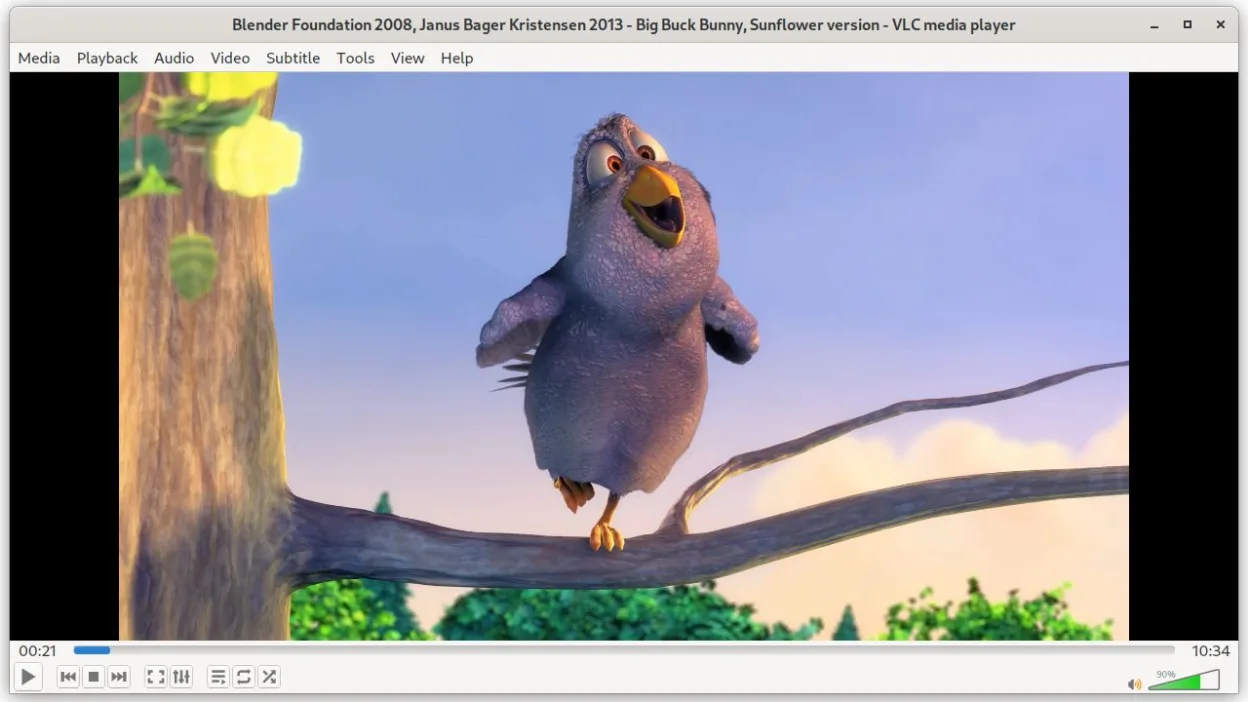
VLC is a solid Linux alternative for most PotPlayer users. It covers the core playback needs—broad codec support, subtitle handling, speed control, and playlist management—without extra configuration. Power users who rely on PotPlayer’s deep per‑codec tweaks or its highly custom UI may miss some fine‑grained options, but for everyday video watching, streaming, and basic editing VLC works well. Linux users who want a stable, actively maintained player with low resource impact will find VLC a practical replacement.
- Licencia
- GPL-2.0+
- Precio
- Gratis
- Última versión
- 3.0.23 (1 de enero de 2026)
- Valoración
- —
Lo que funciona igual
- Supports virtually all common audio and video codecs out of the box
- Subtitle track selection, styling and synchronization
- Playback speed control and frame‑by‑frame navigation
- Playlist creation and management
- Runs on low‑end hardware with modest RAM/CPU usage
Lo que cambia
- PotPlayer offers per‑codec advanced settings and hardware‑decoder fine‑tuning that VLC lacks
- VLC’s UI is less customizable; PotPlayer’s skin system is more extensive
- PotPlayer includes built‑in video filters and DSP effects not present in VLC by default
- VLC does not expose the same depth of audio equalizer presets as PotPlayer
- PotPlayer’s proprietary container handling (e.g., .pvp playlists) isn’t supported
Abrir tus archivos de PotPlayer
VLC can open any standard video or audio file that PotPlayer can, because both rely on the same underlying codecs. PotPlayer’s proprietary playlist files (.pvp) are not recognized by VLC; you’ll need to export those playlists to a common format (M3U, XSPF) from Windows before importing them into VLC on Linux. No special conversion tool is required for the media files themselves.
Pasar de PotPlayer a VLC media player, paso a paso
- Install VLC from your distro’s repository or via Flathub
- Copy your media library to the Linux machine or mount the Windows drive
- If you have .pvp playlists, open them in PotPlayer on Windows and export as M3U
- Import the M3U playlists into VLC via Media → Open File or drag‑and‑drop
- Adjust subtitle and audio preferences in VLC’s Preferences to match your usual settings
Funciones clave de VLC media player
- Reproduce la mayoría de los formatos de audio y vídeo sin configuración adicional
- Admite DVDs, CDs de audio, VCDs y transmisiones de red
- Soporte integrado para subtítulos con sincronización
- Conversión de medios y edición básica
- Capacidades de servidor de streaming
- Extensible mediante plugins y temas
- Interfaz de línea de comandos para scripting
Cómo instalar VLC media player en Linux
flatpak install flathub org.videolan.VLCPreguntas frecuentes
Does VLC need additional codecs to play the same files as PotPlayer?
No. VLC ships with its own codec library and can play most formats without extra installs.
Can I control VLC with a remote or keyboard shortcuts like in PotPlayer?
Yes. VLC supports customizable keyboard shortcuts and works with common media remotes; you can configure them in Preferences → Hotkeys.
Is VLC’s resource usage comparable to PotPlayer?
VLC is lightweight; on typical desktops it uses less RAM and CPU than PotPlayer, especially when hardware decoding is enabled.
Otras 4 alternativas a PotPlayer
 mpvmpv es un reproductor multimedia gratuito, de código abierto y multiplataforma que reproduce casi cualquier…Código abiertoGratisFlatpakmpv vs PotPlayer
 SMPlayerSMPlayer es un reproductor multimedia gratuito y de código abierto con códecs integrados que maneja casi…Código abiertoGratisFlatpakSMPlayer vs PotPlayer
 CelluloidCelluloid es un reproductor multimedia ligero para Linux que utiliza el motor mpv y GTK para ofrecer una…Código abiertoGratisFlatpakCelluloid vs PotPlayer
 KodiKodi es un centro multimedia gratuito y de código abierto para reproducir video, música y podcasts desde…Código abiertoGratisFlatpakKodi vs PotPlayer