
 BraseroLinux
vs
UltraISOWindows
Brasero, alternative Linux à UltraISO
Mis à jour le
Notre avis
Brasero is a solid replacement for the burning and creating aspects of UltraISO, but it is not a direct functional match. It handles standard data and audio CD/DVD creation, copying, and multisession burning well within the GNOME environment. However, it lacks the deep ISO editing and conversion tools that define UltraISO. If your workflow is primarily burning files to discs or creating basic ISOs from folders, Brasero works fine. If you rely on modifying existing ISO contents or converting between obscure formats, you will need a different tool.
- Licence
- GPL-2.0-or-later
- Prix
- Gratuit
- Dernière version
- 3.12.4 (28 septembre 2026)
- Note
- —
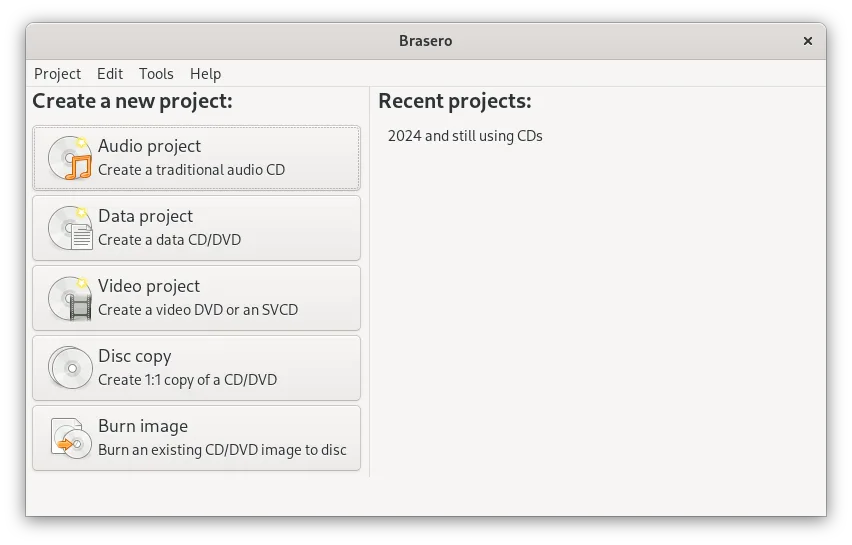
Ce qui fonctionne pareil
- Creates ISO images from selected files and folders
- Burns ISO images to CD, DVD, or USB media
- Supports ISO 9660 and Joliet extensions for compatibility
- Handles multisession disc creation
- Free and open-source software with no licensing costs
Ce qui change
- No built-in tool to edit or modify the contents of an existing ISO file
- Lacks conversion features for formats like IMG, BIN, or NRG
- Interface is minimal and GNOME-specific, less feature-dense than UltraISO
- Does not support advanced UDF features beyond basic compatibility
- No command-line interface for automated scripting workflows
Ouvrir vos fichiers UltraISO
Brasero can burn standard .iso files created by UltraISO without issues, as it adheres to standard ISO 9660 and Joliet specifications. It can also create new ISOs that are readable by Windows systems. However, Brasero cannot open proprietary or non-standard disk images (like .bin/.cue pairs or .nrg) for editing or conversion. If you have an UltraISO-created ISO, you can burn it directly. If you need to edit that ISO, Brasero cannot do it; you would need to extract the contents, modify them, and recreate the ISO.
Passer de UltraISO à Brasero, étape par étape
- Install Brasero using your distribution's package manager or Flathub
- Use the 'Create Data Disc' option to build new ISOs from folders
- Use the 'Burn Image' option to write existing ISO files to media
- For editing existing ISOs, extract contents with a tool like 7z or archive managers
- Recreate the modified ISO using Brasero's data disc creation feature
- Verify the new ISO on Windows or Linux to ensure compatibility
Fonctionnalités clés de Brasero
- Graver des CD et DVD de données
- Créer des CD audio
- Copier des CD et DVD existants
- Prise en charge de CD-TEXT
- Prise en charge des disques multisession
- Prise en charge de l'extension Joliet
- Gravure par glisser-déposer
- Intégration avec l'environnement de bureau GNOME
Installer Brasero sous Linux
flatpak install flathub org.gnome.Braserosudo apt install braserosudo apt install braserosudo dnf install braserosudo pacman -S braserosudo zypper install braseroQuestions fréquentes
Can I edit an existing ISO file in Brasero?
No. Brasero can burn ISOs but cannot open them to add, remove, or modify files inside. You must extract the ISO, make changes, and create a new ISO.
Does Brasero support USB bootable drives?
Yes, it can burn ISO images to USB drives, making them bootable if the ISO is a bootable image. It handles the writing process similarly to CD/DVDs.
Is Brasero available on all Linux distributions?
Yes, it is packaged in major distributions including Ubuntu, Fedora, Debian, and Arch. It is also available via Flathub for easier installation and updates.
5 autres alternatives à UltraISO
 K3bK3b est l'outil de gravage CD/DVD/Blu‑ray complet de KDE pour Linux.Open sourceGratuitK3b ou UltraISOXfburnXfburn est une application légère de gravure de CD/DVD/BD basée sur GTK+ pour Linux.Open sourceGratuitXfburn ou UltraISOISO MasterISO Master est un outil graphique léger pour créer, modifier et convertir des images ISO sous Linux.Open sourceGratuitISO Master ou UltraISOGNOME Disk UtilityGNOME Disk Utility est un outil natif Linux pour gérer les disques, les partitions et créer des images ISO.Open sourceGratuitGNOME Disk Utility ou UltraISO
 AcetoneISOAcetoneISO est un outil Linux gratuit et open source pour monter et gérer des fichiers d'image CD/DVD.Open sourceGratuitAcetoneISO ou UltraISO