
 GIMPLinux
vs
Lightroom CCWindows
GIMPLinux
vs
Lightroom CCWindows
GIMP, alternative Linux à Lightroom CC
Mis à jour le
Notre avis
GIMP can replace Lightroom CC for basic RAW development and batch editing, but it lacks the dedicated catalog, metadata tagging, and cloud sync that Lightroom offers. Photographers who prefer a free, open‑source tool and are comfortable managing files manually will benefit. Those who need a full‑blown photo management workflow or heavy metadata handling should look elsewhere.
- Licence
- GPL-3.0+ AND LGPL-3.0+
- Prix
- Gratuit
- Dernière version
- 3.2.6 (10 septembre 2026)
- Note
- —
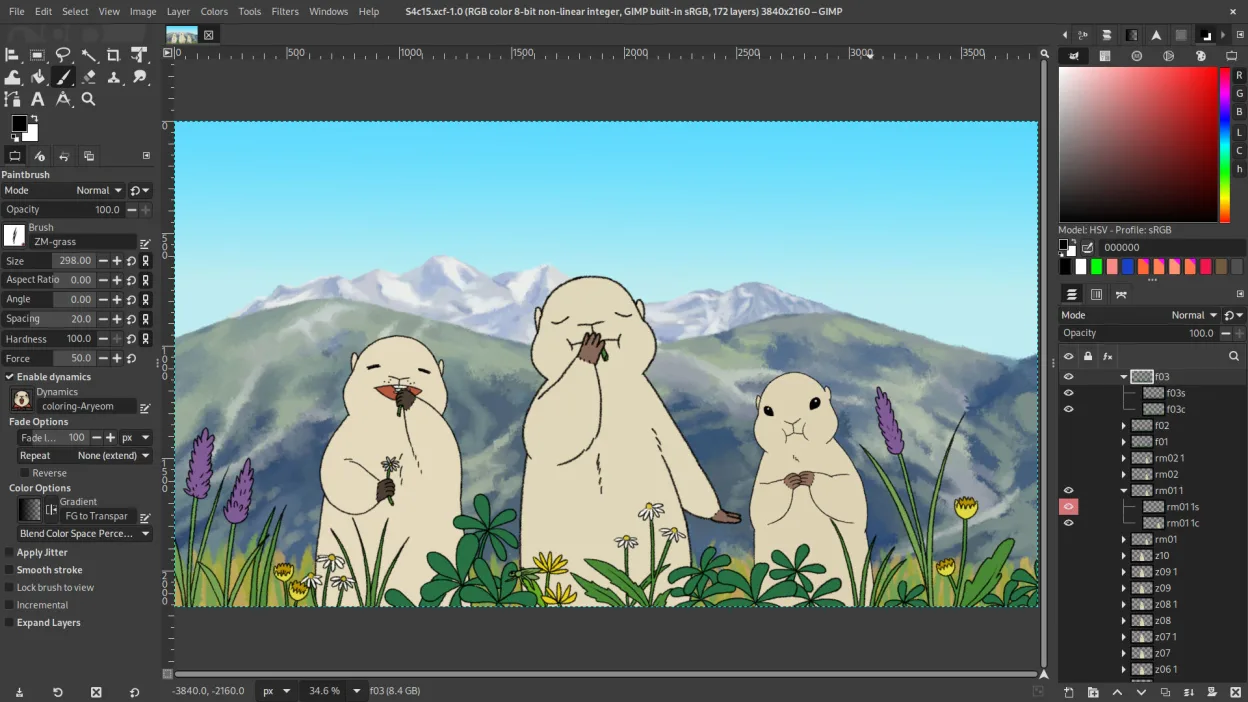
Ce qui fonctionne pareil
- Both support non‑destructive editing via layers or masks
- Both can process RAW files (GIMP via UFRaw or Darktable integration)
- Both offer batch processing and scripting
- Both provide color management with ICC profiles
- Both support a wide range of image formats
Ce qui change
- Lightroom CC has a built‑in library and catalog; GIMP does not
- Lightroom CC manages metadata and tagging natively; GIMP requires external tools
- Lightroom CC offers cloud sync and mobile apps; GIMP has no native sync
- Lightroom CC provides advanced color grading presets; GIMP requires manual adjustments or plug‑ins
- Lightroom CC has a subscription model; GIMP is free
Ouvrir vos fichiers Lightroom CC
GIMP cannot open Lightroom CC's proprietary catalog or XMP files directly. It can import RAW files exported from Lightroom or use the same RAW files if they are stored locally. Exporting to Lightroom-compatible XMP is not supported; you would need to re‑import the edited image back into Lightroom for further cataloging.
Passer de Lightroom CC à GIMP, étape par étape
- Export RAW files from Lightroom as DNG or TIFF
- Open the exported files in GIMP for editing
- Use GIMP's batch tools or Script‑Fu to process multiple images
- Save edited images in a format Lightroom can read (e.g., JPEG or DNG)
- Re‑import the edited files into Lightroom for cataloging and metadata
Fonctionnalités clés de GIMP
- Édition par calques avec masques, modes de fusion et transparence
- Moteur de pinceau avancé pour la peinture numérique et la retouche
- Prise en charge des plug-ins compatibles Photoshop (via des couches de compatibilité)
- Traitement par lots et scriptage avec Script-Fu, Python ou GEGL
- Édition non destructive possible grâce à des plug-ins comme G'MIC
- Prise en charge étendue des formats : PNG, JPEG, TIFF, PSD, WebP et plus
- Interface personnalisable avec panneaux ancrables et thèmes
- Gestion des couleurs avec prise en charge des profils ICC
Installer GIMP sous Linux
flatpak install flathub org.gimp.GIMPsudo apt install gimpsudo apt install gimpsudo dnf install gimpsudo pacman -S gimpsudo zypper install gimpQuestions fréquentes
Can I use GIMP to develop RAW images like Lightroom?
Yes, GIMP can open RAW files via UFRaw or Darktable integration, but the workflow is less streamlined than Lightroom's built‑in RAW processor.
Does GIMP support non‑destructive editing?
GIMP uses layers and masks to preserve original data, and plug‑ins like G'MIC can add true non‑destructive capabilities, though it is not as straightforward as Lightroom's history stack.
Will my Lightroom catalog stay intact if I switch to GIMP?
No. GIMP does not read Lightroom catalogs; you would need to export images and metadata separately before re‑importing them into Lightroom or another catalog tool.
4 autres alternatives à Lightroom CC
 darktabledarktable est un éditeur photo gratuit et open‑source qui gère les fichiers RAW et propose un flux de travail…Open sourceGratuitFlatpakdarktable ou Lightroom CC
 RawTherapeeRawTherapee est un programme de développement de photos raw open‑source et multiplateforme.Open sourceGratuitFlatpakRawTherapee ou Lightroom CC
 digiKamdigiKam est un gestionnaire de photos KDE complet pour organiser, étiqueter et retoucher des photos…Open sourceGratuitFlatpakdigiKam ou Lightroom CC
 KritaKrita est un programme de peinture numérique et d'illustration open‑source complet.Open sourceGratuitFlatpakKrita ou Lightroom CC