
 GNOME System MonitorLinux
vs
Process ExplorerWindows
GNOME System MonitorLinux
vs
Process ExplorerWindows
GNOME System Monitor, alternative Linux à Process Explorer
Mis à jour le
Notre avis
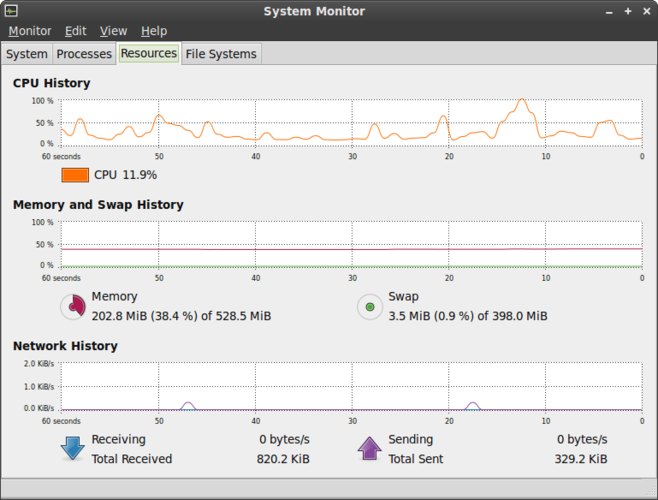
GNOME System Monitor is a decent replacement for basic process and system monitoring on Linux, but falls short for advanced troubleshooting. It covers core functions like viewing CPU, memory, and process hierarchy with real-time updates, making it suitable for casual users and beginners. However, it lacks detailed handle and socket listings, per-process network connections, and shared library (DLL) views. Power users who rely on deep process inspection in Process Explorer will find it insufficient. For most desktop users, it's adequate, but not for system administrators or developers needing low-level insights.
- Licence
- GPL-2.0
- Prix
- Gratuit
- Dernière version
- 51.1
- Note
- 5/5 (1)
Ce qui fonctionne pareil
- Displays all running processes with per-process CPU and memory usage
- Shows parent-child process relationships in a tree-like view
- Provides real-time updates and sorting by resource usage
- Allows killing or terminating processes
- Integrates with the desktop environment for quick access
Ce qui change
- No detailed handle or socket listing per process
- Missing per-process shared library (DLL) dependency view
- Network connections are shown system-wide, not per-process
- Limited search and filtering compared to Process Explorer
- Less detailed thread-level information
Ouvrir vos fichiers Process Explorer
GNOME System Monitor does not support importing or exporting Process Explorer log files. There is no known compatibility with .pml or .csv files generated by Process Explorer. Any file exchange between the two tools must be done manually through generic formats like CSV, but native feature parity for logs or snapshots does not exist.
Passer de Process Explorer à GNOME System Monitor, étape par étape
- Install GNOME System Monitor via your package manager (e.g.,
sudo apt install gnome-system-monitor) - Open it from the application menu or run
gnome-system-monitorin the terminal - Use the 'Processes' tab to view, sort, and manage running tasks
- Right-click processes to send signals (e.g., kill, stop)
- Monitor CPU, memory, and network usage in real time from the main window
- Enable 'All Processes' view to see system-wide activity
Fonctionnalités clés de GNOME System Monitor
- Lister tous les processus en cours avec leur utilisation du processeur et de la mémoire
- Trier les processus par nom, PID, utilisateur ou consommation de ressources
- Afficher des informations détaillées pour un processus spécifique
- Arrêter ou tuer des processus en cours
- Surveiller la charge globale du processeur et de la mémoire
- Afficher la durée de fonctionnement du système et la charge moyenne
- Afficher un aperçu de l'activité réseau
- S'intégrer à l'environnement de bureau GNOME
Installer GNOME System Monitor sous Linux
sudo apt install gnome-system-monitorsudo apt install gnome-system-monitorsudo dnf install gnome-system-monitorsudo pacman -S gnome-system-monitorsudo zypper install gnome-system-monitorQuestions fréquentes
Can GNOME System Monitor show which files or sockets a process has open?
No, it does not display open file handles or network sockets per process. Use lsof or ss in the terminal for that level of detail.
Is there a way to see loaded shared libraries like DLLs in Windows?
Not directly in GNOME System Monitor. Use pldd (if available) or cat /proc/PID/maps in the terminal to list loaded libraries for a process.
Can I monitor network usage per process?
No, it only shows overall network activity. For per-process network monitoring, consider tools like nethogs or bmon.