
 ProtonPlusLinux
vs
Epic Games LauncherWindows
ProtonPlusLinux
vs
Epic Games LauncherWindows
ProtonPlus, alternative Linux à Epic Games Launcher
Mis à jour le
Notre avis
ProtonPlus is not a direct replacement for the Epic Games Launcher. It is a tool that manages compatibility layers for Linux game launchers, but it does not provide a storefront, account login, or native Epic Games Store integration. It can help you run Epic games that you already have on a Linux launcher that supports Proton, but you still need the Epic Games Store client or a third‑party launcher that can download the games. ProtonPlus is useful for users who want fine‑grained control over Proton/Wine versions and want to automate updates, but not for people looking for a single, all‑in‑one Epic Games Store experience.
- Licence
- GPL-3.0-or-later
- Prix
- Gratuit
- Dernière version
- 0.6.8 (8 septembre 2026)
- Note
- —
Ce qui fonctionne pareil
- Both target game distribution on Linux
- Both can be used with Proton or Wine backends
- Both manage game libraries
- Both support download and update management
- Both provide a GUI for configuration
Ce qui change
- ProtonPlus has no Epic Games Store storefront or account login
- ProtonPlus does not claim free games automatically
- ProtonPlus lacks cloud save sync for Epic games
- ProtonPlus does not organize games into a unified library like the Epic Launcher
- ProtonPlus does not handle Epic game updates directly, only through underlying launchers
Ouvrir vos fichiers Epic Games Launcher
ProtonPlus does not read or write Epic Games Launcher configuration files. It cannot import an Epic Games library or export settings from the Epic Launcher. Users would need to use the Epic Games Store client on Windows or a compatible Linux launcher that supports Epic games to transfer data.
Passer de Epic Games Launcher à ProtonPlus, étape par étape
- 1. Install the Epic Games Store client on Windows or a Linux launcher that supports Epic games (e.g., Heroic).
- 2. Download and install the desired Epic games through that client.
- 3. Open ProtonPlus and add the game’s executable to a launcher that ProtonPlus manages (e.g., Lutris).
- 4. Configure the desired Proton/Wine version and launch options in ProtonPlus.
- 5. Use ProtonPlus to keep the compatibility tools up to date.
- 6. Launch the game from the chosen launcher; ProtonPlus will handle the backend.
Fonctionnalités clés de ProtonPlus
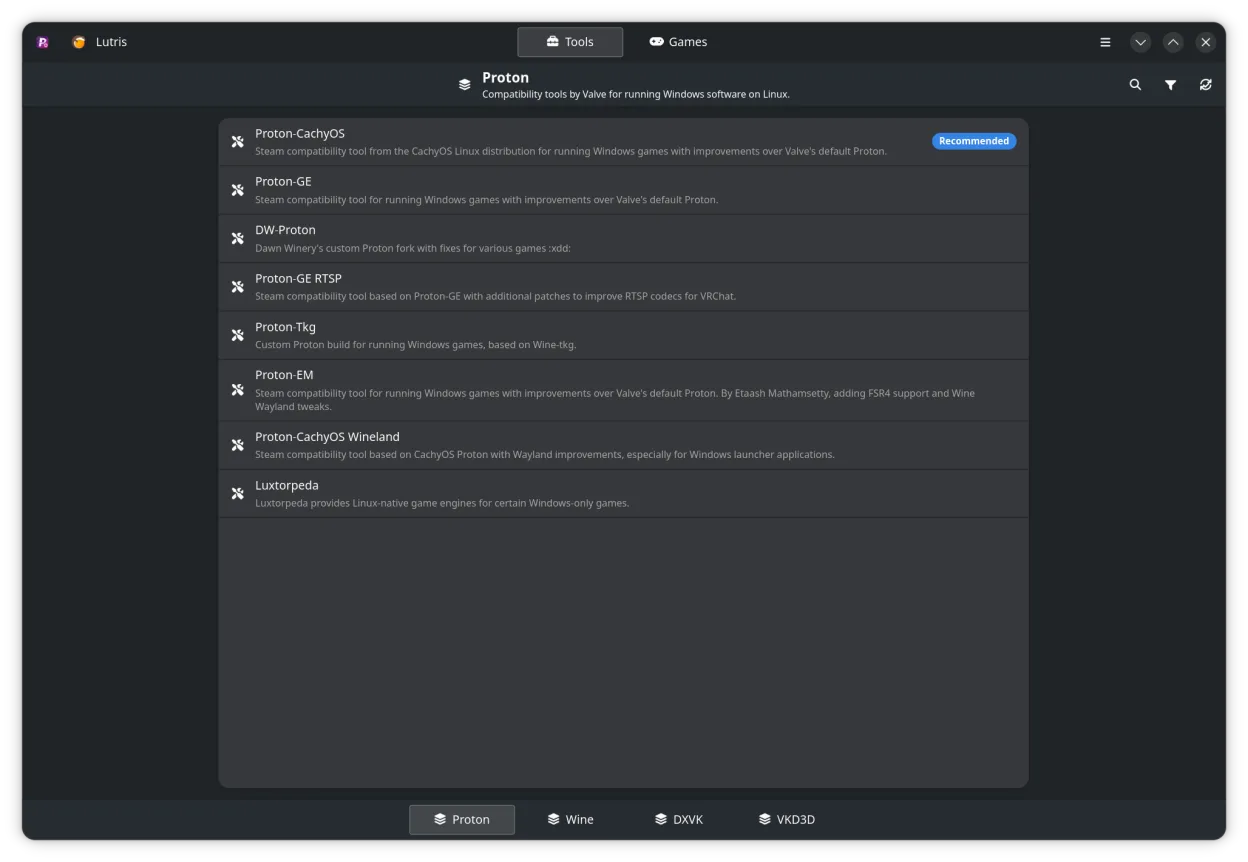
- Gérer Proton, Wine, DXVK, VKD3D et outils associés
- Support pour Steam, Faugus Launcher, Lutris, Heroic Games Launcher, Bottles et WineZGUI
- Parcourir la bibliothèque Steam et modifier les paramètres de compatibilité par jeu
- Éditer les options de lancement directement depuis l’interface
- Suivre les téléchargements et mises à jour avec notifications
- Support CLI pour scripting et automatisation
Installer ProtonPlus sous Linux
flatpak install flathub com.vysp3r.ProtonPlussudo zypper install ProtonPlusQuestions fréquentes
Can ProtonPlus claim free Epic games?
No, ProtonPlus does not claim free games. You must claim them through the Epic Games Store client or a supported launcher.
Does ProtonPlus provide cloud save sync for Epic games?
No, ProtonPlus does not sync cloud saves. Cloud sync must be handled by the Epic Games Store client or the underlying launcher.
Can I use ProtonPlus to run Epic games on Linux?
Yes, if you have the game installed via a compatible launcher that supports Proton, ProtonPlus can manage the Proton version and launch options for that game.
6 autres alternatives à Epic Games Launcher
 LutrisLutris est une plateforme gratuite et open‑source qui centralise l’installation et le lancement des jeux PC…Open sourceGratuitFlatpakLutris ou Epic Games Launcher
 SteamSteam est une plateforme de distribution de jeux numériques avec boutique intégrée, mises à jour, sauvegardes…GratuitFlatpakSteam ou Epic Games Launcher
 BottlesBottles exécute des applications Windows sous Linux, en les gérant dans des environnements isolés.Open sourceGratuitFlatpakBottles ou Epic Games Launcher
 PlayOnLinux 4PlayOnLinux est une interface graphique pour Wine qui vous permet d'installer et d'exécuter des jeux et…Open sourceGratuitFlatpakPlayOnLinux 4 ou Epic Games Launcher
 HeroicHeroic est un lanceur open source qui vous permet de jouer aux jeux Epic, GOG et Amazon sur Linux, avec un…Open sourceGratuitFlatpakHeroic ou Epic Games Launcher