
 geditLinux
vs
geditLinux
vs
 Notepad++Windows
gedit como alternativa Linux ao Notepad++
Atualizado em
Nossa avaliação
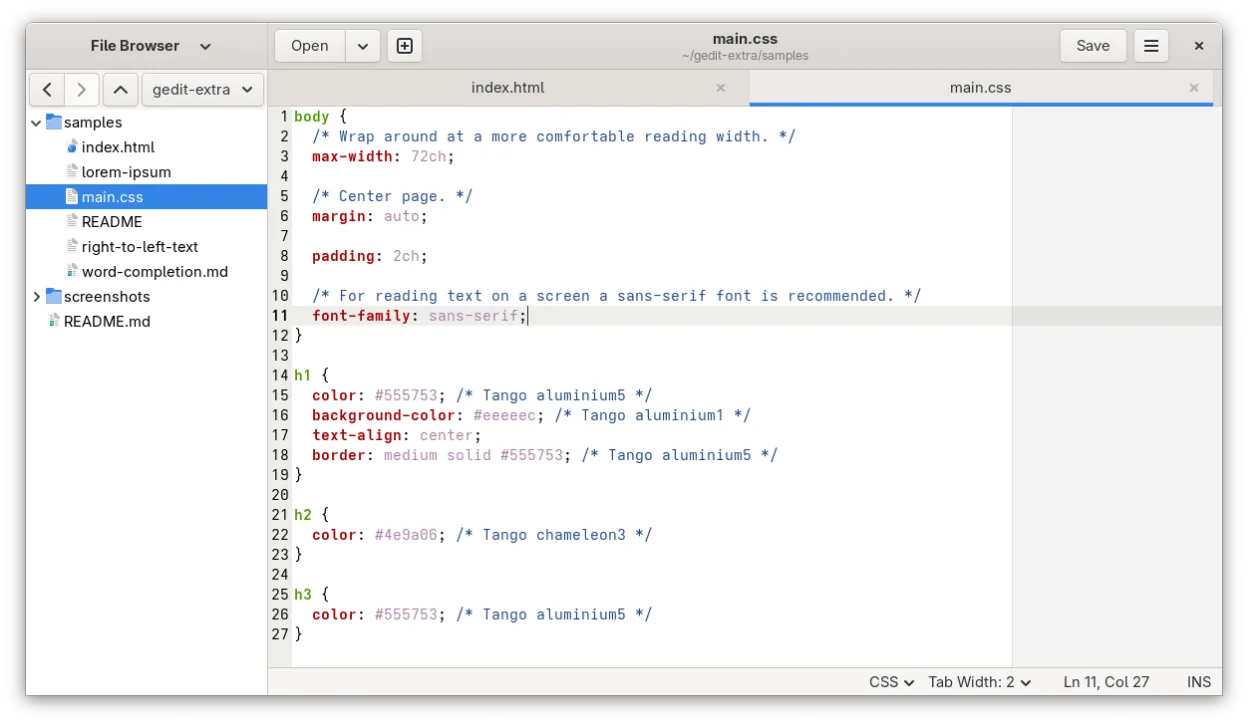
gedit can serve as a basic replacement for Notepad++ for users who need a lightweight editor with syntax highlighting, regex search, and simple plugin extensions. It works well for quick edits, scripting, and small projects, especially on GNOME desktops. Power users who rely on extensive macro recording, a large plugin ecosystem, or deep language‑specific features may find gedit lacking, but for most everyday coding and text‑editing tasks it is a solid, free alternative.
- Licença
- GPL-2.0+
- Preço
- Grátis
- Versão mais recente
- 51.0 (15 de outubro de 2026)
- Avaliação
- 5/5 (1)
O que funciona igual
- Syntax highlighting for many languages
- Regex‑based search and replace
- Plugin architecture for extra features
- UTF‑8 and Unicode support
- Tabbed multi‑document interface
O que muda
- Macro recording and scripting are limited compared to Notepad++
- Plugin library is smaller and less focused on development tools
- No built‑in FTP/SFTP or project‑wide file‑tree navigation
- Less configurable UI for custom shortcuts and toolbar layout
- No native support for Notepad++'s .xml session files
Abrindo seus arquivos do Notepad++
gedit opens any plain‑text file that Notepad++ can, so source code, configuration files, and logs will load without issue. Notepad++ stores session and user‑defined language definitions in XML files; gedit does not read those formats, so you will need to recreate any custom language definitions manually.
Trocando o Notepad++ pelo gedit, passo a passo
- Install gedit via your package manager or Flathub.
- Open your existing source files in gedit to verify rendering.
- Enable the desired language plugins through gedit's Preferences → Plugins.
- Configure tab width, line numbers, and auto‑indent to match your Notepad++ setup.
- If you use custom syntax definitions, recreate them using gedit's external tools or simple regex patterns.
- Test search/replace and any macros you rely on; replace missing macro workflows with external scripts if needed.
Principais recursos do gedit
- Realce de sintaxe para muitas linguagens de programação
- Sistema de plugins para estender funcionalidades
- Busca e substituição com suporte a regex
- Fonte configurável, largura de tabulação e quebra de linha
- Números de linha, correspondência de colchetes e auto-indentação
- Suporte a codificação UTF-8
- Edição de texto com arrastar e soltar
- Interface de múltiplos documentos com abas
Como instalar o gedit no Linux
flatpak install flathub org.gnome.geditsudo apt install geditsudo apt install geditsudo dnf install geditsudo pacman -S geditsudo zypper install geditPerguntas frequentes
Can gedit handle large files as quickly as Notepad++?
gedit loads most files quickly, but extremely large files (hundreds of MB) may open slower than Notepad++, which is optimized for such cases.
Is there a way to record macros in gedit?
gedit does not include a built‑in macro recorder; you would need to use external tools like shell scripts or the 'gedit‑plugins' package, which offers limited macro‑like functionality.
Will my existing Notepad++ plugins work in gedit?
No. Notepad++ plugins are Windows‑specific binaries. gedit uses its own Python or C plugins, so you will need to find Linux equivalents or rely on gedit's built‑in features.
Outras 4 alternativas ao Notepad++
 KateKate é um editor de texto rico em recursos, focado em programadores, da KDE, com suporte a mais de 300…Código abertoGrátisFlatpakKate vs Notepad++
 KDevelopKDevelop é um IDE gratuito, baseado em plugins, para KDE que suporta C++, Python, PHP e outras linguagens…Código abertoGrátisFlatpakKDevelop vs Notepad++
 NotepadNotepad Next é um editor de texto leve e multiplataforma para Linux, que reimplementa os recursos do…Código abertoGrátisFlatpakNotepad vs Notepad++
 MousepadMousepad é um editor de texto leve, baseado em GTK, para o desktop Xfce.Código abertoGrátisFlatpakMousepad vs Notepad++